Using Azure DevOps Wiki as a WYSIWYG Editor for Your Static Site

Intro

We’ve got a static HTML site that we host our product documentation on. Our is hosted in Azure Static Web Apps but GitHub pages is a popular option as well (I use it for my AL Test Runner docs). If you’ve got product docs I guess you are hosting them on a static site as well.

We use docfx to generate the site content. I’m not going to post about setting up docfx, building with a pipeline and publishing to Azure or GitHub – there are plenty of details online about that kind of thing already e.g.

This post is about how to maintain the content of the site.

Requirements

Here’s the thing:

  • I need the content to be stored in a Git repo so that I can trigger a pipeline to build and publish the site, but
  • Consultants who are going to be writing some of the content don’t want to have to care about Git – branches, staging, committing, pushing, pulling – they don’t want to learn any of that
  • The docs are written in Markdown – which it is mostly straightforward, but it isn’t always user friendly – especially the syntax to adding ![](media) and ![links](https…)

Options

OptionProsCons
Writage – add-on for Microsoft WordConsultants can write the docs with familiar tools and use the add-on to save the document to .md files & linked mediaThe resulting markdown doesn’t always look the way that it looked in Word. Some of the formatting might be stripped out.

You still need to find a way to stage, commit and push the changes to the Git repo as a separate step.
Visual Studio Code (+ markdown extensions)Can easily write the markdown and see a preview of the output side-by-side.

Extensions can make it easier to add links between pages, link to media etc.

Built in Git support.
You can make it as easy as possible, but in the end VS Code is still a developer’s tool.

This doesn’t give a WYSIWYG experience and the consultants do need to understand at least a little about Git.

…and that is the compromise. Do you have some WYSIWYG designer (Word or something else) that can generate the markdown but then worry about Git? Or do you use something with built-in Git support but is less consultant friendly?

Azure DevOps Wiki

Enter Azure DevOps wikis. They have a WYSIWYG designer with a formatting toolbar to generate the correct markdown and they are a Git repo in the background (cake and eat it 🍰👀).

The formatting toolbar helps you out with formatting, headings, links and so on. You can easily add images and gifs by just copying and pasting into the editor. The image is uploaded DevOps and the markdown syntax inserted automatically.

It also has support for Mermaid diagrams. You need to load the diagram each time you make a change unfortunately, which is a little annoying, but otherwise cool. Just make sure that your static site generator and theme also supports Mermaid (we are using the modern template in docfx).

Pages can be reordered by dragging and dropping them in the navigation. You can also add sub-pages, drag and drop pages to make them sub-pages of other pages.

Sometimes this is a little clunky, but is generally pretty easy to work with.

What you don’t see is that this is updating a .order file which determines the page order to display the pages at the same level in. In this case I will have a .order file for the top-level items and another for the pages under “Product Setup”. We can use that .order file later on to build the navigation for the static site.

Crucially, every time you save or reorder a page, a commit is made to the underlying repository which means you can trigger a pipeline to build and deploy your site automatically. (You could work in separate branches, deploy different branches to different environments, enforce pull requests etc. but I’m not bothering with any of that – part of the goal here is to hide the niceties of Git from the consultants).

Build Pipeline

I won’t walk through all the details of our setup, but now that we have updated markdown content in a new commit we can trigger our build and deploy pipeline (a multi-stage pipeline in Azure DevOps).

Some tips from my experiences:

Building the Table of Contents (toc.yml)

Docfx uses yml to define the navigation that you want the website users to see. Something like this.

items:
  - name: Home
    href: Home.md
  - name: Introduction
    href: Intro.md
  - name: Setup
    items:
    - name: Setup Subpage 1
      href: Setup/Subpage 1.md
    - name: Setup Subpage 2
      href: Setup/Subpage 2.md

The wiki repo will have a file structure like this:

C:.
│   .order
│   Home.md
│   Intro.md
│
└───Setup
        .order
        Subpage1.md
        Subpage2.md

so we can work recursively through the folders in the repo, reading the contents of the .order file as we go and converting them to the required format for toc.yml

The .order is simply a plain text file with the names of the pages at that level of the folder structure in their display order.

Home
Intro

Then build the site e.g. docfx build ... and publish to your hosting service of choice.

Batch Commits

Editing the wiki can create a lot of commits. Everytime you save or reorder a page. You probably don’t want to trigger a build for every commit. You can use batch in your pipeline. If a build is already running DevOps will not queue another until it has finished. It will then queue a build for the latest commit and skip all the commits in between.

trigger:
  batch: true

Mermaid Syntax

Azure DevOps uses colons for a Mermaid diagram

::: mermaid
...
:::

but docfx needs them as backticks, so I have a task in the pipeline which just does a find replace

```mermaid
...
```

Additional Details about Extension Settings in Business Central 25.0

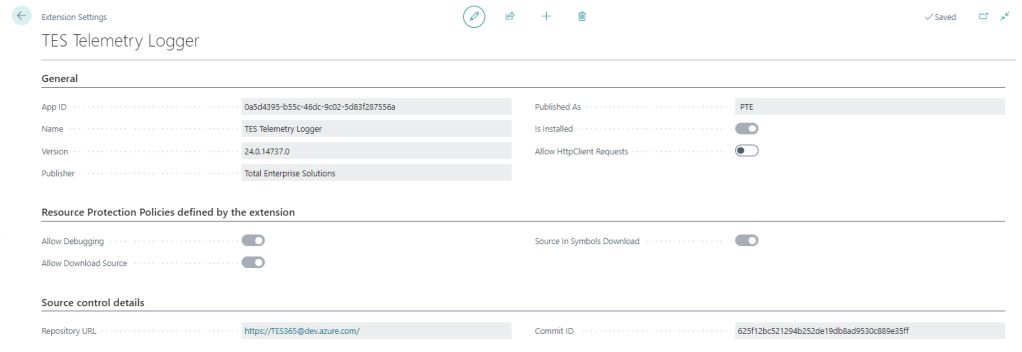
Extension Settings

For a long time the only thing additional data you could see on the Extension Settings page was whether to allow Http calls from this extension (the Allow HttpClient Requests checkbox). This page has got some love in BC25.

That setting is still the only thing that you can control, but now you can also see:

Resource Protection Policies

Corresponding to resource exposure policies in app.json (maybe “exposure” sounded a little risquĂ© for the user interface). This indicates whether you can debug, download the source code and whether the source is included when you download the symbols.

That might be useful to know before you create a project to download the symbols and attempt to debug something.

Interestingly, extensions which don’t expose their source code get the red No of shame in the Extension Management list.

Source Control Details

Includes the URL of the repository and the commit hash that the extension was created from. That’s cool – you can link straight from the Extension Settings page to the repo in DevOps / GitHub / wherever your source is. That’s a nice feature either for your own extensions or open source extensions that you are using.

It may be that each time you build an app that you already give it an unambiguous, unique version number (we include the DevOps unique build id in the extension version) but the commit hash is nice to see as well.

How Does it Know?

Where does that information come from? It is included in the NaxManifest file, extract the .app file with 7-Zip and take a look.

<ResourceExposurePolicy AllowDebugging="true" AllowDownloadingSource="true" IncludeSourceInSymbolFile="true" ApplyToDevExtension="false"/>
<KeyVaultUrls/>
<Source RepositoryUrl="https://TES365@dev.azure.com/..." Commit="625f12bc521294b252de19db8ad9530c889e35ff"/>
<Build Timestamp="2024-09-10T12:49:40.2694758Z" CompilerVersion="13.1.16.16524"/>
<AlternateIds/>

How Does That Info Get Populated?

When the app is compiled by alc.exe there are additional switches to set this information. These are some of the switches that you can set when compiling the app.

These switches are not set when you compile the app in VS Code (crack the app file open with 7-Zip and check), but you can set them during the compilation step of your build. If you are using DevOps pipelines you can make use of these built-in variables Build.SourceVersion and Build.Repository.Uri to get the correct values.

&'$(alcPath)' /project:"$(projectPath)" /sourcecommit:"$(Build.SourceVersion)" /sourcerepositoryurl:"$(Build.Repository.Uri)" ... (truncated)

That’s if you roll your own build pipelines. If you use some other tooling (AL-Go for GitHub, ALOps etc.) then the compilation step will be in their code. They may have already implemented this, I don’t know.

Side note: Microsoft want to push us to use 3rd party tooling rather than making our own (e.g. I watched this podcast with Freddy the other day) but personally I still see enough value in having control over the whole DevOps process to justify the small amount of time I spend maintaining and improving it. I’m open to changing that stance one day, but not today.

Testing Compatibility Between Runtime and Application Version in Business Central Builds

Background

Recently I got stung by this. As a rule we keep the application version in app.json low (maybe one or two versions behind the latest) so that it can be installed into older versions of Business Central. Of course this is a balance – we don’t want to have to support lots of prior versions and old functionality which is becoming obsolete (like the Invoice Posting Buffer redesign, or the new pricing experience which has been available but not enabled by default for years). Having to support multiple Business Central features which may or may not be enabled is not fun.

On the other hand, Microsoft are considering increasing the length of the upgrade window so it is more likely that we are going to want to install the latest versions of our apps into customers who are not on the latest version of Business Central.

Runtime Versions

But that wasn’t really the point of the post. The point is, there are effectively two properties in app.json which define the minimum version of Business Central required by your app.

  • application: the obvious one. We mostly have this set a major prior to the latest release unless there are specific reasons to require the latest
  • runtime: the version of the AL runtime that you are using in the app. When new features are added to the AL language (like ternary operators – who knew a question mark could provoke such passionate arguments?), as, is, and this keywords, or multiple extensions of the same object in the same project

If you want to use cool new features of the language (and we do, right? Us devs love this stuff) then you need to increase the runtime version in app.json. But, you need to be aware that you are effectively also increasing the minimum version required by your app. Even if you aren’t using anything new in the base and system applications. This is the table of currently available runtime versions: https://learn.microsoft.com/en-us/dynamics365/business-central/dev-itpro/developer/devenv-choosing-runtime#currently-available-runtime-versions

Pipelines

I didn’t want to get caught out by this again so I added a step into our pipeline to catch it. The rule I’ve gone with is, the application version must be at least 11 major version numbers higher than the runtime version. If it isn’t then fail the build. In that case we should either make a conscious decision to raise the application version or else find a way to write the code that doesn’t require raising the runtime version. Either way, we should make a decision, not sleep walk into raising our required application version.

Why 11? This is because runtime 1.0 was released with Business Central 12.0. Each subsequent major release of Business Central has come with a new major release of the runtime (with a handful of runtime releases with minor BC releases thrown in for good measure).

The step is pretty simple ($appJsonPath is a variable which has been set earlier in the pipeline).

steps:
  - pwsh: |
      $appJson = Get-Content $(appJsonPath) -Raw | ConvertFrom-Json
      $runtimeVersion = [Version]::Parse($appJson.runtime)
      $applicationVersion = [Version]::Parse($appJson.application)

      if ($applicationVersion -lt [version]::new($runtimeVersion.Major + 11, $runtimeVersion.Minor)) {
        Write-Host -ForegroundColor Red "##vso[task.logissue type=error;]Runtime version ($runtimeVersion) is not compatible with application version ($applicationVersion)."
        throw "Runtime version ($runtimeVersion) is not compatible with application version ($applicationVersion)."
      }
    displayName: Test runtime version

Spare Your Blushes with Pre-Commit Hooks

It’s Summer (at least in the northern hemisphere), hooray. You’ve booked some time off, wrapped up what you were working on as best you can, committed and pushed all your code, set your out-of-office and switched off Teams. Beautiful.

When you come back you flick through your messages to catch back up. What’s this? Some muppet commented out some vital code and pushed their changes? Who? Why?

It happens happened. That muppet was me.

There are good reasons why you might remove or add some code in your local environment but it is really important that those changes don’t end up in anyone else’s copy.

You can either:

  • Plan A: back yourself never to accidentally commit and push those changes
  • Plan B: add a pre-commit Git hook as an extra line of defense

I’ve played around with Git hooks before but still haven’t actually used them for anything serious. I think I’m going to start now.

Pre-Commit Hook

Open the (hidden) .git folder inside your repository and rename pre-commit.sample to pre-commit.

As the comments at the top of the file say, if you want to stop the commit then this script should echo some explanatory comment and return non-zero. This is mine:

if git diff --staged | grep 'DONOTCOMMIT' -qE; then
    echo "Your staged changes include DONOTCOMMIT"
    exit 1
fi

Before committing, Git looks for a pre-commit file in the hooks folder and executes it if it finds it.

git diff --staged gets a string of the changes which are staged i.e. going to be included in this commit. This string is piped to grep to match a regular expression – I’m keeping it simple and searching for the string ‘DONOTCOMMIT’ but you could get fancier if you wanted.

If DONOTCOMMIT is found in the staged changes then a message to that effect is shown and the scripts exit with 1 (which tells Git not to continue with the commit).

VS Code error dialog thrown by pre-commit hook

Next time I add or remove some code that is for my eyes only I’ll add a //DONOTCOMMIT comment alongside to remind me to undo it again when I push the code.

Tip: Remove-BranchesWithUpstreamGone

Wait, I Thought I Deleted That Branch?

One of the things that I found counter-intuitive when I was getting started with Git is that when branches are deleted on the server they are still present in your local repository, even after you have fetched from the server.

We typically delete the source branch when completing a pull request, so this happens a lot. Usually, once the PR has been completed I want to:

  1. remove the reference to the deleted remote branch
  2. remove the corresponding local branch

Removing Remote Reference

The reference to the remote branch is removed when you run git fetch with the prune switch.

git fetch --prune
Fetching origin
From <remote url>
- [deleted] (none) -> origin/test

Removing Local Branches

Local branches can be removed with the git branch command. Adding -d first checks for unmerged commits and will not delete the branch if there are any commits which are only in the branch that is being deleted. Adding -D overrides the check and deletes the branch anyway.

git branch -d test
Deleted branch test (was <commit hash>)

Remove-BranchesWithUpstreamGone

I’ve added a couple of PowerShell functions to my profile file – which means they are always available in my terminal. If I’m working on an app and I know that some PR’s have been merged I can clean up my workspace running Remove-BranchesWithUpstreamGone in VS Code’s terminal.

As a rule, I don’t need to keep any branches which used to have a copy of the server, but don’t any more (indicated by [gone] in the list of branches). Obviously, local branches which have never been pushed to the server won’t be deleted.

function Remove-BranchesWithUpstreamGone {
  (Get-BranchesWithUpstreamGone) | ForEach-Object {
    Write-Host "Removing branch $_"
    git branch $_ -D
  }
}

function Get-BranchesWithUpstreamGone {
  git fetch --all --prune | Out-Null
  $Branches = git branch -v | Where-Object { $_.Contains('[gone]') }
  $BranchNames += $Branches | ForEach-Object {
    if ($_.Split(' ').Item(1) -ne '') {
      $_.Split(' ').Item(1)
    }
    else {
      $_.Split(' ').Item(2)
    }
  }

  $BranchNames
}