AL Test Runner for Visual Studio Code

TL;DR

I’ve written an extension for VS Code to help run your AL tests in local Docker containers. Search for “AL Test Runner” in the extension marketplace or click here. Feedback, bugs, feature suggestions all gratefully received on the GitHub repo or james@jpearson.blog

Intro

As soon as Freddy added capability to the navcontainerhelper module to execute automated tests I was excited about the potential for:

  1. Making test execution in our build pipeline simpler and more reliable
  2. Running tests from Visual Studio Code as part while developing

I’ve written about both aspects in the past, but especially #1 recently – about incorporating automated tests into your Azure DevOps pipeline.

This post is about #2 – incorporating running tests as early as possible into your development cycle.

Finding Bugs ASAP

You’ve probably heard the idea – and it’s common sense even if you haven’t – that the cost of finding a bug in your software increases the later in the development/deployment cycle you find it.

If you realise you made a silly mistake in code that you wrote 2 minutes ago – there’s likely no harm done. Realise there is a bug in software that is now live in customers’ databases and the implications could be much greater. Potentially annoyed customers, data that now needs fixing, support cases, having to rush out a hotfix etc.

We’ve all been there. It’s not a nice place to visit. I once deleted all the (hundreds of thousands of) records in the Purch. Rcpt. Line table with a Rec.DELETEALL on a temporary table…turns out it wasn’t temporary…and I was working in the live database.

Writing automated tests can help catch problems before you release them out into the wild. They force you to think about the expected behaviour of the code and then test whether it actually behaves like that. Hopefully if the code that we push to a branch in Azure DevOps has a bug it will cause a test to fail, the artifacts won’t be published, the developer will get an email and the customer won’t be the hapless recipient of our mistake. No harm done.

However, the rising cost of finding a bug over time still applies. Especially if the developer has started working on something else or gone home. Getting back your head back into the code, reproducing and finding the bug and fixing it are harder if you’ve had a break from the code than if you went looking for it straight away.

Running Tests from VS Code

That’s why I’m keen that we run tests from VS Code as we are writing them. Write a test, see it fail, write the code, see the test pass, repeat.

I’ve written about this before. You can use tasks in VS Code to execute the required PowerShell to run the tests. The task gives you access to the current file and line no. so that you can fancy stuff like running only the current test or test codeunit.

AL Test Runner

However, I was keen to improve on this and so have started work on a VS Code extension – AL Test Runner.

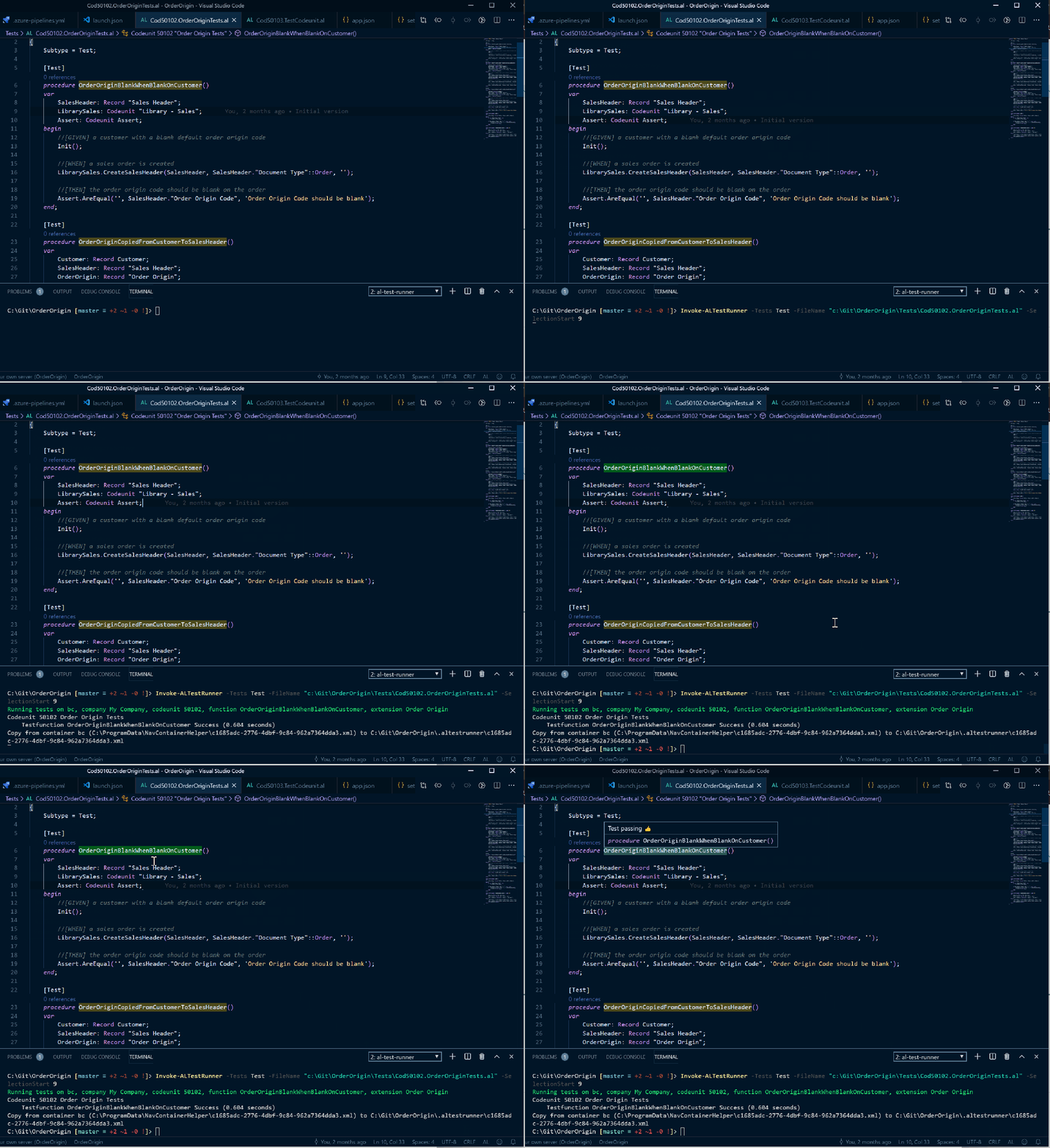
Running the current test with AL Test Runner and navcontainerhelper

The goals are to:

  • Make it as simple as possible to run the current test, tests in the current codeunit or all tests in the extension with commands and keyboard shortcuts
  • Cache the test results
  • Decorate test methods according to the latest test results – pass, fail or untested
  • Provide extra details e.g. error message and callstack when hovering over the test name
  • Add a snippet to make it easier to create new tests with placeholders for GIVEN, WHEN and THEN statements

Important: this is for running tests with the navcontainerhelper PowerShell module against a local Docker container. Please make sure that you are using the latest version of navcontainerhelper.

Getting Started

  • Download the extension from the extension marketplace in VS Code and reload the window.
  • Open a folder containing an AL project
  • Open a test codeunit, you should notice that the names of test methods are decorated with an amber background (as there are no results available for those tests)
    • The colours for passing, failing and untested tests are configurable if you don’t like them or they don’t fit with your VS Code theme. Alternatively you can turn test decoration off altogether if you don’t like it
  • Place the cursor in a test method and run the “AL Test Runner: Run Current Test” command (Ctrl+Alt+T)
  • You should be prompted to select a debug configuration (from launch.json), company name, test suite name and credentials as appropriate (depends if you’re running BC14 or BC15, if you have multiple companies, authentication type etc.)
    • I’ve noticed that sometimes the output isn’t displayed in the new terminal when it is first created – I don’t know why. Subsequent commands always seem to show up fine 🤷‍♂️
  • Use the “ttestprocedure” to create new test methods

.gitignore

If you’re using Git then I’d recommend adding the .altestrunner folder to your .gitignore file:

.altestrunner/

Committing the config file and the test results xml files doesn’t feel like a great idea.

You Can Ditch Our Build Helper for Dynamics 365 Business Central

I’m a bit of a minimalist when it comes to tooling, so I’m always happy to ditch a tool because its functionality can be provided by something else I’m already using.

In a previous post I described how we use our Build Helper AL app to prep a test suite with the test codeunits and methods that you want to run. Either as part of a CI/CD pipeline or to run from VS Code.

Freddy K has updated the navcontainerhelper PowerShell module and improved the testing capabilities – see this post for full details.

The new extensionId parameter for the Run-TestsInBCContainer function removes the need to prepare the test suite before running the tests. Happily, that means we can dispense with downloading, publishing, installing, synchronising and calling the Build Helper app.

The next version of our own PowerShell module will read the app id from app.json and use the extensionId parameter to run the tests. Shout out to Freddy for making it easier than ever to run the tests from the shell 👍

Stop Writing Automated Tests and Get On With Some Real Code

To be fair, these weren’t the exact words that were used, but a view was expressed from the keynote stage at Directions last week along these lines. Frustration that developers now have to concern themselves with infrastructure, like Docker, and writing automated tests rather than “real” code.

I couldn’t resist a short post in response to this view.

If It Doesn’t Add Value, Stop Doing It!

First, no one is forcing you to write automated tests – apart from Microsoft, who want them with your AppSource app submission. Even then, I haven’t heard of Microsoft rejecting an app because it wasn’t accompanied by enough automated tests.

I’m an advocate of developers taking responsibility for their own practices. Don’t follow a best practice simply because someone else tells you it’s a best practice. You know your scenario, your team, your code and your customers better than anyone else. You are best placed to judge whether implementing a new practice is worth the cost of getting started with it.

AppSource aside, if you are complaining about the amount of time you have to spend on writing tests then you have no one to blame but yourself. Or maybe your boss. If you don’t see the value in writing automated tests then you probably should stop wasting your time writing them!

Automated Tests vs “Real” Code

Part of the frustration with tests seemed to be that they aren’t even “real” code. If by “real” code we are referring to the code that we deliver and sell to customers then no, tests aren’t real code.

But what are we trying to achieve? Surely working, maintainable code that adds value for our customers.

We might invest in lots of things in pursuit of that goal. Time spent manually testing, sufficient hardware to develop and test the code on, an internet connection to communicate with each other and the customer, office space to work in, training courses and materials, coffee. We’re not selling these things to the customer either but no one would question that they are necessary to achieve the goal of delivering working software. Especially the coffee.

Whether or not automated tests are “real” code is the wrong question. The important judgement is whether the time spent on writing them makes a big enough contribution to the quality of the product that you eventually ship.

I won’t make the case for automated testing here. That’s for a different post. Or a different book. Suffice to say, I do think it is worth the investment.

But We’ve Got a Backlog of Code Not Covered By Tests

One problem you might have is that you’ve got a backlog of legacy code that isn’t covered by any automated tests. Trying to write tests to cover it all will take ages. This frustration also seemed to be expressed by the speaker at Directions. It even got a round of applause from some of the Directions audience.

My response would be the same – you are best placed to make a pragmatic judgement. Of course it would be nice to have 100% code coverage of your tens of thousands of lines of legacy code – but if you’ll have to stop developing new features for six months to achieve it, is it worth it? Probably not.

Automated tests should give you confidence that the code works as expected. If you are already confident that your existing code works then there might be limited value in writing a suite of tests to prove it.

Try starting with tests to cover new features that you develop or bug fixes. With these cases you’ve got some code that you aren’t confident works as expected – or that you know doesn’t. Take the opportunity to document and prove the expected behaviour with some tests. Over time you’ll build a valuable suite of tests that you can run to demonstrate that each new release of your product works and that bugs haven’t been reintroduced.

With some practice you’ll find that you can use the library codeunits to create scenarios with little test code e.g. you can create a customer, item and sales order, post it and get the posted sales invoice in 2 lines of code.

Interested? More here

Debugging the Next Session in Business Central

Business Central v15 includes some good new stuff for developers. Access modifiers for objects, smarter code analysis, background page tasks – there is a list of stuff here: https://docs.microsoft.com/en-us/dynamics365-release-plan/2019wave2/dynamics365-business-central/developer-tools

I’ve just been trying out the new debugger capability, specifically being able to attach the debugger to a service and debug the next session to hit a breakpoint or error.

A Brief Nostalgia Trip…

Excuse me if I indulge in a little nostalgia. If you don’t care about this and just want to know how it works then you can skip to “spare me the history lesson”.

The Classic Client Years

Still here? Then maybe you have been around NAV long enough to remember the introduction of the RoleTailored Client. We’d been used to having the Classic Client debugger for years. It wasn’t perfect, but we knew our way round it. We could easily switch between writing and debugging code, debug an application server or even debug a posting routine in live and lock the whole system – anyone else do that when they first started in support? Life was good.

The RoleTailored Client Years

Then the RoleTailored Client was introduced and it felt like we were developing with one arm tied behind our backs. No debugger. You could still debug in Classic Client but the clients weren’t necessarily even running the same C/AL code – thanks to the ISSERVICETIER keyword.

I know you could find the source that the service tier was actually running, attach Visual Studio to the Server.exe process and debug the C# but not many people wanted to do that. MESSAGE debugging was far more common. Especially entertaining if someone left a message box in live and you got a call from the customer wondering what some mysterious pop-up was about. Connoisseurs wrapped their MESSAGEs in

IF USERID = 'sa' THEN...

By NAV 2013, RTC was the only client customers could use and we had to be able to debug. To be fair, Microsoft came up with the goods and the new debugger was better than what we used to have in the Classic Client. Especially because we could debug other sessions connected to the same service tier or the next session to connect. Ask the user to repeat the steps that lead to error and debug their session, perfect. Also great for debugging web service calls.

The Business Central Years

And then along came Business Central. The RoleTailored Client, complete with debugger is going to be removed and we don’t quite have a replacement for everything we rely on it for. Sound familiar?

Don’t get me wrong, I love VS Code. I love the VS Code debugging experience. But how can I debug other user sessions? How can I debug web service calls?

Spare me the History Lesson, How Does it Work?

Open up launch.json and hit the Add Configuration button in the bottom right hand corner and you’ll notice a couple of new options:

  • Attach to the next client on the cloud sandbox
  • Attach to the next client on your server

Pick one of those and you’ll notice that the configuration it creates has a request value of attach.

breakOnNext determines the type of session that the debugger will be attached to: Background, WebClient or WebServiceClient.

Give the configuration a sensible name so that you’ll be able to refer to it when you attach the debugger. Attach the debugger by opening the debug pane, selecting your configuration and click on the Start Debugging button.

Set some breakpoints in your code and hit them. Either with some activity in the web client or with a web service call.

BreakOnNext Support

Note: the help for breakOnNext states “The sandbox version only supports attaching to a WebService Client”. This seems to apply to sandbox Docker containers (e.g. from mcr.microsoft.com/businesscentral/sandbox) as well as to cloud sandboxes. You can, however, use the other breakOnNext options with an on-premise Docker image (mcr.microsoft.com/businesscentral/onprem).

AL Build Helper for Dynamics 365 Business Central Builds

If you’re interested in setting up a build pipeline to build apps for Business Central then you’re probably interested in running the automated tests as part of it. (I take it you are writing automated tests?)

Turns out getting your test codeunits and methods populated into a test suite ready to run isn’t straightforward. We use a separate “Build Helper” app that exposes a couple of web service methods to prep and clear a test suite. It helps us get the container ready for running Run-TestsInBCContainer (from the navcontainerhelper module).

I’ve uploaded a couple of versions of the app to a GitHub repo here: https://github.com/CleverDynamics/al-build-helper. One for BC15 and the other for BC14 and earlier.

I use it all the time for running test from VS Code as well as in our build pipelines. Our PowerShell module has an Install-BuildHelper function to download and install it. Alternatively you could slip some PowerShell like the below into your pipeline and smoke it.

$Container = 'de'
$Company = 'CRONUS DE'
$User = 'admin'
$Password = 'P@ssword1'
$TestSuite = 'DEFAULT'
$StartRange = 130000
$EndRange = 160000
$WSPort = '7047'
$BuildHelperUrl = 'https://github.com/CleverDynamics/al-build-helper/raw/master/Clever%20Dynamics_Build%20Helper_BC14.app'

$Credential = [PSCredential]::new($user, (ConvertTo-SecureString $Password -AsPlainText -Force))
$BHPath = Join-Path $env:Temp 'BH.app'
Download-File $BuildHelperUrl $BHPath
Publish-NavContainerApp $Container -appfile $BHPath -sync -install
$BH = New-WebServiceProxy ('http://{0}:{1}/NAV/WS/{2}/Codeunit/AutomatedTestMgt' -f (Get-NavContainerIpAddress $Container), $WSPort, $Company) -Credential $Credential
$BH.GetTests($TestSuite, $StartRange, $EndRange)

The above is BC14 and assumes that you’ve got the navcontainerhelper module loaded (so you can use Publish-NavContainerApp). For BC15 you’d change the script slightly to the below (different URL for Build Helper, the instance name is “BC” rather than “NAV”).

$Container = 'bc15'
$Company = 'My Company'
$User = 'admin'
$Password = 'P@ssword1'
$TestSuite = 'DEFAULT'
$StartRange = 130000
$EndRange = 160000
$WSPort = '7047'
$BuildHelperUrl = 'https://github.com/CleverDynamics/al-build-helper/raw/master/Clever%20Dynamics_Build%20Helper.app'

$Credential = [PSCredential]::new($user, (ConvertTo-SecureString $Password -AsPlainText -Force))
$BHPath = Join-Path $env:Temp 'BH.app'
Download-File $BuildHelperUrl $BHPath
Publish-NavContainerApp $Container -appfile $BHPath -sync -install
$BH = New-WebServiceProxy ('http://{0}:{1}/BC/WS/{2}/Codeunit/AutomatedTestMgt' -f (Get-NavContainerIpAddress $Container), $WSPort, $Company) -Credential $Credential
$BH.GetTests($TestSuite, $StartRange, $EndRange)

No doubt, given the rate of change in Business Central there will be a different/better way to do this by the time BC15/wave 2/Fall ’19/whatever the heck we call it is released – but this how we build against BC15 for now.

Feel free to use anything you find helpful with my blessing…but not necessarily my support. No warranties, own risk etc.