Hooks are specified in the .git/hooks directory. That’s great, a git repository is completely contained within its parent folder, you can copy it somewhere else and all of the code, history and config come with it.
It’s not so convenient if you want to create some hooks that apply across multiple repositories though. You can just copy your hook files between all of your repos, or it turns out that there is a smarter way. Git config has a core.hookspath key. You can create a folder somewhere with the hooks that you want to apply to all repos and set this key.
Use git config --global to set the value of a key in the global config file and git config --global --list to list the config keys and their current values.
git config --global core.hookspath '<path to hooks directory>'
It’s Summer (at least in the northern hemisphere), hooray. You’ve booked some time off, wrapped up what you were working on as best you can, committed and pushed all your code, set your out-of-office and switched off Teams. Beautiful.
When you come back you flick through your messages to catch back up. What’s this? Some muppet commented out some vital code and pushed their changes? Who? Why?
It happens happened. That muppet was me.
There are good reasons why you might remove or add some code in your local environment but it is really important that those changes don’t end up in anyone else’s copy.
You can either:
Plan A: back yourself never to accidentally commit and push those changes
Plan B: add a pre-commit Git hook as an extra line of defense
Open the (hidden) .git folder inside your repository and rename pre-commit.sample to pre-commit.
As the comments at the top of the file say, if you want to stop the commit then this script should echo some explanatory comment and return non-zero. This is mine:
if git diff --staged | grep 'DONOTCOMMIT' -qE; then
echo "Your staged changes include DONOTCOMMIT"
exit 1
fi
Before committing, Git looks for a pre-commit file in the hooks folder and executes it if it finds it.
git diff --staged gets a string of the changes which are staged i.e. going to be included in this commit. This string is piped to grep to match a regular expression – I’m keeping it simple and searching for the string ‘DONOTCOMMIT’ but you could get fancier if you wanted.
If DONOTCOMMIT is found in the staged changes then a message to that effect is shown and the scripts exit with 1 (which tells Git not to continue with the commit).
VS Code error dialog thrown by pre-commit hook
Next time I add or remove some code that is for my eyes only I’ll add a //DONOTCOMMIT comment alongside to remind me to undo it again when I push the code.
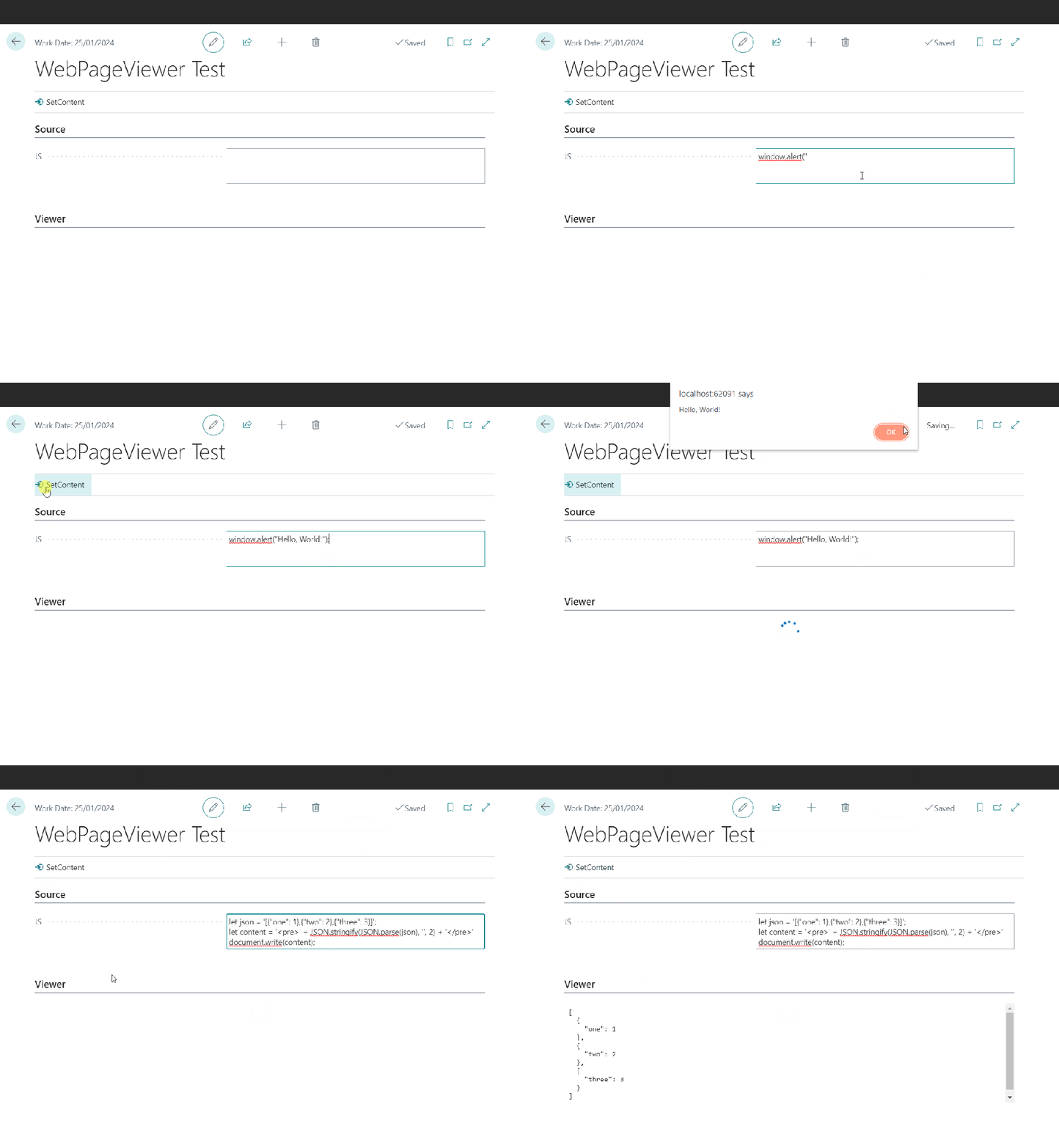
The WebPageViewer add-on has an overload to accept some JavaScript. You can use that to execute arbitrary script locally. WebPageViewer.SetContent(HTML: Text; JavaScript: Text);
Executing JavaScript with WebPageViewer
JSON Formatting
This post starts with me wanting to format some JSON with line breaks for the user to read. It’s the response from an Azure Function which integrates with a local SQL server (interesting subject, maybe for another time). The result from SQL server is serialized into a (potentially very long) JSON string and this is the string that I want to present in a more human-readable format.
Sometimes I converge on a solution through a series of ideas, each of which slightly less bad than the previous. This was one of those times. If you don’t care about the train of thought then the solution I settled on was to use the JavaScript parameter of the WebPageViewer’s SetContent method.
If you’re still here then here are the stations that the train of thought pulled into, starting with the worst.
Requirement
Have some control on my page for the user to view the JSON returned from the Azure Function, formatted with line breaks.
1. Format at Source
Why not just add the line breaks when I am serializing the results in the C# of my Azure Functions? That way I don’t need to change anything in AL.
No, that’s dumb. That would make every response from the function larger than it needs to be just for the rare occasions when a human might want to read it. Don’t do that.
2. Call an Azure Function to Format the Result
I could have a second Azure Function to accept the unformatted result and return the formatted version. I could have a Function App which runs node.js and return the result in a couple of lines of code.
Wait, that’s absurd. Call another Azure Function just to execute two lines of JavaScript? And store the Uri for that function somewhere? In a setup table? Hard-coded? In a key vault? Seems somewhat over-engineered.
3. Create a User Control
Hang on. I’m being thick. We can execute whatever JavaScript we want in a user control. I can create a control with a textarea, or just a div, create a function to accept the unformatted JSON, format it and set the content of the div. No need to send the JSON outside of BC.
Closer, and if you want more control over how the JSON looks on screen probably the best bet. But, is it really necessary to create a user control just to execute some JavaScript? Still seems like too much work for what is only a very simple problem.
If you pass some script it will be executed when the page control is loaded. Perfect for what I need. I can just use the JSON.parse and JSON.stringify functions to read and then re-format my JSON text. I’m also wrapping it in pre tags and removing any single quotes in the text to format (because they will screw the JavaScript and I can’t be bothered to handle them properly).
The AL code ends up looks like this:
local procedure SetResult(NewResult: Text)
var
JS: Text;
begin
NewResult := NewResult.Replace('''', '');
JS := StrSubstNo('document.write(''<pre>'' + JSON.stringify(JSON.parse(''%1''), '''', 2) + ''</pre>'');', NewResult);
CurrPage.ResultsCtrl.SetContent('', JS);
end;
If you’re not using 26 single quotes in three lines of code then you’re not doing it right 😉
Open the extracted file in a VS Code / Notepad++ / text-editor-of-choice
Edit the xml as required
Use 7-Zip to compress in gzip format
Editing Config Packages
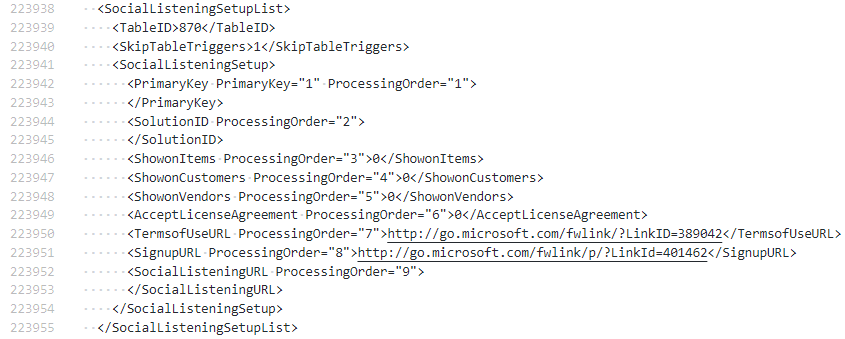
Sometimes you might want to edit a config package file without having to import and export a modified copy from BC. In my case I wanted to remove the Social Listening Setup table from the package. Microsoft have made this table obsolete and BC throws an error if I try to import the package with this table present. (Probably not a bad idea – stopping listening to socials).
Fortunately, a rapidstart file is just a compressed xml file. Extract the rapidstart file with 7-Zip and then open the extracted file in a text editor. The format of the file is pretty straight forward. Each table is represented with an XYZList node where XYZ is the name of the table which the table-level settings followed by one or more XYZ nodes with the data.
This post is going to be a bit of a brain dump about developing my VS Code extension, branching strategy for pre-releases and releases and using GitHub actions to stitch it all together.
If you’re only here for the AL / Business Central content then you might want to give this one a miss. Then again, Microsoft are increasingly using GitHub for AL projects themselves (e.g. AL-Go for GitHub) – so it might be worth a look after all.
Objectives
What am I trying to achieve? I want to have a short turn around of:
Have an idea for a new feature
Implement the feature
Test it and make it available for others to test
Release
I use the extension pretty much every day at work so I am my own biggest customer. I want to write some new feature and start working with it in a pre-release myself to find any issues before I release it.
I also want to have a little fun with a side-project – learn a little typescript, practice some CI/CD, GitHub Actions and Application Insights. If anyone else finds the extension useful as well then that’s a bonus.
Overview
This is my workflow. I want to get the feature into the pre-release version of the extension on the marketplace quickly. That way I will get the new pre-release myself from the marketplace and use it in my daily work. I’ll make any fixes or improvements in updates to the pre-release before merging the code to the release version and publishing to the marketplace.
GitHub Actions
The GitHub actions definition is fairly self-explanatory. The yaml is bellow, or here if you prefer. Run whenever some code is pushed. Build, test, package with npm and vsce. Run the PowerShell tests with Pester. Upload the built extension as an artifact. If the pre-release branch is being built then use vsce to publish to the marketplace with the --pre-release switch.
The actions definition in the master branch is similar but publishes to the marketplace without the --pre-release switch.
name: CI
# Controls when the action will run. Triggers the workflow on push or pull request
# events but only for the master branch
on:
push:
pull_request:
branches: [ master ]
workflow_dispatch:
jobs:
build:
runs-on: windows-latest
steps:
# Checks-out your repository under $GITHUB_WORKSPACE, so your job can access it
- uses: actions/checkout@v2
- name: npm install, build and test
run: |
npm install
npm run build
npm test
- name: package with vsce
run: |
npm install -g vsce
vsce package
- name: run pester tests
shell: pwsh
run: |
Set-PSRepository psgallery -InstallationPolicy Trusted
Install-Module Pester
Install-Module bccontainerhelper
gci *ALTestRunner.psm1 -Recurse | % {$_.FullName; Import-Module $_.FullName}
Invoke-Pester
- name: Upload a Build Artifact
uses: actions/upload-artifact@v2.1.4
with:
name: AL Test Runner
path: ./*.vsix
- name: Publish to marketplace
if: github.ref == 'refs/heads/pre-release'
run: |
vsce publish -p ${{ secrets.VSCE_PAT }} --pre-release
The personal access token for my Visual Studio account (used to publish to the marketplace) is stored in a repository secret.
It is rewarding to make some changes to the extension, push them to GitHub and then 10-15 minutes later be able to use them in a new version of the extension which has been automatically published, downloaded and installed. It allows you to publish more frequently and with more confidence.