An Introduction to Pull Requests in Azure DevOps

An Intro to the Intro

I’ve previously written about our experience with source control and our eventual migration to Git. I said that pull requests in Azure DevOps are awesome and are one of the biggest reasons to consider the switch to Git. In this post we’ll dig a little more into the details of why they are so good and how to use them.

What Are You Trying to Achieve?

Before we start, don’t forget that code review (i.e. pull requests in Git) and source control are tools. They are a means to an end and not an end in themselves.

I get it. We’re developers and typically we love the latest tools and gadgets. We go to a conference and we hear “You should be using… Docker / PowerShell / Agile / Azure DevOps / pair programming / test-driven development / insert some other tech or best practice here…” That’s great, as long as we don’t lose sight of why we should be using them. What are you trying to achieve? What problem do you have that this new tool or practice will alleviate? What will its introduction make more efficient?

Think about how you’d answer those questions. Write them down. Discuss with colleagues. Leave yourself a voice memo. Whatever works. Just make sure you’ve got some idea of how introducing this tool is going to help achieve your team’s goals.

The Goal

OK, let’s start with the goal. Better quality software, delivered faster.

  • Better quality means the code is clear, easy to read and maintain, does what it is supposed to do and doesn’t do more than it is supposed to do
  • Delivered faster means we are able to take a requirement or bug, make the code changes and get them out to our users in a shorter space of time

One of the ways we will work towards that goal is by reviewing code before it is shipped. You might query how adding a review step allows us to deliver faster but consider time that is sometimes wasted going back and forth with a consultant or customer fixing bugs that could have been found during  a code review.

The Process

Before we get stuck into the specifics of pull requests in Azure DevOps, take a minute to think about how you’d want this process to work. Consider the requirements of both the reviewers and the author. This is my list.

  • Clearly identify the code changes that are under review
  • Select one or more colleagues to review the code
  • Allow the reviewers to add comments. It must be clear which line(s) of code the comments are about. Comments must be visible to all reviewers
  • Allow for discussion of particular issues. The author may need to answer questions, reviewers may need to add clarifications to their comments
  • The author must be able to make further code changes to create a new version of the code under review. Reviewers should be able to see the changes that have been made between versions
  • Send notifications to reviewers when a change is made to a review that they are involved in
  • Record when reviewers are satisfied that the changes can be shipped
  • Keep a record of the review after it has been completed so that it can be referred back to, if necessary

Beyond the scope of this post, but related:

  • Run automated tests against the code under review and record the test results
  • Prevent a review from being completed if any associated tests have failed
  • Mandate that code can only be shipped after it has been through a code review

Do you agree with those requirements? What does your current process look like? How many of those points can you tick off? Would you see value in adopting a process that would allow you to tick more, or all, of those points of the list?

Pull Requests

On to the topic at hand. A pull request is the process of merging code changes between branches in Git repositories – or in our scenario between two branches in the same repository.

Pull Request.gif

  • Developer clones the repository to their local machine
  • Create a new local branch to start some new feature e.g. the branch might be called feature/some-new-feature
  • Start developing and committing their changes to that local branch
  • Push local branch to create a copy on the server (usually referred to as origin)
  • Create a pull request to merge the changes from the feature/some-new-feature branch to the master branch
  • Reviewers and author discuss the changes. Author (or another developer) pushes new commits to create an update to the pull request. Repeat as necessary
  • Complete the pull request to merge the changes into the master branch
    • While completing, optionally squash the commits into a new single commit (as shown in the gif)

Creating the Pull Request

You’ve done some work in a new branch in your local repository and have pushed that branch to the server. When you view the branches in Azure DevOps in the browser portal it prompts you to create a pull request for this new branch.

Typically you will be prompted to create a pull request from your new branch (referred to as the “source branch”) into the master branch (the “target branch”). If you follow some workflow that merges your changes into a development / release / some other branch first you can change the target branch and the request will update accordingly.

You will see the code differences between the source and target branches – these are the changes that are under review. If you have already associated the commit(s) in the source branch with work items they will be automatically associated with the pull request. You can manually add or remove work items as well. This provides useful context for the reviewers. Also some might ask, if you don’t have a work item describing the changes you’ve made…why have you changed anything?

Add individual or groups of reviewers and they will receive email notifications that their expertise and opinions are required.

Identifying Changes

PR Identifying Changes.jpg

The pull request shows a tree of folders/files that have been modified. The changes for each file are highlighted on the right. It’s nice and easy for everyone to see the code changes that are included in this pull request. You can also see the work item(s) that are associated with this pull request for a description of the requirements that these changes are designed to meet.

Updates

By default you’ll be looking at the changes that have been made across all updates made to the pull request i.e. all pushes to the source branch since the request has been opened. You can, however, just view changes made in a given update. Imagine you’ve already reviewed the code and given some feedback and the author has made a small change to address your comments. You can select the latest update to only see the latest changes.

PR Update Selection.jpg

Comments

The most impressive thing about the pull request flow is the comments. Highlighting the code that the comment relates to and posting your message creates a new thread which supports:

  • Others posting new messages in context to that thread
  • Tracking the status of the comment (active, resolved, won’t fix)
  • @mentioning colleagues to alert them to something
  • Linking to work items with #work item no.
  • Pasting images and emoji, liking comments
  • Seeing which update the comment refers to
  • Tracking how the code in question has changed between updates

If you have a requirement to get your team reviewing each other’s work and collaborating on code (and if you don’t…really?) then this is a lovely tool to help you do it.

The last point is especially good. If I arrive late to a review and some comments and updates have already been made I am easily able to catch up. I can see the comments that have already been made and the code changes that were made to resolve them.

PR View Original Diff.gif

Notifications

Azure DevOps provides a lot of flexibility to configure how and when you want to be notified about pull requests. You can receive an email when:

  • You are included as a reviewer on a new pull request
  • A new update is created i.e. new commits are pushed to the source branch
  • The request is completed or abandoned
  • A reply is posted to a comment thread that you opened
  • You are @mentioned

In addition to notifications the _pulls view (https://dev.azure.com/organisation/_pulls) provides an overview of the pull requests that you have created or are a reviewer for and their status.

Voting

When you’ve reviewed the code changes you cast your vote on the pull request. The options are: Approve, Approve with suggestions, Wait for author, Reject.

Completing

Once the comments have been commented upon and the votes voted on you can hit the big Complete button. This marks the pull request as being complete and merges its code changes from the source branch into the target branch. With the following options:

  • Complete linked worked items
  • Delete source branch
  • Squash changes into a single, new commit on the target branch

We tend to have all three ticked. If there are a bunch of tiny changes in the source branch e.g. fixing typos then I don’t particularly want to see those in the target branch. Generally we’re happy with all the changes related to the request being grouped into a single commit.

The request, complete with comments, commits and votes is archived and remains on Azure DevOps if you need to refer back to it. Like most things in Azure DevOps you can access them through the REST API as well – as I did the other day to get some stats on how many requests we had completed in 2018.

More

And there is a load more than that as well. Beyond this post, but maybe a topic for another day. I hope the above has been enough to whet your code review appetite to try it out and investigate further.

  • Protecting branches to only allow changes from a pull request (as opposed to pushing commits directly to the branch)
  • Enforcing a minimum number of reviewers and preventing users from reviewing their own changes
  • Enforcing that a build must run – and succeed – before the request can be completed
  • Enforcing that all comments are resolved before completing the request
  • Automatically include certain users or groups as reviewers on specified branches
Automatically Creating a CI Pipeline in Azure DevOps with YAML

TL;DR

Name your yml file .vsts-ci.yml and put it in the root of your project.

What Does the Title Mean?

There is a lot of chat about build pipelines and continuous integration (CI) at the moment. For the uninitiated let’s break down the title of this post:

  • CI = continuous integration, the practice of integrating ongoing development into your master development branch as soon as possible, making use of automated testing and building of your .app/.fob/.txt files
  • Azure DevOps = Microsoft’s platform for hosting your development projects, track tasks, builds and releases (formerly called Visual Studio Team Services, formerly called Team Foundation Server)
  • YAML = a markup language you can use to define the steps included in your automated build

This post isn’t an introduction to these concepts. You can find out more here:

YAML Pipeline

These days the cool kids are using .yml files to define the steps in their build. We’ve used the visual editor the define our pipelines in Azure DevOps for a while, but I think a .yml file is better, because:

  • Your build definition becomes part of your source code, meaning you get version history, you can do code review on its changes and link changes to your build with corresponding changes to the source code
  • Reusing the same pipeline across multiple Azure DevOps projects is easier – just copy the .yml file between the repositories
  • Azure DevOps can automatically create the CI pipeline for you (finally he gets to the point of the post)

Automatically Creating the Pipeline

Simply name your YAML build definition file .vsts-ci.yml, put it in the root of the repository and push it to Azure DevOps. The platform will automatically create a new CI pipeline for the project, using the steps defined in the file and kick off the build.

This makes me pretty happy.

Credit to Abel Wang: https://www.youtube.com/watch?v=u3PNaLjTak4

Business Central Development With CI/CD

If you follow blogs about Dynamics 365 Business Central / NAV development, attended development sessions at Directions or have seen the schedule for NAVTechDays then you may have noticed the terms “CI/CD” or “pipeline” being thrown around.

What do those terms actually refer to? And how does it affect the way we approach development?

Definitions

CI = “continuous integration”
CD = “continuous delivery” (or “continuous deployment”, if you prefer)

These are pretty old development concepts. Check out the Wikipedia entry if you want an overview and some of the history. I would summarise it like this.

Continuous integration: incorporate new development into your main development branch as soon as possible.

Continuous delivery: get that development in front of your end users as quickly as possible.

The concept of a pipeline is having a defined series of steps that new development goes through. Build, test, publish and install into target environment(s) – automated as much as possible

Why?

All this talk of  “as soon as possible” sounds a little reckless. Is this really a good idea?

In a nutshell, we’re trying to minimise the time between identifying some changes that the customer needs (some new feature or bug fix) and those changes actually being deployed onto the customer’s system.

We want to avoid work in progress changes hanging around for ages. You’ve probably experienced the problems that come with that:

  • The work becomes harder to merge back into the master branch as time goes by
  • Future development dependent on these changes is held up or goes ahead with the worry it will clash with work in progress
  • People start to forget, or lose interest, in why the changes were required in the first place making testing and code review harder or less effective
  • The customer loses interest in the development and is less inclined to test or use the new development

How?

Integration

All my experience is with Azure DevOps (what used to be called Visual Studio Team Services and used to be called Team Foundation Server) but other platforms provide similar functionality.

We start by defining small, discrete work items. I don’t have a fixed rule, but if the work can’t be completed in a single sprint (say, 2 weeks) then it’s probably too big and you should split it into smaller chunks.

The developer gets to work and puts their changes in for review. Pushing those changes up to the server triggers the build pipeline. Typically this is a series of tasks performed by a build agent running on a server that you control. Azure DevOps provides several options for agents hosted by Microsoft but for now they don’t provide the option we need to build AL packages.

I won’t go into detail about our build pipeline now but it includes:

  • Creating a Docker container
  • Compiling the AL source with the compiler included in the container
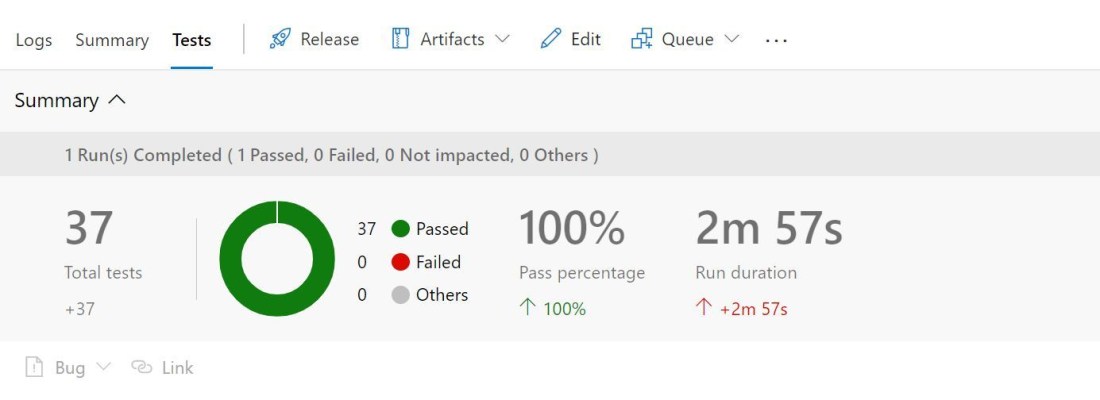
  • Running the automated tests (the developer should have included new tests to cover their changes)
  • Uploading the test results and the .app files (we split the product and its tests into two separate apps) as build artefacts
  • Notifying the developer of the build result

By the time any of the reviewers comes to look at the code review we should already that:

  • All the tests have passed
  • The changes can be merged into the master branch without any conflicts

Nice. We can be much more confident hitting the Approve button knowing it passes the tests and will merge neatly with master. We get the changes incorporated back into the product quickly and have a clean starting point for the next cycle.

Delivery

Delivery is a different story. At the time of writing our release process is to make the new .app package available on SharePoint. We don’t automate that.

With Dynamics NAV / BC on-premise there is scope for automating the publish & install of the new app package into target environments and tenants. That would involve the definition of a release pipeline. An agent on the target environment could collect the app package (or fob, or text file) created by the build pipeline and use PowerShell to import/compile/publish/install into one or more databases.

We don’t attempt this as in many cases we don’t control the environments that our apps are installed into. The servers are not ours to install agent software onto and be responsible for.

This is especially true of Business Central SaaS as we are developing apps for AppSource. No app package* makes it onto the platform until it has passed the AppSource validation process and deployed by Microsoft on their own schedule.

*unless it is developed in the 50,000 – 99,999 object range and uploaded.

Getting Started

I hope that’s whet your appetite to go and investigate some more. Before you do you’ll need to be up and running with source code management and automated tests (perhaps more of that another time).

Source Code Management: Conclusions

I stated in the first post in this series that I wasn’t going to offer any advice. I will, however, attempt to draw some conclusions from our experiences and hope that you’ll find them helpful, or at least interesting.

(Not) Migrating to Git

A few months before we trialled Git in earnest as a team I tried it out for myself. I had a look because I’d heard various reasons that we should migrate:

  • “It’s faster” – yes, in my experience all the key operations are faster in Git than TFVC (committing vs. checking-in, cloning vs. getting latest version, viewing differences between versions)
    • Is that a compelling reason in itself to migrate? You can be the judge of that
  • “Microsoft are moving to it themselves” – who cares? Do you have the same requirements as Microsoft?
    • This would only be a valid argument if they stopped supporting TFVC. As far as I can see they are adding support for more version control systems not removing them (the Build system can now retrieve code from Subversion)
  • “VS Code has built in support for Git” – true, which is great.
    • You can add support for TFVC through a VS Code extension published by Microsoft
    • Again, you can decide how important the convenience of having support for Git in your IDE is weighed against other factors
    • Having tried a few GUIs for Git, VS Code is not my personal favourite – Git Extensions is

I decided at the time that we didn’t need to migrate to Git. The benefits didn’t outweigh the challenges in having the team learn a new system and migrate to it in my estimation. This was during the days of us developing in a central NAV development database (more on that here).

Moving to a distributed version control system while we were working in a single development database didn’t seem to make a lot of sense and I figured that our development practice should drive our choice of version control – not the other way round.

Migrating to Git

All of that said, now that we have migrated to Git I can’t imagine going back to TFVC. Some of our key experiences and learning points:

  • Git has a steeper learning curve. Getting your head round cloning the entire repository, how branches work, pushing, fetching and pulling changes – it’s all a little more involved than TFVC
  • It’s worth investing the time to understand the core concepts. I watched many hours of YouTube videos about Git and read lots of blogs – you can use Git as centralised version control (by pushing to the remote every time you commit) but you’re missing most of the power if you do
  • Personally, I forced myself to use the command line rather than a GUI for common tasks – this helped me grasp what the commands were actually doing and how they can be manipulated in different situations. That knowledge will come in handy when someone in your team asks why their rebase has resulted in a conflict and how to fix it
  • We create a lot of branches now, because it’s so easy and because we use pull requests (see below)
  • Git gives you much finer control over the repositories and your commits than TFVC: interactive rebasing, resetting, reverting, cherry-picking, squashing, fixing, amending commits – with a little practice and research (see above) there aren’t really any ways to screw up the repository so badly that you can’t clean it up again
  • The complexity that makes Git harder to get started with also makes it very flexible and powerful
  • Did I mention that pull requests are awesome? The tools to collaborate on code in Azure DevOps have revolutionised our development workflow. We got started with code review in TFVC but moving to Git has allowed us to move on to another level

At the End of the Day

At the end of the day, source code management is a tool to help us turn out working software for our customers. Different dev teams use different systems in different ways. That’s because they have different development practices and procedures.

However, I think it’s fair to say that we’ve found source code management is not a substitute for good process. Implementing it was initially difficult because we weren’t following a consistent, disciplined development process. It was clear that we weren’t going to be able to extract much value from our system until we were.

As we have changed, and sought to improve our process over the years we have changed our system to suit, which feels like the right way round to me.

Source Code Management: Migrating to Git

This is the third post in a series about source code management. You can start here if you haven’t read the others in the series.

There we were, happy as the proverbial Larry, checking our code into TFVC, requesting code reviews, branching, merging, viewing file history, comparing versions, annotating and writing a lot of PowerShell to automate tasks with the VSTS API. We were feeling pretty great about our source code management.

What could possibly induce us to move away from this system?

Developer Isolation

Our standard practice had always been for developers to work in the same development database. We rarely needed to have multiple developers working on the same project at the same time or not on the same objects at least.

As we invested in our products and grew the team we found ourselves overlapping a lot more than had been the case with customer specific development. Dynamics NAV isn’t equipped to handle this particularly well:

  • If two developers have the same object open at the same time, both make changes and then save, whoever saves last wins. There is potential for development to be lost as soon as it has been written
  • NAV does allow you to lock objects – sort of like checking them out in source code management – but we weren’t in the habit of doing it. We wouldn’t consistently lock them when we were working on them or unlock them when we had finished working on them
    • Hardly a fair criticism of NAV you might say – we just didn’t have a discipline for using the lock functionality properly. You may well be right
    • Even so, locking an object prevents anyone else from designing it. What is the point of me carefully splitting some development into discrete tasks so that different developers can work on them in parallel if they are going to trip over each other because they happen to be modifying the same objects?
  • Only one developer can debug on a service tier at any time
    • So add more service tiers to the development server. You could, but it was already becoming a headache trying to manage all the development databases and service tiers that we’d got on our dev server. I didn’t fancy throwing any more fuel on that particular fire
  • When you export the objects from NAV to check-in to source code management you increase the likelihood that mistakes will be made
    • I export objects that I’ve changed which may include changes that you’ve made. If I’m not careful then I’ll check-in your changes as part of my changeset
    • That can be complicated to fix and then merge into another branch. Or I’ll have to revert the changeset and have a redundant pair of changesets etched into the history of the project

The solution to all of these problems was to isolate the developers from each other. We’d each create a local development environment where we could work, test and debug safe in the knowledge that no one else is monkeying with the objects.

We invested time in PowerShell scripts to automate the creation and management of these environments. Once again, the VSTS API and tf.exe were our friends. As a side benefit we’d also limited our reliance on our development server and the single point of failure danger that it had posed.

Life was good again. We could work on separate features and share the code through shelvesets and code review before checking-in. We could create a new environment of a given product for development or testing in a few minutes with our automation.

Branching

Once we’d isolated developers I was more confident defining separate tasks for different developers to work on in parallel. So I did, but as we were still sharing the same branch in TFVC we started to run into a different set of problems.

  • What if the same developer wanted to work on multiple work items at the same time?
    • This was particularly true when they’d finish the first work item and put it in for review. While they were waiting for review they’d want to crack on with the next task
    • Managing their local development environment became difficult – when they start the second task ideally they should work in a database that doesn’t include the changes from the first task
    • Creating an environment per work item – while feasible – isn’t very attractive.
  • Having several code reviews open against the same branch becomes difficult to follow.
    • While we’d try to review and give feedback/approve as quickly as possible there are inevitably some that stick around for a while
    • The reviewing developer wants an environment with the latest stable code and the code under review. When there is an update to the code under review the shelveset must be replaced and downloaded and applied to the database again (a challenge in TFVC in general)

A sensible step to take is to introduce a branch per work item in TFVC. This allows unrelated changes to be isolated from each other and merged into a production branch once the code has been reviewed. I wasn’t thrilled at this prospect.

Branching in TFVC is expensive – in the sense that it is a full copy of the folder that is has been branched from. Even if you’ve got an entire branch downloaded into your workspace when you create another branch from it the new branch is created on the server and you must download it separately. If you want to delete the branch – which we’d want to do once the work item was finished – you need to download the entire branch, then delete your local folder to tell the server to delete the branch.

I now know that we’d stumbled over two of the most compelling reasons to use Git rather than TFVC (Or other distributed version control systems – but as we were already using VSTS Git was the natural alternative).

In Git:

  • Isolated developers are a given. Everyone has their own copy of the whole repository
  • Branching is cheap and easy. So cheap and easy that you are encouraged to do it all the time. It is very simple to isolate changes from each other and merge them back together again at a later date

Git

It is beyond the scope of this post to compare TFVC and Git in any depth – although there will be more in the final post – but these are the key points that led us to trial it and ultimately move all our code to Git repositories.

  • Now that we were working in separate NAV databases our source code was effectively distributed among us – as opposed to centralised in a single development database.
    • This fits the ethos of Git (as a distributed version control system) much better than TFVC (as a centralised version control system)
    • Without realising it at the time we had effectively already moved to distributed version control
  • Git maintains a single working directory with the contents of the current branch – as opposed to a separate folder with a copy of all objects per branch
    • This principle is what makes branching so cheap in Git. Creating a new branch requires no more than the creation of a single text file with a pointer to the contents of that branch
    • This is a far more attractive proposition when it comes to maintaining your local development database. Don’t create a database per branch or confuse yourself trying to work in multiple branches on the same database. Instead create a single database whose objects are updated to reflect the current contents of Git’s working directory (see below). PowerShell
  • Code is shared through branches which are pushed to the central repository
    • Rather than through shelvesets which are necessarily a single, self-contained set of changes which are difficult to update and re-share.
    • Code reviews (pull requests) compare the changes between two branches rather than the changes contained in a single shelveset. I am constantly delighted with the power of this concept and the tools that Azure DevOps (VSTS) provides to support it. Perhaps more of that in another post one day. Pull requests are awesome

Synchronising with Git’s Working Directory

The most important jigsaw piece in our puzzle of adopting Git was to find a smooth way to keep the NAV database and Git’s working directory in sync with one another. If not, we were going to see some unexpected differences when exporting from NAV.

PowerShell came to the rescue and I added a bunch of functions to the module that we develop and use internally. We also use some functions from Cloud Ready Software’s modules – mainly their wrappers for standard functions that make them a little easier to call by just supplying the NAV service tier. The main functions are:

  • Build-DevEnvironmentFromGit – to create the NAV database and service tier. I won’t go into the details of how that works now. Typically we’d do this once per product as we’re going to reuse the same database from now on rather than constantly building and deleting them
  • Start-GitDev – to start the NAV service tier and import the NAV PowerShell modules from the correct build
  • Export-ModifiedObjectsToWorkingTree
    • Export objects (Modified = true) from the NAV database to individual text files in the Git directory
    • Set Modified to false and DateTime to 1st January of the current year (to minimise conflicts on the DateTime)
  • Apply-CommitsToServiceTier (-Top / -Since) – find top X commits or commits since a point in the log and apply (using Apply-CommitToServiceTier) them to the service tier
  • Apply-CommitToServiceTier – identify the objects modified by this commit and import to / delete from the NAV database as appropriate
  • Checkout-GitBranch
    • Pop a list of branches (including remote) using Out-GridView for the developer to select the target branch
    • Identify the objects that are different between the current branch/commit and the branch/commit to checkout. Import to / delete from the NAV database as appropriate

Using an appropriate combination of the above we can always keep the NAV database and the Git working directory in sync. This provides some really powerful flexibility:

  • If I want to test the code someone is including in a pull request I can just checkout that remote branch and test in my local database. I can then easily switch back to what I was doing on my own branch
  • I can create as many local branches as I like for separate tasks and easily flick between them knowing that the NAV database doesn’t have any unrelated changes hanging around

Dynamics 365 Business Central

A lot of the above has now been rendered obsolete with Dynamics 365 Business Central as we are moving away from working with NAV databases.

The learning curve has, however, been invaluable as we continue to rely heavily on Git and Azure DevOps in our development of v2 apps for Business Central.

We’ll wrap up this series with some concluding thoughts in the next post.