
Testing Compatibility Between Runtime and Application Version in Business Central Builds

Background

Recently I got stung by this. As a rule we keep the application version in app.json low (maybe one or two versions behind the latest) so that it can be installed into older versions of Business Central. Of course this is a balance – we don’t want to have to support lots of prior versions and old functionality which is becoming obsolete (like the Invoice Posting Buffer redesign, or the new pricing experience which has been available but not enabled by default for years). Having to support multiple Business Central features which may or may not be enabled is not fun.

On the other hand, Microsoft are considering increasing the length of the upgrade window so it is more likely that we are going to want to install the latest versions of our apps into customers who are not on the latest version of Business Central.

Runtime Versions

But that wasn’t really the point of the post. The point is, there are effectively two properties in app.json which define the minimum version of Business Central required by your app.

  • application: the obvious one. We mostly have this set a major prior to the latest release unless there are specific reasons to require the latest
  • runtime: the version of the AL runtime that you are using in the app. When new features are added to the AL language (like ternary operators – who knew a question mark could provoke such passionate arguments?), as, is, and this keywords, or multiple extensions of the same object in the same project

If you want to use cool new features of the language (and we do, right? Us devs love this stuff) then you need to increase the runtime version in app.json. But, you need to be aware that you are effectively also increasing the minimum version required by your app. Even if you aren’t using anything new in the base and system applications. This is the table of currently available runtime versions: https://learn.microsoft.com/en-us/dynamics365/business-central/dev-itpro/developer/devenv-choosing-runtime#currently-available-runtime-versions

Pipelines

I didn’t want to get caught out by this again so I added a step into our pipeline to catch it. The rule I’ve gone with is, the application version must be at least 11 major version numbers higher than the runtime version. If it isn’t then fail the build. In that case we should either make a conscious decision to raise the application version or else find a way to write the code that doesn’t require raising the runtime version. Either way, we should make a decision, not sleep walk into raising our required application version.

Why 11? This is because runtime 1.0 was released with Business Central 12.0. Each subsequent major release of Business Central has come with a new major release of the runtime (with a handful of runtime releases with minor BC releases thrown in for good measure).

The step is pretty simple ($appJsonPath is a variable which has been set earlier in the pipeline).

steps:
  - pwsh: |
      $appJson = Get-Content $(appJsonPath) -Raw | ConvertFrom-Json
      $runtimeVersion = [Version]::Parse($appJson.runtime)
      $applicationVersion = [Version]::Parse($appJson.application)

      if ($applicationVersion -lt [version]::new($runtimeVersion.Major + 11, $runtimeVersion.Minor)) {
        Write-Host -ForegroundColor Red "##vso[task.logissue type=error;]Runtime version ($runtimeVersion) is not compatible with application version ($applicationVersion)."
        throw "Runtime version ($runtimeVersion) is not compatible with application version ($applicationVersion)."
      }
    displayName: Test runtime version

Tip: Out-ExcelClipboard in PowerShell

From time to time I want to get some result from a PowerShell command into Excel. Unless I’m missing something, there isn’t a great option to do this in standard PowerShell.

I know that you can use Export-Csv or Export-Clixml and then open the file in Excel. I know you can use Out-GridView and then copy and paste from there into Excel (albeit without the column headings). You can also use .Net types but I just want to pipe my result to a function and then paste into Excel. I want <some output of previous functions> | Out-ToExcel

function Out-ExcelClipboard {
    param(
        [Parameter(ValueFromPipelineByPropertyName, ValueFromPipeline)]
        $InputObject
    )
    begin {
        $Objects = @()
    }
    process {
        $Objects += $InputObject
    }
    end {
        $Objects | ConvertTo-Csv -Delimiter "`t" -NoTypeInformation | Set-Clipboard
    }
}

Export-ModuleMember -Function Out-ExcelClipboard

I’ve added this function to my module which I load by default in my PowerShell profile. This took more code than I was expecting. For the curious, ValueFromPipeline tells PowerShell to bind the output from the pipeline to this parameter. It then calls the process block for each value in the pipeline.

You can add begin and end blocks to do extra stuff before and after all the values have been processed. In my case, stuff them all into a new collection, convert to tab-delimited text without including any type information and then pass that value to the clipboard. Lovely.

Tip: Test for Tables Missing from Permission Sets

In PowerShell:

$tablesInPermissionSets = @()

$permissionSets = gci . -Recurse -Filter '*.al' | ? {(gc $_.FullName).Item(0).startsWith('permissionset')}
 $permissionSets | % {
    $content = gc $_.FullName -Raw
    [Regex]::Matches($content, '(?<=tabledata ).*(?= =)') | % {
        $tablesInPermissionSets += $_.Value
    }
 }

$tablesInTables = @()

$tables = gci . -Recurse -Filter '*.al' | Where-Object {(Get-Content $_.FullName).Item(0).StartsWith('table ')}
 $tables | % {
    $content = gc $_.FullName -Raw
    [Regex]::Matches($content, "(?<=table \d+ ).*(?=$([Environment]::NewLine))") | % {
        $tablesInTables += $_.Value
    }
 }

$missingTables = ""

Compare-Object $tablesInTables $tablesInPermissionSets | ? SideIndicator -eq '<=' | % {
    $missingTables += $_.InputObject + [Environment]::NewLine
}

if ('' -ne $missingTables) {
    throw "Missing table permissions: $missingTables"
}

In English:

  1. Find all the files in the current folder, and child folders, with a filename ending in .al and which have a first line starting with “permissionset”
  2. Build a collection of the tabledata objects that are referenced in those permission sets
  3. Find all the files in the current folder, and child folders, with a filename ending in .al and which have a first line starting with “table ” (with a space to avoid matching “tableextension”)
  4. Build a collection of the names of the tables
  5. Use Compare-Object to compare the collections and find names which appear in the list of tables but not in tabledata permissions
  6. Build an error message of missing table permissions
  7. Throw the error

PowerShell Profile:

Like most small PowerShell scripts that I write, I’ve just added it to my PowerShell profile. Run code $profile in a PowerShell prompt to open the profile file in VS Code.

function Test-Permissions() {
  #...all of the above code
}

Maybe there is already a VS Code extension that checks for this? It would make sense, but I’m pretty minimalist with the extensions that I have installed anyway. I run it from the terminal in VS Code.

Tip: Install all Apps in a Folder to a Container

Intro

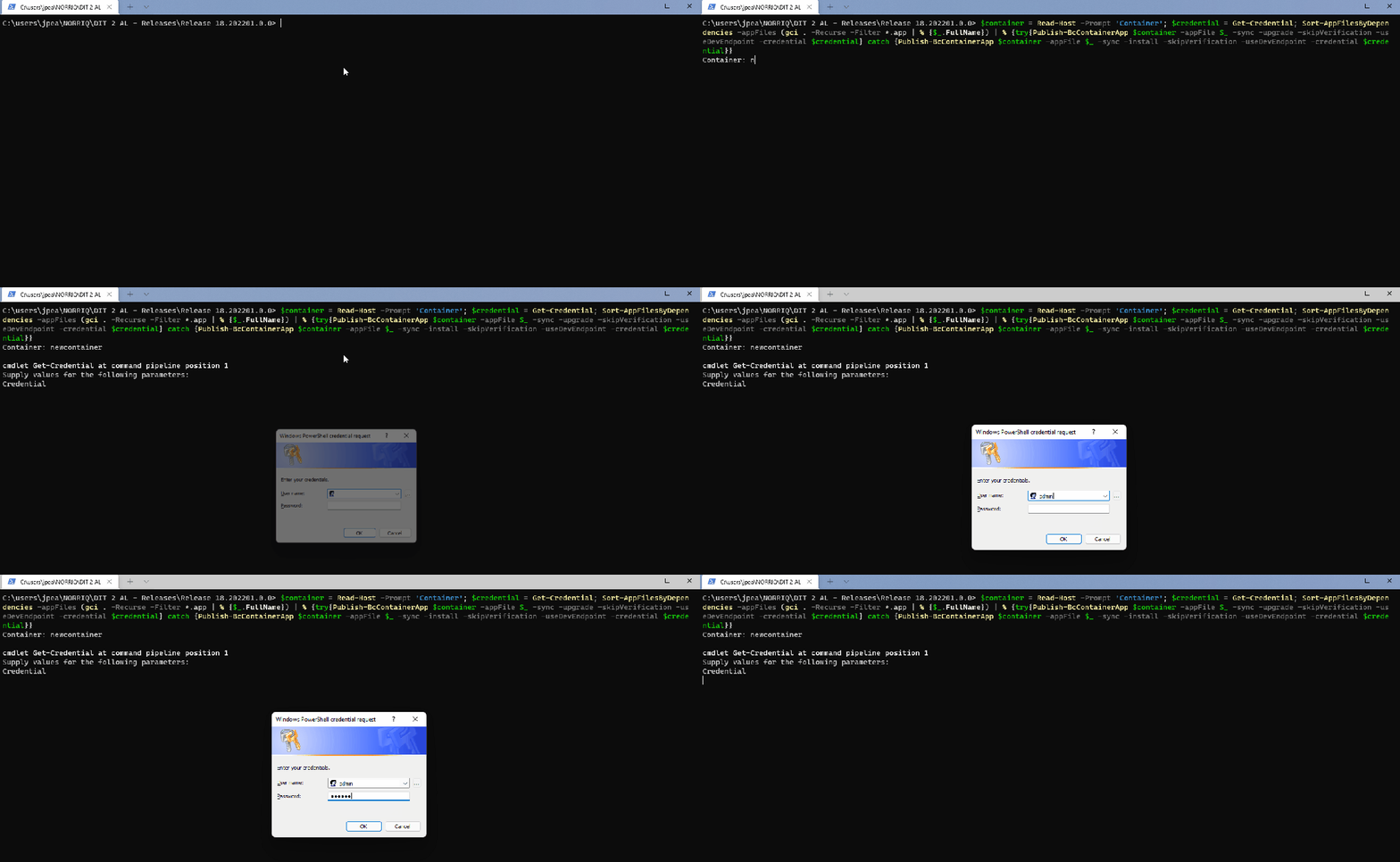
I do this fairly often to prep a new (local) container for development. The script needs to be run on the Docker host and assumes that the PowerShell prompt is already at the folder containing the apps (or apps in child folders) you want to install.

Use the dev endpoint if you are going to want to publish the same apps from VS Code into the container. Or publish into the global scope if you prefer – maybe if you are creating an environment for testing.

Publishing to Dev Scope Using Dev Endpoint

$container = Read-Host -Prompt 'Container'; $credential = Get-Credential; Sort-AppFilesByDependencies -appFiles (gci . -Recurse -Filter *.app | % {$_.FullName}) | % {try{Publish-BcContainerApp $container -appFile $_ -sync -upgrade -skipVerification -useDevEndpoint -credential $credential} catch {Publish-BcContainerApp $container -appFile $_ -sync -install -skipVerification -useDevEndpoint -credential $credential}}

Publishing to Global Scope

$container = Read-Host -Prompt 'Container'; Sort-AppFilesByDependencies -appFiles (gci . -Recurse -Filter *.app | % {$_.FullName}) | % {try{Publish-BcContainerApp $container -appFile $_ -sync -upgrade -skipVerification} catch {Publish-BcContainerApp $container -appFile $_ -sync -install -skipVerification}}

Tip: List-Commits

function List-Commits {
  cd 'C:\Git'
  $Commits = @()
  Get-ChildItem . -Directory | % {
    cd "$_"
    if (Test-Path (Join-Path (Get-Location) '.git')) {
      $Commits += git log --all --format="$($_)~%h~%ai~%s~%an" | ConvertFrom-Csv -Delimiter '~' -Header ('Project,Hash,Date,Message,Author'.Split(','))
    }
    cd ..
  }
  $Commits | ? Author -EQ "$(git config --get user.name)" | sort Date -Descending | Out-GridView -Title 'Commits'
}

This function iterates through Git repositories under the same parent folder (C:\Git in my case), builds a list of all the commits that you’ve authored (i.e. that match your user.name in Git config) and displays them in descending date order in a grid view.

Change the path in the second line to suit, or just remove it to have it search for repositories under the current directory.

Sample output in a PowerShell grid view

I use it to remind myself what I’ve been working on over the last few days. Mostly for fun and only occasionally because I’m late filling in my timesheets… 🙄