Testing Against a Remote Docker Host with AL Test Runner

Apologies for another post about AL Test Runner. If you don’t use or care about the extension you can probably stop reading now and come back next time. It isn’t my intention to keep banging on about it – but the latest version (v0.2.1) does plug a significant gap.

Next time I’ll move onto a different subject – some thoughts about how we use Git to manage our code effectively.

Developing Against a Remote Docker Container

While I still prefer developing against a local Docker container I know that many others publish their apps to a container hosted somewhere else. In which case your options for running tests against that container are:

  • Using the Remote Development capability of VS Code to open a terminal and execute PowerShell on the remote host – discussed here and favoured by Tobias Fenster (although his views on The Beautiful Game may make you suspicious of any of his opinions 😉)
  • Enabling PS-Remoting and opening a PowerShell session to the host to execute some commands over the network – today’s topic

Again, shout out to Max and colleagues for opening a pull request with their changes to enable this and for testing these latest mods.

Enable PS Remoting

Firstly, you’re going to need to be able to open a PowerShell session to the Docker host with:

New-PSSession <computer name>

I won’t pretend to understand the intricacies of setting this up in different scenarios – you should probably read the blog of someone who knows what they are talking about if you need help with it.

The solution will likely include:

  • Opening a PowerShell session on the host as administrator and running Enable-PSRemoting
  • Making sure the firewall is open to the port that you are connecting over
  • Passing a credential and possibly an authentication type to New-PSSession

To connect to my test server in Azure I run the following:

New-PSSession <server name> -Credential (Get-Credential) -Authentication Basic

AL Test Runner Config

They are several new keys in the AL Test Runner config file to accommodate remote containers. There are also a few new commands to help create the required config.

The Open Config File command will open the config JSON file or create it, if it doesn’t already exist. Set Container Credential and Set VM Credential can be used to set the credentials used to connect to the container and the remote host respectively.

The required config keys are:

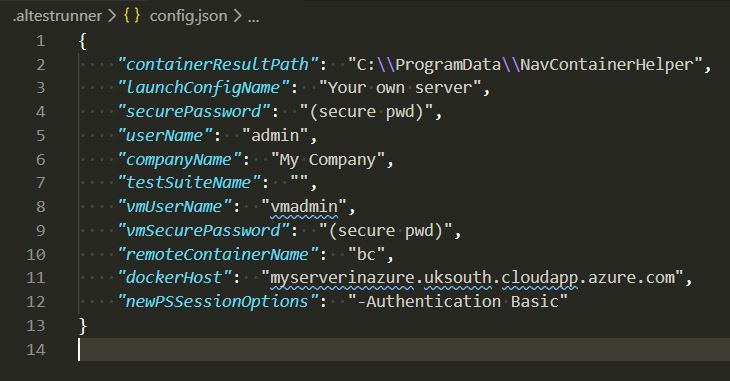
Sample AL Test Runner config
  • dockerHost – the name of the server that is hosting the Docker containers. This name will be used to create the remote PowerShell session. Leaving this blank implies that containers are hosted locally and the extension will work as before
  • vmUserName / vmSecurePassword – the credentials used to connect to the Docker host
  • remoteContainerName – the name of the container to run tests against
  • newPSSessionOptions – switches and parameters that should be added to New-PSSession to open the session to the Docker host (see below)

The extension uses New-PSSession to open the PowerShell session to the Docker host. The ComputerName and Credential parameters will populated from the dockerHost and vmUserName / vmSecurePassword config values respectively.

Any additional parameters that must be specified should be added to the newPSSessionOptions config key. As in my case I run

New-PSSession <server name> -Credential <credential> -Authentication Basic

I need to set newPSSessionOptions in the config file to “-Authentication Basic”. You can use this key for -useSSL, -Port, -SessionOption or whatever else you need to open the session.

With the config complete you should be able to execute tests, output the results and decorate the test codeunits as if you were working locally. Beautiful.

As ever, feedback, suggestions and contributions welcome. Hosted on GitHub.

Remote Development with VS Code and AL Test Runner

The most obvious limitation of the AL Test Runner extension for VS Code has been that you need to run VS Code on the Docker host machine. That’s fine for us because we do all our development on local Docker containers but I’m aware that this isn’t everyone’s preferred process.

Local Repo and VS Code, Remote Docker Host

I guess if you’re not hosting the Docker container locally then you are hosting it on some remote server – maybe on your own hardware or maybe in Azure or another cloud. To get AL Test Runner working in this scenario you’d need the AL Test Runner PowerShell module imported on the host and PS Remoting enabled to execute PowerShell on the host from your local VS Code terminal.

This post isn’t about getting that working. It’s not supported yet – although I do have a pull request to review from a team that are using it like this (thanks Max).

Remote Development with VS Code

An alternative approach is to use remote development with VS Code. The files that you are working on and the Docker host are remote but you are using VS Code locally. Kind of like RemoteDesktop Apps – the benefit of running on a server and using its resources but with the experience of an app that is running locally.

Install Open SSH server on the remote machine, install some VS Code extensions (using an insider build of VS Code – for now) and connect over SSH to the machine. Some magic happens at the other end and a few spells, invocations and minutes later a VS Code Server is installed on the remote machine.

I won’t go into the setup. I mostly followed this excellent blog post from Tobias Fenster and used aka.ms/getbc to create a new VM in Azure to test with.

It allows you to work in a local VS Code window but access the file system of the server and execute commands on it. Install VS Code extensions and PowerShell modules as if you are working locally and they are installed on the remote.

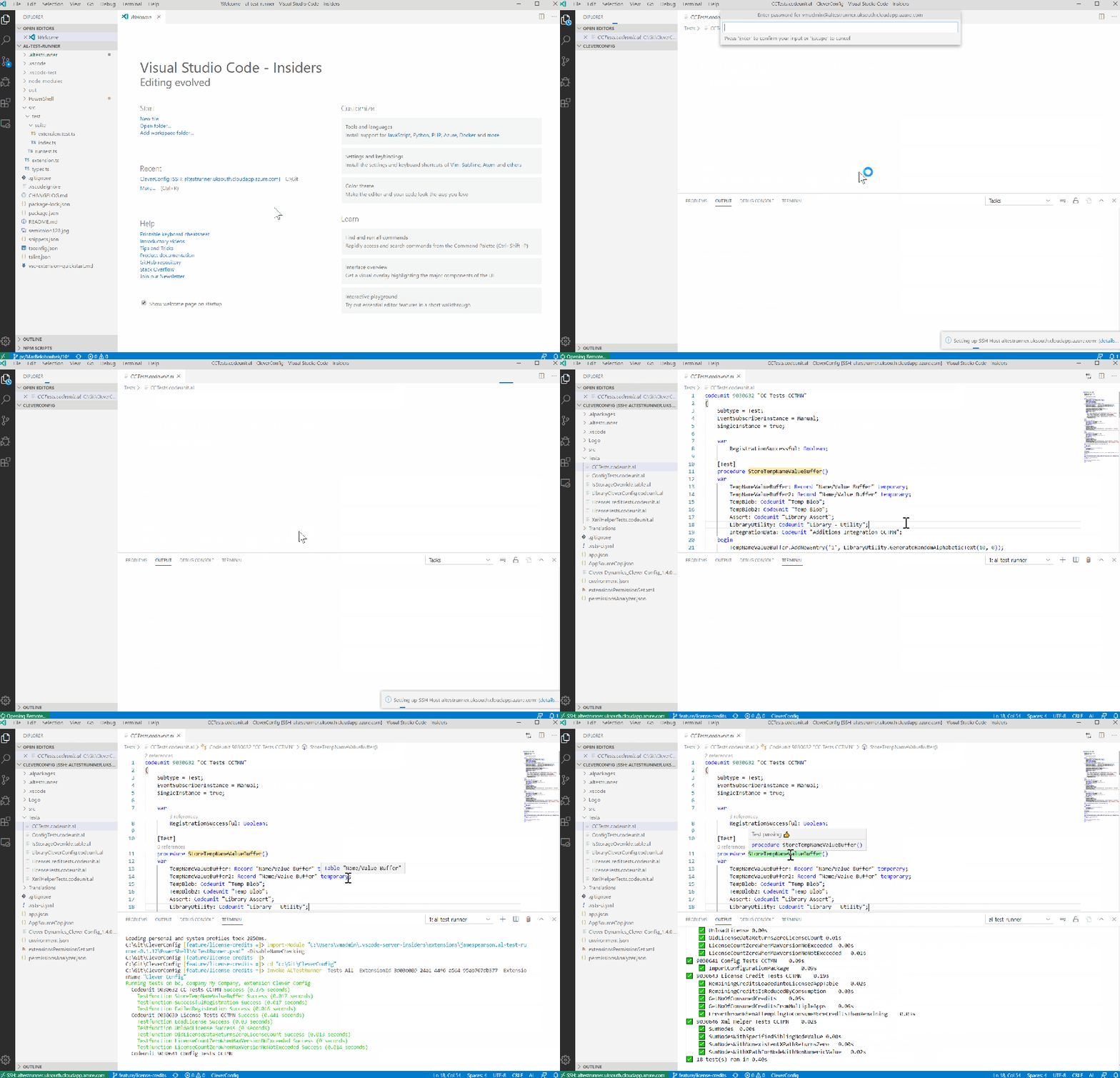
It is smooth. Impressively so. You quickly forget that you aren’t just working with files and extensions on your local machine. This clip shows:

  • Selecting a folder on the remote server from my recent history
  • Connecting via SSH
  • Entering the password for the remote account that I am authenticating as (a local account as my VM in Azure is not joined to a domain)
  • Running all the tests in the project and working with VS Code as I would do locally
Connecting to remote host via SSH and running some tests

I still prefer actual local development, but I have to admit that this is pretty great.

AL Test Runner

I span up a remote development scenario out of curiosity but I also wanted to test how/if AL Test Runner would work. It works almost seamlessly. Almost. There is just a little stretch of exposing stitching – but it’s easy to work around.

Local and remote extensions in VS Code

Once you’ve opened a remote development window you’ll need to:

  • Install the AL extension
  • Install the AL Test Runner extension
  • Install the navcontainerhelper PowerShell module (you can use install-module in the integrated terminal)

If you try to run tests you’ll find that it appears to hang indefinitely. Actually it has popped a window to enter the credentials to connect to the server with – but you can’t see it and it won’t continue until you dismiss the window.

If you’re interested in trying it the workaround for now is to manually edit the config.json file in the .altestrunner folder.

When you first install the extension you won’t have a config.json file. Running a test, any test is enough to create it. You’ll also notice that the command appears to hang in the terminal. You can kill that terminal once the file has been created.

Open config.json and enter the userName to authenticate with BC. Next you need to enter the securePassword (this is not your plain text password). You can get the secure password running the following in the terminal:

ConvertTo-SecureString 'your password' -AsPlainText -Force | ConvertFrom-SecureString

Copy the huge string from the output into the securePassword key of the config file. After that you should be good to go.

At some point I’ll also work on the ability to use remote PowerShell to execute tests on a remote Docker host from your local machine. After all, Max has already done most of the work for me 🙂

Scheduling Azure DevOps Pipelines with YAML

I had the pleasure of presenting some thoughts about developing apps for SaaS with James Crowter to the Dutch Dynamics Community yesterday. We were sharing some of our experiences of the maintenance challenge that comes with having published apps on AppSource.

How can you continuously test your apps against past, current and upcoming versions of Business Central? Perhaps two ways:

  1. Slowly drive yourself to despair with the monotony of creating different versions of Business Central environments and testing manually
  2. Automate as much of the tedious infrastructure and repetitive testing work as possible so you can concentrate on some fun stuff instead

We have two main reasons to trigger the execution of the pipeline for a given branch of an app in Azure DevOps:

  1. We have changed some code
  2. Microsoft have changed some code that we depend on

If we have changed some of our own code we should run it through the pipeline to ensure that it passes our checks, the automated tests run and that the resulting .app files are versioned and signed correctly. It is easy to overlook some of these tasks and/or inadvertently break some existing functionality when making our changes. The pipeline is there to have our back.

At the same time, Microsoft are making changes to the base and system applications that we rely on. Even if we don’t have any planned changes for our apps we may need to make some code changes to accommodate what Microsoft have done to the ground underneath our feet.

With a bit of luck we’ll see this sort of thing:

warning AL0432: Method 'FilterReservFor' is marked for removal. Reason: Replaced by ProdOrderLine.SetReservationFilters(FilterReservEntry)

warning AL0432: Method 'CreateReservEntryFor' is marked for removal. Reason: Replaced by CreateReservEntryFor(ForType, ForSubtype, ForID, ForBatchName, ForProdOrderLine, ForRefNo, ForQtyPerUOM, Quantity, QuantityBase, ForReservEntry)

We’re using a method that Microsoft are making obsolete and will be removed at some point in the future. No need to panic, but be aware that you should switch to the new method. Very civilised. Thanks.

With less luck we’ll find that Microsoft have introduced a change that breaks our app in some way – with a compilation error or unintended behaviour. Either way, it’s something that we want to know about.

Scheduling pipelines can help with that.

Typically we:

  • Develop against a W1 version of the latest sandbox image, run pipelines against our latest commits against mcr.microsoft.com/businesscentral/sandbox with a continuous integration trigger
  • Migrate changes backwards to BC14 and BC13 compatible versions of our apps, run pipelines against appropriate Docker images for those versions
  • Have separate branches which we rebase onto the latest commit to run pipelines against bcinsider.azurecr.io/bcsandbox and bcinsider.azurecr.io/bcsandbox-master with a schedule

The continuous integration trigger is straightforward enough. At the top of our .azure-pipelines.yml we have:

trigger:
  - '*'

The schedule is defined in a separate section of the yml file, like this:

schedules:
  - cron: 0 3 * * Sun
    displayName: Schedule insider builds
    branches:
      include: ['build/insider', 'build/insider-master']
    always: true

Those branches are the ones that are set to build against the insider Docker images. I hadn’t come across cron before, but it’s pretty simple. The schedule is defined as:

  • Minute
  • Hour
  • Day of month
  • Month
  • Day of week

Our schedule comes out as 03:00 every Sunday. Asterisks stand for any value. https://crontab.guru/ is useful for getting your head around the format.

The branches key defines which branches are included in the schedule and the always indicates that we always want to run the pipeline, even if there haven’t been any code changes since it was last run.

Putting Queries to Use in Business Central

We’ve had query objects for a while now – since NAV 2013 (I think). In theory they sound great, link a bunch of tables together, aggregate some columns, get distinct values, left join, right join, cross join – executed as a single SQL query.

Why Don’t We Use Queries Much?

In practice I haven’t seen them used that much. There’s probably a variety of reasons for that:

  • We have limited control over the design and execution of the query at runtime. The design is pretty static making it difficult to create useful generic queries short of throwing all the fields from the relevant tables in – which feels heavy-handed
  • I find how the links between dataitems unintuitive
  • It isn’t easy to visualise the dataset that you are creating when writing the AL file
  • Habit – we all learnt FindFirst/Set, Repeat and Until when we first started playing with CAL development and are more comfortable working with loops than datasets. Let’s be honest, the RDLC report writing experience hasn’t done much to convert us to a set-based approach to our data

However, just because there is room for improvement doesn’t mean that we can’t find good uses for queries now. Queries are perfect for:

  • Using queries to select DISTINCT values in the dataset
  • Aggregates – min, max, sum, average, count – especially for scenarios that aren’t suited to flowfields
  • Date functions – convert date columns to day/month/year – which allows you to easily aggregate another column by different periods
  • Outer joins – it’s possible, but far more expensive, to create this kind of dataset by hand with temporary tables
  • Selecting the top X rows
  • Exposing as OData web services

It’s the last point in that list that I particularly want to talk about. We’ve been working on a solution lately where Business Central consumes its own OData web services.

What?! What kind of witchcraft is this? Why would you consume a query via a web service when you can call it directly with a query object? Hear me out…

Consuming Queries

I think you’ve got two main options for consuming queries via AL code.

Query Variable

You can define a variable of type query and specify the query that you want to run. This gives you some control over the query before you execute it – you can set filters on the query columns and set the top number of rows. Call Query.Open and Query.Read to execute the query and step through the result set.

The main downside is that you have to specify the query that you want to use at design-time. That might be fine for some specific requirement but is a problem if you are trying to create something generic.

Query Keyword

Alternatively we can use the Query keyword and execute a query by its ID. Choose whether you want the results in CSV (presumably this is popular among the same crowd that are responsible for an increase in cassette tape sales) or XML and save them either to disk or to a stream.

The benefit is that you can decide on the query that you want to call at runtime. Lovely. Unfortunately you have to sacrifice even the limited control that a query variable gave you in order to do so.

OData Queries/Pages

Accessing the query via OData moves us towards having the best of both worlds. Obviously there is significant extra overhead in this approach:

  • Adding the query to the web service table and publishing
  • Acquiring the correct URL to a service tier that is serving OData requests for your query
  • Creating the HTTP request with appropriate authentication
  • Parsing the JSON response to get at the data that you want

This is significantly more work than the other approaches – let’s not pretend otherwise. However, it does give you all the power of OData query parameters to control the query. While I’ve been talking about queries up til now almost all of this applies to pages exposed as OData services as well.

  • $filter: specify column name, operator and filter value that you want to apply to the query, join multiple filters together with and/or operators
  • $select: a comma-separated list of columns to return i.e. only return the columns that you are actually interested in
  • $orderBy: specify a column to order the results by – use in combination with $top to get the min/max value of a column in the dataset
  • $top: the number of rows to return
  • $skip: skip this many rows in the dataset before returning – useful if the dataset is too large for the service tier to return in a single call
  • $count: just return the count of the rows in the dataset – if you only want the count there is no need to parse the JSON response and count them yourself

Some More About Translating Business Central Apps

I’ve written before about using Azure Cognitive Services to translate the captions in the .xlf file that is generated when you compile your Business Central app. For us, the motivation is to make our apps available in as many countries as possible in AppSource.

Since then Søren Alexandersen has announced that it will not be necessary to provide all of a country’s official languages to make your app available in that country.

If you going to provide translations you might be interested in how to improve upon a the approach of the last post.

The Problem

The problem of course is that we are relying on machine translation to translate very short phrases or single words. A single word can mean different things and be translated in many different ways into other languages depending on the context. Context that the machine translation doesn’t have. That’s what makes language and etymology simultaneously fascinating and infuriating.

The problem is compounded by abbreviations and acronyms. You and I know that “Prod. Order” is short for “Production Order”. But “Prod” is itself an English word that has nothing to do with manufacturing.

We know that FA is likely short for “fixed asset” but if you don’t know that the context is an ERP system it could mean a whole range of things. How is Azure supposed to translate it?

What we need is some domain-specific knowledge.

The Solution

When we think about it we know that we’ve already got thousands of translations of captions into the languages that we want – if only we can get them into a useful format. We’ve got Docker images of Business Central localisations. They contain the base app for the location complete with source/target pairs for each caption.

If you can get hold of the xlf file it’s a relatively simple job to search for a trans-unit that has a source node matching the caption that you want to translate and find the corresponding translated target node.

As an example, I’ve created a container called ch from the image mcr.microsoft.com/businesscentral/sandbox:ch – the Swiss localisation of Business Central.

Find and expand the base application source.

$ContainerName = 'ch'
$Script = {Expand-Archive "C:\Applications.*\Base Application.Source.zip" -DestinationPath 'C:\run\my\base'}

Invoke-ScriptInBCContainer -containerName $ContainerName -scriptblock $Script

This script will find the zip file containing the localised base application and extract it to the ‘C:\run\my\base’ folder. This will take a few minutes but when it is done you should see a Translations folder containing, in the case of Switzerland, four .xlf files.

The following script will load the fr-CH .xlf file into an Xml Document, search for a trans-unit node which has a child source node matching a given string and return the target i.e. the fr-CH translation.

$Language = 'fr'
$enUSCaption = 'Prod. Order Line No.'
[xml]$xlf = Get-Content (Get-ChildItem "C:\ProgramData\NavContainerHelper\Extensions\$ContainerName\my\base\Translations" -Filter "*$Language*").FullName

$NSMgr.AddNamespace('x',$xlf.DocumentElement.NamespaceURI)
$xlf.SelectSingleNode("/x:xliff/x:file/x:body/x:group/x:trans-unit[x:source='$enUSCaption']", $NSMgr).target

Which returns “N° ligne O.F.” – cool.

Some Obvious Points

I’m going to leave it there for this post, save for making a few obvious points.

  • This is hopelessly inefficient. Downloading the localised Docker image, creating the container, extracting the base app – all to get at the .xlf files. We’re going to want a smarter solution before using this approach in any volume and for more languages
  • Each .xlf file is 60+MB – that takes a while to load into memory – you’ll want to keep the variable in scope and reuse it for multiple searches rather than reloading the document
  • Not all of the US English captions you create in your app will exist in the base application – you’ll still want to send those off for translation.

Maybe we can start to address these points next time…