Part 3: (Slightly) More Elegant Error Handling in Business Central

Intro

This is a continuation of a series of posts started around a year ago – you can find the old posts here if you are interested.

Briefly, the goal is this. I’m posting a journal and there are several checks that I need to perform on each line before they are posted. Instead of stopping and showing the first error I want to validate all of the lines and show all of the errors to the user at once.

Previously

The previous posts have been about using the Error Message Management codeunit to achieve that. It works, but I found it clunky. You need to avoid throwing an actual error, but instead collect the problems into a temporary table to display at the end. Then an actual error message is thrown to prevent the journal from being posted.

Problems

What are the problems with that approach?

First, not throwing an error if often harder than throwing one. Instead of simple calls to TestField or Error you need to make corresponding calls to ErrorMessageMgt.LogTestField and ErrorMessageMgt.LogError. In itself that’s OK, but what my be more of a problem is wrapping the posting routine with if Codeunit.Run() then

if not Codeunit.Run(Codeunit::"Posting Routine") then
  ErrorMessageHandler.ShowErrors();

It depends on the context in which you are calling the posting routine. If you are calling it from a page action it’s probably fine. If you are calling it in the middle of some other business logic, not so much.

Second, testing the routine is a bit of a pain. If you want to write an automated test that asserts that when you post the journal line without a posting date then an error is thrown, you can’t. At least not in the way that you expect.

asserterror JournalLine.Post();
Assert.ExpectedError('Posting Date must not be blank');

Something like this won’t work – because an actual TestField error is never thrown. That error message is collected in the temporary table. The only actual message that is thrown is a blank one by the Error Message Handler codeunit. So then you have to either:

  1. complicate your tests by collecting the error messages and asserting that they have the value you expect
  2. complicate your production code with an option to directly throw the errors rather than log them e.g. make sure that you don’t have an active instance of Error Message Management. It isn’t difficult, it just feels messy

Collectible Errors

From BC19 we have the concept of collectible errors. This is quite a different – and better, I think – approach to the same problem. Instead of a framework in AL which we need to dance around avoiding calling Error it is a platform feature which allows us to call Error but tell the platform that the error is collectible and that code can continue to be executed.

The method that the errors are thrown in must indicate that it allows errors to be collected with a new attribute ErrorBehaviour.

[ErrorBehaviour(ErrorBehaviour::Collect)]
local procedure CheckLine(var JournalLine: Record "Journal Line")
begin
  Error(ErrorInfo.Create('Some error message', true));
end;

The Error method has a new overload which takes an ErrorInfo type instead of some text. The ErrorInfo type indicates whether it can be collected or not.

If both the ErrorInfo and the method in which it was thrown are set to allow collection then the error message will not be immediately shown to the user and the code will continue to execute.

Show me the code…

Changes to the Video Journal Batch record

You can view the full changes in this commit: https://github.com/jimmymcp/error-message-mgt/commit/5faa82e614c13017c687d2255305675df0049b29

This is the Post method which is called from the page. You can see the benefits immediately. We can get rid of all that nonsense activating the error message framework and calling if Codeunit.Run. Just call the posting routine and let it do its thing. Much easier to follow.

Next, in the codeunit that handles the batch posting we can get rid of the calls to Error Message Management. I’ve added a new CheckLines method and decorated it with the ErrorBehaviour attribute. This tells the system that any collectible errors which occur within the scope of this method can be collected and code execution can continue.

The level at which we set the ErrorBehaviour attribute is important. I want to continue to check all journal lines in the batch and then stop and show any errors which have been collected. That’s why the ErrorBehaviour is set here – at the journal batch level – rather than at journal line level.

When the system finishes executing the code in this method it will automatically check whether any errors have been collected and show an error message if they have.

Finally, these are the changes to the codeunit which actually checks the journal line. Again, we can ditch the references to the Error Message Management codeunit and replace them with straightforward calls to Error or TestField.

Rather than passing some text with the error message we can pass an ErrorInfo type, returned by ErrorInfo.Create. This is the signature. At a minimum pass the error text, but we also want to indicate that this error can be collected via the collectible parameter. I’m including the instance of Video Journal Line and field number where appropriate as well.

Great to see that TestField has an overload which accepts an ErrorInfo object. The system will fill in the usual error text for you, “<field number> must have a value in <record id>”.

The other parameters are interesting, maybe more about those another time.

procedure Create(Message: Text, [Collectible: Boolean], var [Record: Table], [FieldNo: Integer], [PageNo: Integer], [ControlName: Text], [Verbosity: Verbosity], [DataClassification: DataClassification], [CustomDimensions: Dictionary of [Text, Text]]): ErrorInfo

How does it look?

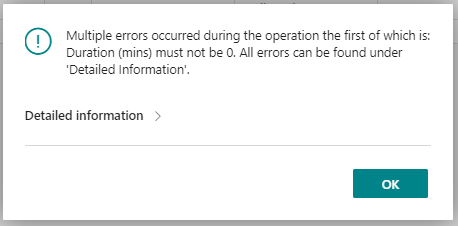
Put that all together and attempt to post a couple of journal lines which have some validation errors. How does it look?

You get an error dialog as usual. Only this time it says that “Multiple errors occurred during the operation” and gives you the text of the first error message. Click on Detailed information to see a list of all the errors that were collected.

This is what you get.

Kind of underwhelming right?

It was all going so well up to this point but I’ve got a few issues with this:

  1. Given that I’ve gone to the trouble of collecting multiple errors to show to the user all at once it seems counter-intuitive to make the user expand the error to see all the details
  2. Is it just me or is this not easy to read? Once an error message breaks two lines it isn’t obvious how many errors there are. You can’t expand the dialog horizontally either. Even with relatively few errors I’ve had to scroll down to be able to read them all
  3. TestField errors include the record id, which is fine, but for the custom errors I’ve gone to the trouble of giving the record and field number that contains the problem…but that isn’t shown anywhere. I’ve only got 2 lines in my journal in this case, but if I had tens or hundreds it would be really difficult to match the validation errors to the lines that caused them

Custom Handling of Errors

There is a way that we can handle the UI of the error messages ourselves, which is great – and I’ll show an example of that next time. Kudos to the platform team for building that capability in from the start, it’s just a shame that it’s necessary. Call me picky, but I don’t think the standard dialog is really useable.

BC19 CU0

By the way, this doesn’t work properly in BC19 CU0. You have to set the target in app.json to OnPrem – which shouldn’t be necessary. That’s been fixed now.

Test Explorer in Visual Studio Code

The July 2021 release of Visual Studio Code (1.59) introduced a new testing API and Test Explorer UI. From v0.6.0 this API is used by AL Test Runner.

Test Explorer Demo

Improvements

UI

The biggest improvement is the Test Explorer view which shows your test codeunits, their test methods and the status of each.

Hovering over a test gives you three icons to run, debug or open an editor at the test.

You can run and debug all the tests in a given codeunit by hovering over the codeunit name or run and debug all tests at the top.

The filter box allows you to easily find specific tests, which I’ve found useful in projects which several test codeunits and hundreds of tests.

You can also filter to only show failed tests or only test which are present in the codeunit in the current editor. The explorer supports different ways of sorting and displaying the tests.

Icons are added into the gutter alongside test methods in the editor. Left click to run the test or right click to see this context menu with more options.

The old “Run Test” and “Debug Test” codelens actions are also still added above the test definition.

Commands & Shortcuts

A whole set of new commands are introduced with keyboard chords beginning with Ctrl + ; The existing AL Test Runner keyboard shortcuts still work but there are some nice options in the new set – like “Test: Rerun Last Run” to repeat the last run test without having to navigate to it again.

Using the Test Explorer

Using the Test Explorer is pretty self-explanatory if you’ve already been using AL Test Runner. When you open your workspace/folder the tests should be automatically discovered and loaded into the Test Explorer view. On first opening all of the tests will have no status i.e. neither pass or fail – but results from now on will be persisted.

Running one or more tests – regardless of where you run them from (Test Explorer, Command Palette, CodeLens, Keyboard Shortcut) – will start a test run. You’ll see “Running tests…” in the Status Bar.

Once the test(s) have finished running you’ll see the results at the top of the Test Explorer, “x / y tests passed (z %)”, and the status icons by each test will be updated.

If the tests do not actually run e.g. because your container isn’t started then the test run will not finish and “Running tests” will continue to spin at the bottom of the screen. You can stop the run manually from the top of the Test Explorer, fix the problem and go again.

Using Code Coverage in Business Central Development

Intro

Sample code coverage summary

In the latest version of AL Test Runner I’ve added an overall percentage code coverage and totals for number of lines hit and number of lines. I’ve hesitated whether to add this in previous versions. Let me explain why.

Measuring Code Coverage

First, what these stats actually are. From right to left:

Code Coverage 79% (501/636)
  1. The total number of code lines in objects which were hit by the tests
  2. The total number of lines hit by the tests
  3. The percentage of the code lines hit in objects which were hit at least once

Notice that the stats only include objects which were hit by your tests. You might have a codeunit with thousands of lines of code, but if it isn’t hit at all by your tests it won’t count in the figures. That’s just how the code coverage stats come back from Business Central. Take a look at the file that is downloaded from the test runner if you’re interested (by default it’s saved as codecoverage.json in the .altestrunner folder).

It is important to bear this is mind when you are looking at the headline code coverage figure. If you have hundreds of objects and your tests only hit the code in one of them, but all of the code in that object – the code coverage % will be a misleading 100%. (If you don’t like that you’ll have to take it up with Microsoft, not me).

What Code Coverage Isn’t Good For

OK, but assuming that my tests hit at least some of the code in the most important objects then the overall percentage should be more or less accurate right? In which case we should be able to get an idea of how good the tests are for this project? No.

Code Coverage ≠ Test Quality

The fact that one or more tests hits a block of code does not tell you anything about how good those tests are. The tests could be completely meaningless and the code coverage % alone would not tell you. For example;

procedure CalcStandardDeviation(Values: List of [Decimal]): Decimal
var
    Value, Sum, Mean, SumOfVariance : Decimal;
begin
    foreach Value in Values do
        Sum += Value;
    Mean := Sum / Values.Count();
    foreach Value in Values do
        SumOfVariance += Power((Value - Mean), 2);
    exit(SumOfVariance / Values.Count());
end;

[Test]
procedure TestCalcStandardDeviation()
var
    Values: List of [Decimal];
begin
    Values.Add(1);
    Values.Add(3);
    Values.Add(8);
    Values.Add(12);

    CalcStandardDeviation(Values);
end;

Code coverage? 100% ✅

Does the code work? No ❌ The calculation of the standard deviation is wrong. It is a pointless test, it executes the code but doesn’t verify the result and so doesn’t identify the problem. (In case you’re wondering the result should be the square root of SumOfVariance).

Setting a Target for Code Coverage

What target should we set for code coverage in our projects? Don’t.

Why not? There are a couple of good reasons.

  1. There is likely to be some code in your project that you don’t want to test
  2. You might inadvertently encourage some undesired behaviour from your developers

Why Wouldn’t You Test Some of Your Code?

Personally, I try to avoid testing any code on pages. Tests which rely on test page objects take significantly longer to run, they can’t be debugged with AL Test Runner and I try to minimise the code that I write in pages anyway. Usually I don’t test any of:

  • Code in action triggers
  • Lookup, Drilldown, AssistEdit or page field validation triggers
  • OnOpen, OnClose, OnAfterGetRecord
  • …you get the idea, any of the code on a page

You might also choose not to test code that calls a 3rd party service. You don’t want your tests to become dependent on some other service being available, it is likely to slow the test down and you might end up paying for consumption of the service.

I would test the code that handles the response from the 3rd party but not the code that actually calls it e.g. not the code that sends the HTTP request or writes to a file.

Triggers in Install or Upgrade codeunits will not be tested. You can test the code that is called from those triggers, but not the triggers themselves.

Developing to a Target

When a measure becomes a target, it ceases to be a good measure.

Marilyn Strathern

If we already know that we have some code that we will not write tests for then it doesn’t make a lot of sense to set a hard target of 100%. But, what other number can you pick? Imagine two apps:

  1. An app that is purely responsible for handling communication with some Azure Functions. Perhaps the majority of the code in that app is working with HTTP clients, headers and responses. It might not be practical to achieve code coverage of more than 50%
  2. An app that implements a new sales price mechanism. It is pure AL code and the code is almost entirely in codeunits. It might be perfectly reasonable to expect code coverage of 95%

It doesn’t make sense to have a headline target for the developers to work to on both projects. Let’s say we’ve agreed as a team that we must have code coverage of at least 75%. We might incentivise developers on the first project to write some nonsense tests just to artificially boost the code coverage.

Meanwhile on the second project some developers might feel safe skipping writing tests for some important new code because the code coverage is already at 80%.

Neither of these scenarios is great, but, in fairness, the developers are doing what we’ve asked them to.

What is Code Coverage Good For?

So what is code coverage good for? It helps to identify objects that have a lot of lines which aren’t hit by tests. That’s why the output is split by object and includes the path to the source file. You can jump to the source file with Alt+Click.

Highlight the lines which were hit by the previous test run with the Toggle Code Coverage command. That way you can make an informed opinion about whether you ought to write some more tests for this part of the code or whether it is fine as it is.

50% code coverage might be fine when 1 out of 2 lines has been hit. It might not be fine when 360 out of 720 lines have been hit – but that’s for you to decide.

Further Reading

https://martinfowler.com/bliki/TestCoverage.html

Get Errors from a Docker Container Event Log

“You cannot sign in due to a technical issue. Contact your system administrator.”

Business Central

Terrific. This is in a local Docker container, so I am the system administrator. Give me a second while I contact myself…

…nope, myself didn’t know what the problem was either.

It could be that the license has expired, maybe there is something wrong with the tenant, the service tier hasn’t been able to start, who knows? You should probably start by looking for errors in the event log of the container.

Maybe I’m missing a trick and there is an easier way to do this(?) but I look through the event log with PowerShell. You can run this command inside the container:

Get-EventLog Application -EntryType Error

That will return all the errors that have been logged in the Application log. Two problems though:

  1. The list might be massive
  2. You can’t see the full text of the messages

You can add the Newest parameter to specify the number of most recent messages that you want to return. Then you probably want to write the full text of the message so that you can actually read it.

Get-EventLog Application -EntryType Error -Newest 1 | % {$_.Message}

Cool – although you still need to open a PowerShell prompt inside the container to run those commands. It would be nice if we didn’t need to do that. We can use docker exec to run a command against a local container from the outside.

docker exec [container name] powershell 'Get-EventLog Application -EntryType Error -Newest 1 | % {$_.Message}'

Now we’re getting somewhere. But of course, you don’t want to be typing all that each time. I’ve declared a PowerShell function in my profile file (run code $profile in a PowerShell prompt to open the profile file in VS Code).

function Get-ContainerErrors {
  param(
    [Parameter(Mandatory = $true)]
    [string]$ContainerName,
    [Parameter(Mandatory = $false)]
    [int]$Newest = 1
  )
  docker exec $ContainerName powershell ("Get-EventLog Application -EntryType Error -Newest $Newest" + ' | % {$_.Message;''**********''}')
}

Declaring it in the profile file means that the function will always be available in a PowerShell prompt. The container name parameter must be supplied and optionally I can ask for more than just the latest one error. The string of asterisks is just to indicate where one log message ends and another begins.

Part 2a: (Slightly) More Elegant Error Handling in Business Central

One of the underrated advantages to doing a little blogging is that you can write about a subject you know a little about and have people who actually know what they are talking about reply to tell you a better way to do it.

There’s probably a minimum threshold of credibility on the subject you need in order for people to post serious replies. If I posted some nonsense about my keyhole surgery technique I doubt I’d get helpful corrections from the Royal College of Surgeons. It would also represent something of a departure from my usual DevOps, Git, testing and BC development posts.

Anyway, I had some useful comments on my previous post about error handling – thanks.

Use the Error Message Table

Henrik Helgesen pointed out you can skip all the codeunits, activation, context, finishing… and just use the Error Message table directly. It has some a bunch of LogXYZ methods for recording errors or messages.

It has a method to determine if there are error messages to show and a method to show them. Nice and simple and, for the scenario that I outlined, probably more appropriate.

LogTestField()

In the last post I complained about the lack of TestField functionality in the Error Message Mgt. codeunit. Kilian replied to say that the method exists in BC17. I doubt that has anything to do with my post – but I’m happy to take some credit if required. It has the signature that you’d expect.

procedure LogTestField(SourceVariant: Variant; SourceFieldNo: Integer) IsLogged: Boolean

That makes the error handling code far less verbose and, crucially, we don’t have to provide a label or any translations for the error message – that’s handled by the framework.

Consistent Behaviour With Base App

LogTestField in the base app

How useful is it for partners to invest in this sort of error handling if the base app doesn’t use it? A consistent user experience might still be better than improving our error handling but departing from standard paradigms in the process. Fair point.

Although actually, it looks like more of this is coming to the base app. This is a snip of the results when searching for “LogTestField” in the base app in BC 17.1.17104.0-W1.

49 results in 2 files. OK, so probably still a long way to go to make this the default user experience but its a start. I’m hopeful that this is an area that Microsoft will pay some attention to over the next few versions, improve the framework and make it easier for us to follow their lead.