
This post follows on from my discussion of extensions and integration and dependencies between them. Find the first part here.
TL;DR
- You can use a base app as a common dependency for the apps that you want to integrate
- Have one app raise an event publisher with the required event data and another app subscribe to that event
- Use EventSubscriberInstance = Manual with BindSubscription to create an instance of the subscriber that you want for a given event call
- Use a SingleInstance codeunit in the base app to keep the subscriber in scope to respond to events and CLEAR them when you’re done
Scenario
So far we’ve established the scenario of four apps: some business logic that is handling files from an external system and three file handler apps that are pushing and pulling those files from various sources.
The key objectives are to write each of these apps in such a way that:
- They integrate together to provide the overall functionality that the customer requires
- We can reuse one or more of the apps in other projects flexibly without needing to install dependencies that we aren’t using
Objective #2 means that we can’t have any dependencies between the apps. In Part 1 we discussed how you might achieve that with Codeunit.Run but some of the challenges that leaves us with.
Interfaces
Let’s picture how we might design a solution without worrying about the actual limitations of the AL language first.
In our example the file handlers are working with different sources (local network, FTP and Amazon S3) but they are providing common functionality. We’d probably need them all to:
- List files in a given directory
- Get the contents of a specific file
- Delete files
- Create new files
We might define all of the methods that we’d require a file handler to provide in an interface and have each file handler app implement that interface. This serves as a contract between the business logic app and the file handlers that the file handlers will always provide an agreed set of methods.
Polymorphism
A related, but slightly different idea is polymorphism. We might have a file handler base from which other file handlers inherit and override their functionality. This has the advantage of allowing the business logic app to create an instance of a file handler and call its methods without worrying about the precise type of file handler that is implementing those methods. For example, the business logic app can request that a file handler lists available files without knowing, or caring, precisely how that is being handled.
Yes, But We Code in AL not C#
Great. Thanks for the theory but none of this is possible in AL so why are talking about it? While we can’t write a solution using an interface or inheritance we can take inspiration from those approaches.
There are a couple of key challenges that we have to get a little funky in AL to overcome:
- How do we create an instance of a codeunit at runtime without knowing what that codeunit will be at design-time?
- How do we call methods in that codeunit without knowing which codeunit we’re talking about at design-time?
Use Events…Obviously
In one way the answer is simple. That’s what an event publisher is for. I call an event subscription and am able to call code in subscribers without knowing that they even exist at design-time. Perfect, apart from we are trying to avoid creating dependencies between our apps…remember? The file handlers can’t subscribe to an event in the business logic unless they depend on it or vice versa.
Common Dependency
One way to work around that is to have a common dependency between the apps that you want to integrate. Have the business logic raise an event in the base dependency that the file handler depends upon.
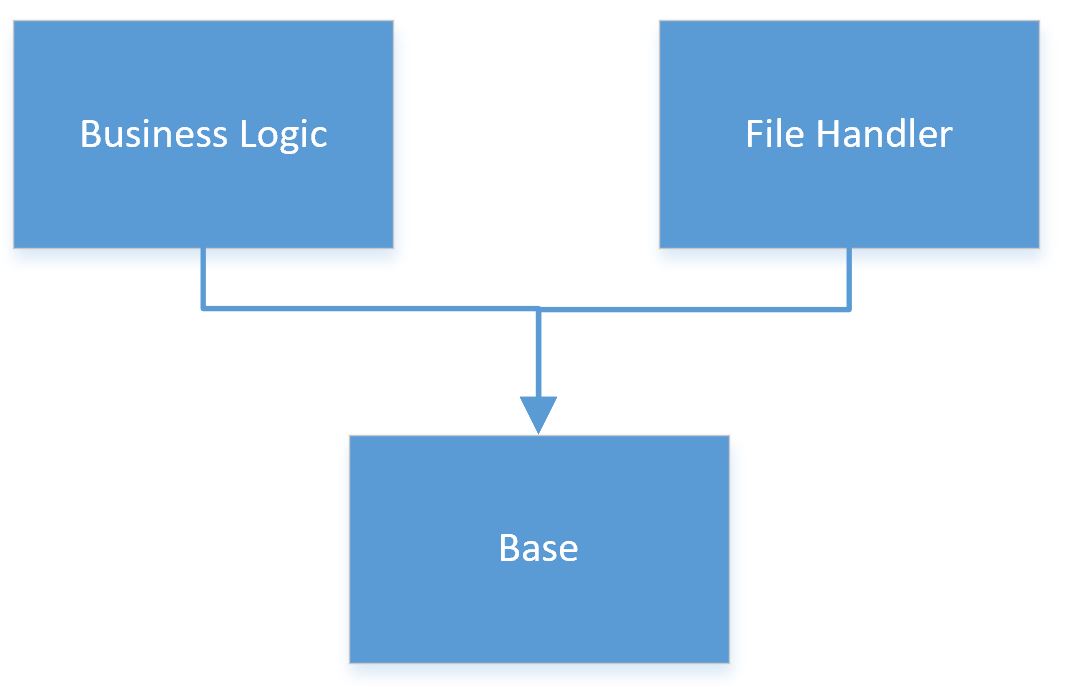
The base app could have some events that expose useful functionality to the business logic app (the sort of methods listed above).
Each file handler app could subscribe to those events and implement them.
We’re getting closer.
Pros
- Only install the file handlers that you actually need
- Decouples the business logic from the file handlers, they can be installed and maintained independently
- We can pass AL types natively through the event parameters i.e. no need to serialize them and stuff them into a TempBlob record
Cons
- If you want to support new methods you need to modify the base app which means you need to uninstall everything on top of it first
- All file handlers will respond to all events raised in the base app. We’ll need to set a parameter to indicate which file handler we want to respond and have all file handlers respect it. Not insurmountable, but not particularly elegant either
Option D
With all that preamble I’ll get on to describing the Option D that I promised in the previous post.
I’ll attempt to outline our (current) approach in comprehensible English here but follow up with an example in the next post. This approach attempts to combine the best of both worlds:
- Codeunit.Run targets a specific codeunit to run (rather than shouting for someone to help and having all the file handlers come running at the same time)
- Events subscriptions allow you to pass native AL types
Credit to vjeko.com/i-had-a-dream-codeunit-references. This design takes some of the ideas Vjeko discusses in his post.
Listen…but Only When You’re Spoken To
We have a base app that is a common dependency for the apps that we are integrating as per the diagram above. The file handlers subscribe to an event in the base app which the business logic app is able to raise and pass appropriate parameters to. With multiple file handlers installed how do we prevent them from all responding all of the time? We want the business logic app to control which file handler’s event subscription fires each time.
The EventSubscriberInstance property. Set that to Manual for a codeunit and it will only respond to events when an instance of it is bound with BindSubscription. The codeunit will continue to respond until it is explicitly unbound or the instance goes out of scope. So, in order to have a particular subscriber respond we need a bound instance of its codeunit in scope when the event publisher is fired.
Interface Mgt.
The instances of subscribers are managed by a SingleInstance codeunit, Interface Mgt. Each file handler app requires a pair of codeunits:
- contains the logic i.e. the specifics of that file handler (EventSubscriberInstance = Manual)
- to register itself as an implementation of an interface, to bind an instance of codeunit 1 and pass that instance to Interface Mgt. when required
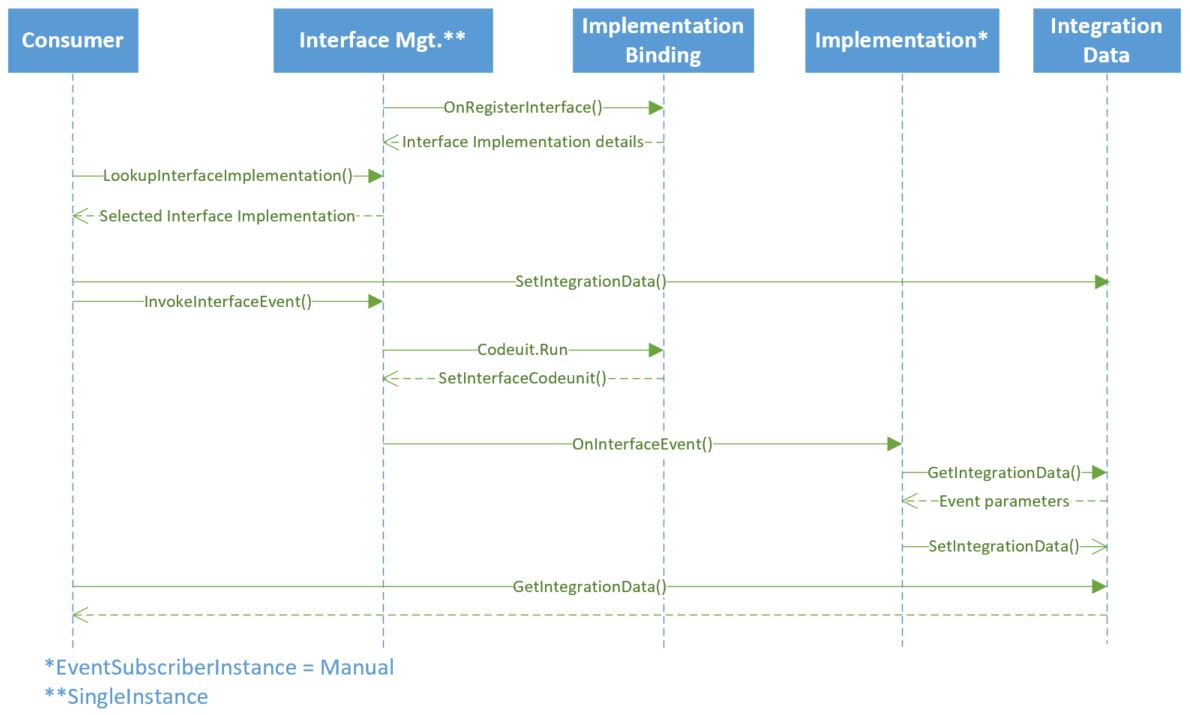
The flow is something like this (concentrate, this is the science bit):
- Interface Mgt. calls for interface implementations with a discovery event
- File handlers register their implementation with an Interface Code, Implementation Code, Codeunit ID (codeunit 2 as described above), Setup Page ID
- File handlers that implement the same set of functions should have the same Interface Code e.g. “FILE HANDLER”
- The Implementation Code uniquely identifies each handler e.g. “NETWORK”, “FTP”, “AMAZON S3”
- The business logic app asks Interface Mgt. to provide a lookup of available implementations for a given interface
- Use this to assist with some setup in the business logic app
- The business logic app sets parameter values and asks Interface Mgt. to raise the event in a given file handler e.g.
- Event Name = “GetFileContents”
- Interface Code = “FILE HANDLER”
- Implentation Code = “FTP”
- Any other required event payload data
- Interface Mgt. runs the codeunit set on registration of the interface implementation (step 2)
- That codeunit is responsible for binding an instance of the codeunit that contains the file handler logic
- It passes that instance back to Interface Mgt. which stores it in a variant and keeps it in scope long enough to respond to the event in the following step
- Interface Mgt. calls the OnInterfaceEvent event with the payload set above (step 4)
- Regardless of how many subscriber there are to this event there should only be one bound codeunit in scope (the one set in step 5) so this is the only codeunit to respond to the event
- The file handler responds to the event, reading the event parameters and setting response data as appropriate
- The consumer reads the response information as required
Event Payload
I’ve talked about event parameters and response data above. How can you pass the required data in the OnInterfaceEvent event? We use an instance of a codeunit in the base app as a container for all the data associated with the event.
This codeunit has a bunch of methods for storing and retrieving data from the codeunit but essentially it is just an array of variants. We pass some data to the codeunit and tag it with a name and retrieve it again with the same name. This allows us to store any AL data types with their state and avoid serializing them.
Think of the Library – Variable Storage codeunit, it’s very similar.
Conclusion
Pros
- The Interface Mgt. codeunit is generic and should be suitable for reuse in other scenarios where you have multiple implementations of given functionality
- You can have as many implementations as you like and still be specific about the one you want to invoke each time
- Pass instances of AL types around with their state e.g. a temporary set of Name/Value Buffer records or an xmlport without having to recreate it from JSON or XML
Cons
- We’ve solved our objective of removing dependencies between extensions…with a dependency. Smart. Maybe if Microsoft made something like this available in the base app we could achieve our objectives with no dependencies at all
- Complexity. Conceptually this is harder to follow than just using Codeunit.Run although once in place I don’t think the file handlers are any more difficult to write
Example
If none of that made much sense then fear not. I’ll show some example code and a calculator implementation next time.


 James Pearson