Using Azure DevOps Wiki as a WYSIWYG Editor for Your Static Site

Intro

We’ve got a static HTML site that we host our product documentation on. Our is hosted in Azure Static Web Apps but GitHub pages is a popular option as well (I use it for my AL Test Runner docs). If you’ve got product docs I guess you are hosting them on a static site as well.

We use docfx to generate the site content. I’m not going to post about setting up docfx, building with a pipeline and publishing to Azure or GitHub – there are plenty of details online about that kind of thing already e.g.

This post is about how to maintain the content of the site.

Requirements

Here’s the thing:

  • I need the content to be stored in a Git repo so that I can trigger a pipeline to build and publish the site, but
  • Consultants who are going to be writing some of the content don’t want to have to care about Git – branches, staging, committing, pushing, pulling – they don’t want to learn any of that
  • The docs are written in Markdown – which it is mostly straightforward, but it isn’t always user friendly – especially the syntax to adding ![](media) and ![links](https…)

Options

OptionProsCons
Writage – add-on for Microsoft WordConsultants can write the docs with familiar tools and use the add-on to save the document to .md files & linked mediaThe resulting markdown doesn’t always look the way that it looked in Word. Some of the formatting might be stripped out.

You still need to find a way to stage, commit and push the changes to the Git repo as a separate step.
Visual Studio Code (+ markdown extensions)Can easily write the markdown and see a preview of the output side-by-side.

Extensions can make it easier to add links between pages, link to media etc.

Built in Git support.
You can make it as easy as possible, but in the end VS Code is still a developer’s tool.

This doesn’t give a WYSIWYG experience and the consultants do need to understand at least a little about Git.

…and that is the compromise. Do you have some WYSIWYG designer (Word or something else) that can generate the markdown but then worry about Git? Or do you use something with built-in Git support but is less consultant friendly?

Azure DevOps Wiki

Enter Azure DevOps wikis. They have a WYSIWYG designer with a formatting toolbar to generate the correct markdown and they are a Git repo in the background (cake and eat it ๐Ÿฐ๐Ÿ‘€).

The formatting toolbar helps you out with formatting, headings, links and so on. You can easily add images and gifs by just copying and pasting into the editor. The image is uploaded DevOps and the markdown syntax inserted automatically.

It also has support for Mermaid diagrams. You need to load the diagram each time you make a change unfortunately, which is a little annoying, but otherwise cool. Just make sure that your static site generator and theme also supports Mermaid (we are using the modern template in docfx).

Pages can be reordered by dragging and dropping them in the navigation. You can also add sub-pages, drag and drop pages to make them sub-pages of other pages.

Sometimes this is a little clunky, but is generally pretty easy to work with.

What you don’t see is that this is updating a .order file which determines the page order to display the pages at the same level in. In this case I will have a .order file for the top-level items and another for the pages under “Product Setup”. We can use that .order file later on to build the navigation for the static site.

Crucially, every time you save or reorder a page, a commit is made to the underlying repository which means you can trigger a pipeline to build and deploy your site automatically. (You could work in separate branches, deploy different branches to different environments, enforce pull requests etc. but I’m not bothering with any of that – part of the goal here is to hide the niceties of Git from the consultants).

Build Pipeline

I won’t walk through all the details of our setup, but now that we have updated markdown content in a new commit we can trigger our build and deploy pipeline (a multi-stage pipeline in Azure DevOps).

Some tips from my experiences:

Building the Table of Contents (toc.yml)

Docfx uses yml to define the navigation that you want the website users to see. Something like this.

items:
  - name: Home
    href: Home.md
  - name: Introduction
    href: Intro.md
  - name: Setup
    items:
    - name: Setup Subpage 1
      href: Setup/Subpage 1.md
    - name: Setup Subpage 2
      href: Setup/Subpage 2.md

The wiki repo will have a file structure like this:

C:.
โ”‚   .order
โ”‚   Home.md
โ”‚   Intro.md
โ”‚
โ””โ”€โ”€โ”€Setup
        .order
        Subpage1.md
        Subpage2.md

so we can work recursively through the folders in the repo, reading the contents of the .order file as we go and converting them to the required format for toc.yml

The .order is simply a plain text file with the names of the pages at that level of the folder structure in their display order.

Home
Intro

Then build the site e.g. docfx build ... and publish to your hosting service of choice.

Batch Commits

Editing the wiki can create a lot of commits. Everytime you save or reorder a page. You probably don’t want to trigger a build for every commit. You can use batch in your pipeline. If a build is already running DevOps will not queue another until it has finished. It will then queue a build for the latest commit and skip all the commits in between.

trigger:
  batch: true

Mermaid Syntax

Azure DevOps uses colons for a Mermaid diagram

::: mermaid
...
:::

but docfx needs them as backticks, so I have a task in the pipeline which just does a find replace

```mermaid
...
```

Export Test Steps as CSV to Import to Azure DevOps

I don’t know if anyone needs this. I’m not sure if even I need this yet, but I am starting to find it useful. We use test plans in Azure DevOps to record the steps and results of manual testing.

I figured that if I’m writing decent comments in my automated (integration*) tests then I should be able to just copy them to the test plan in DevOps, or at least use them as the basis.

Find your test (or test codeunit) in the testing tree, right click and export to CSV. That reads your //[GIVEN], //[WHEN] and //[THEN] lines and drops them into the right format to import into DevOps.

https://jimmymcp.github.io/al-test-runner-docs/articles/export-test-to-csv.html

Postscripts

*yes, I know, the terminology is off, don’t fight me. By “integration” tests I mean scenarios that resemble what the user is doing in the client**, as opposed to calling codeunits, table methods or field validations directly.

**although, without using TestPages. I’m not really trying to simulate user behaviour in the client, I’m trying to recreate the scenario – but these are automated tests and they should still run fast. Use the actual client and your actual eyes to test the client***.

***and maybe page scripts****

****which also now show up in your test tree when you save the yml export into your workspace.

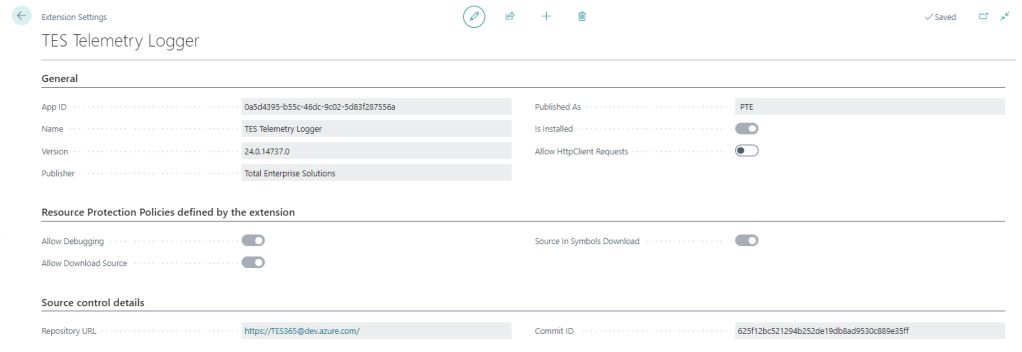
Additional Details about Extension Settings in Business Central 25.0

Extension Settings

For a long time the only thing additional data you could see on the Extension Settings page was whether to allow Http calls from this extension (the Allow HttpClient Requests checkbox). This page has got some love in BC25.

That setting is still the only thing that you can control, but now you can also see:

Resource Protection Policies

Corresponding to resource exposure policies in app.json (maybe “exposure” sounded a little risquรฉ for the user interface). This indicates whether you can debug, download the source code and whether the source is included when you download the symbols.

That might be useful to know before you create a project to download the symbols and attempt to debug something.

Interestingly, extensions which don’t expose their source code get the red No of shame in the Extension Management list.

Source Control Details

Includes the URL of the repository and the commit hash that the extension was created from. That’s cool – you can link straight from the Extension Settings page to the repo in DevOps / GitHub / wherever your source is. That’s a nice feature either for your own extensions or open source extensions that you are using.

It may be that each time you build an app that you already give it an unambiguous, unique version number (we include the DevOps unique build id in the extension version) but the commit hash is nice to see as well.

How Does it Know?

Where does that information come from? It is included in the NaxManifest file, extract the .app file with 7-Zip and take a look.

<ResourceExposurePolicy AllowDebugging="true" AllowDownloadingSource="true" IncludeSourceInSymbolFile="true" ApplyToDevExtension="false"/>
<KeyVaultUrls/>
<Source RepositoryUrl="https://TES365@dev.azure.com/..." Commit="625f12bc521294b252de19db8ad9530c889e35ff"/>
<Build Timestamp="2024-09-10T12:49:40.2694758Z" CompilerVersion="13.1.16.16524"/>
<AlternateIds/>

How Does That Info Get Populated?

When the app is compiled by alc.exe there are additional switches to set this information. These are some of the switches that you can set when compiling the app.

These switches are not set when you compile the app in VS Code (crack the app file open with 7-Zip and check), but you can set them during the compilation step of your build. If you are using DevOps pipelines you can make use of these built-in variables Build.SourceVersion and Build.Repository.Uri to get the correct values.

&'$(alcPath)' /project:"$(projectPath)" /sourcecommit:"$(Build.SourceVersion)" /sourcerepositoryurl:"$(Build.Repository.Uri)" ... (truncated)

That’s if you roll your own build pipelines. If you use some other tooling (AL-Go for GitHub, ALOps etc.) then the compilation step will be in their code. They may have already implemented this, I don’t know.

Side note: Microsoft want to push us to use 3rd party tooling rather than making our own (e.g. I watched this podcast with Freddy the other day) but personally I still see enough value in having control over the whole DevOps process to justify the small amount of time I spend maintaining and improving it. I’m open to changing that stance one day, but not today.

Managing Business Central Development with Git: Branching Strategy

The last few posts have been about manipulating the history of your Git repository, getting comfortable tools like rebase, reset, cherry-pick and commit –amend. That’s all geared towards trying to create a history which is more than just a record of stuff that happened but tells a story of the development of your app that is useful for your colleagues and your future self.

This post is on the same theme but we’re talking about your branching strategy. Remember one of the strengths of Git is how easy it is to create branches to isolate pieces of development from each other. That’s an awesome tool – but how do we make best use of it?

When is it useful to separate pieces of development from each other in different branches? How and when do you stick the pieces of the jigsaw back together again?

Options

As you’d expect there are a lot of different approaches and no shortage of people online supporting each one. Here are some popular options. I won’t attempt to critique them because we haven’t tried them all and because you can read, try them out for yourselves and form your own opinions.

Git Flow

https://nvie.com/posts/a-successful-git-branching-model/

This approach has a “develop” branch alongside master and feature branches which are used to manage the work in progress before they are merged back to master only when they are ready to be released.

GitHub Flow

https://guides.github.com/introduction/flow/

As with Git Flow, work in progress changes are isolated in their own branches. Unlike Git Flow they are merged directly back into master once they have been reviewed and are ready to go.

Trunk Based Development

https://trunkbaseddevelopment.com/

The key idea is to avoid having long-lived branches other than the trunk (master) branch. Development can be done against other branches but only to facilitate code review and discussion. Changes should be committed to master at least every 24 hours.

Considerations

As before adopting any tool or practice we need to think about our particular circumstances and needs. What are we actually trying to achieve? By all means read about what other people are doing. If you keep reading I’ll share what we’re (currently) doing but you should think about your own requirements, decide on something that makes sense for you and be prepared to improve it in future.

I think there is something to learn from each of the strategies I’ve linked to.

App Development

We are developing apps for Business Central either to be deployed via AppSource or installed through our partners on-premise to their customers. Either way, making a new version of our app available to our customers is not a trivial exercise.

When we submit a new version of our app it is typically at least 3 or 4 working days until it is available in AppSource. For on-prem customers we are reliant on our partners to upgrade the apps manually. Neither of these scenarios exactly falls into the ideal “continuous deployment” category. Some branching strategies are geared towards getting code into master as soon as possible so it can be pushed to the production environment each day, or even multiple times a day.

However attractive that might sound that is just isn’t reality for us – at least not yet. We’re due to be getting an API for pushing updates to AppSource, which is great, but as long as it is backed by a manual certification process I can’t see Microsoft thanking us for pushing multiple updates each day.

Given the lead time to getting a release live we should be quite careful about what is going to go into each one. We don’t really have the luxury of pushing an update immediately after another because we forgot to include something.

#1 Create a Release Branch

We start by creating a release branch. This is where we are going to collect all the changes that should be included in the next release before they are merged into the master branch. We do occasionally bundle in last minute changes and fixes to a release but we ought to have a pretty clear idea of what the release will include before we start.

Imagine we’ve got this repo. All of the commits are merged into the master branch which is tagged with 1.0.0. Tags are useful additional pointers to particular places in the history of the repo. In future if we want to see the code as it was in v1.0.0 we can just run git checkout 1.0.0

* 3894d1a (HEAD -> master, tag: 1.0.0, origin/master) Correct typo in caption
* cd03362 Add missing caption for new field
* 94388de Populate new Customer field OnInsert
* c49b9c9 Add new field to Customer card

Now create a new branch to use as our release branch. For now this just points to the same commit as master.

git branch release/1.1.0

#2 Create Individual Feature and Bug Branches

Now we’ll create separate branches for each feature or bug fix that we’ve decided to include in release 1.1.0. Why not just do all the changes we need in the release branch? Because we want to be able to develop and test them separately from each other.

* 381c83d (HEAD -> bug/commission-calc) Fix rounding error in commission calc
| * e9d31b4 (feature/sales-report) Action to open sales report from customer
| * 78102dd Sales report
|/
| * c450814 (feature/sales-price-calc) Prices in non-base UOM
| * dd5f6c0 Prices in additional currencies
| * 02fa619 Pricing elements per item
|/
* 3894d1a (tag: 1.0.0, origin/master, release/1.1.0, master) Correct typo in caption
* cd03362 Add missing caption for new field
* 94388de Populate new Customer field OnInsert
* c49b9c9 Add new field to Customer card

The graph might look something like this now. Separate branches with one or more commits in each. Incidentally, naming the branches feature/* and bug/* is just a convention – it doesn’t have any affect on how they are managed.

#3 Create Pull Requests and Complete Quickly

When each feature or bug fix is ready for review and testing we create a pull request targeting the release branch. Pull requests in Azure DevOps are great. However, in my experience there are two main things that make pull requests less great, or even bad.

  1. Bundling too many changes in a single pull request
  2. Leaving them open for too long

Having lots of changes makes it difficult to review and test those changes. Which means no one is enthusiastic to do it. Which means it gets left open for a long time.

Leaving pull requests open for a long time means people forget what the changes were for and whether they have already been tested. It becomes a burden that no one wants to take responsibility for. Eventually someone completes it because we’re all sick of seeing it on the list. Not an ideal reason to complete it.

We’ve got a couple of measures on our team dashboard – number of open pull requests and average age of those requests in days. If the average age is creeping over 7, say, then we’re likely doing something wrong.

We squash the commits when the pull request is completed. Like it sounds, that squashes all of the changes that are in the feature or bug branch into a single commit which is added to the release branch. We lose some of the history doing this but I think it makes it more readable later on. We are rarely interested in the details of how we wrote a certain feature – just that we did, and these were the changes that we made.

* 35cf673 (HEAD -> release/1.1.0) Merged PR 03: Commission Calc
* b23b8c5 Merged PR 02: Sales Report
* 8007dcf Merged PR 01: Sales Price Calc
| * 381c83d (bug/commission-calc) Fix rounding error in commission calc
|/
| * e9d31b4 (feature/sales-report) Action to open sales report from customer
| * 78102dd Sales report
|/
| * c450814 (feature/sales-price-calc) Prices in non-base UOM
| * dd5f6c0 Prices in additional currencies
| * 02fa619 Pricing elements per item
|/
* 3894d1a (tag: 1.0.0, origin/master, master) Correct typo in caption
* cd03362 Add missing caption for new field
* 94388de Populate new Customer field OnInsert
* c49b9c9 Add new field to Customer card

Here is the graph now. I’ve removed the remote branches to keep it simpler. Notice the “Merged PR” commits which have been created by completing the pull requests. I’ve still got local branches with the individual changes. These can now safely be deleted now that those changes have been squashed into the release branch.

#4 Merge into Master and Tag

Each push to the server triggers a pipeline to compile the code and run the tests. Assuming those builds are passing and with the manual testing that we’ve done we ought to be confident that the changes work as expected. Each time we complete a pull request it runs a build incorporating the other completed changes. If that passes as well then we’re ready to merge the changes into master, delete the release branch and tag the new version as 1.1.0

* 35cf673 (HEAD -> master, origin/master, tag: 1.1.0) Merged PR 03: Commission Calc
* b23b8c5 Merged PR 02: Sales Report
* 8007dcf Merged PR 01: Sales Price Calc
* 3894d1a (tag: 1.0.0) Correct typo in caption
* cd03362 Add missing caption for new field
* 94388de Populate new Customer field OnInsert
* c49b9c9 Add new field to Customer card

The end result – at least what we’re aiming for – is a neat summary of the changes that have been made between the two versions. We can see the changes which we made for each feature or bug fix in those commits. If we want more detail we can always go back and view the completed pull request on Azure DevOps.

In a future post we’ll think about how to manage different versions of the code for different versions of Business Central.

Further Reading

Check out Michael Megel’s post on the same topic here: https://never-stop-learning.de/branching-workflow-ci-cd-part-6/

Scheduling Azure DevOps Pipelines with YAML

I had the pleasure of presenting some thoughts about developing apps for SaaS with James Crowter to the Dutch Dynamics Community yesterday. We were sharing some of our experiences of the maintenance challenge that comes with having published apps on AppSource.

How can you continuously test your apps against past, current and upcoming versions of Business Central? Perhaps two ways:

  1. Slowly drive yourself to despair with the monotony of creating different versions of Business Central environments and testing manually
  2. Automate as much of the tedious infrastructure and repetitive testing work as possible so you can concentrate on some fun stuff instead

We have two main reasons to trigger the execution of the pipeline for a given branch of an app in Azure DevOps:

  1. We have changed some code
  2. Microsoft have changed some code that we depend on

If we have changed some of our own code we should run it through the pipeline to ensure that it passes our checks, the automated tests run and that the resulting .app files are versioned and signed correctly. It is easy to overlook some of these tasks and/or inadvertently break some existing functionality when making our changes. The pipeline is there to have our back.

At the same time, Microsoft are making changes to the base and system applications that we rely on. Even if we don’t have any planned changes for our apps we may need to make some code changes to accommodate what Microsoft have done to the ground underneath our feet.

With a bit of luck we’ll see this sort of thing:

warning AL0432: Method 'FilterReservFor' is marked for removal. Reason: Replaced by ProdOrderLine.SetReservationFilters(FilterReservEntry)

warning AL0432: Method 'CreateReservEntryFor' is marked for removal. Reason: Replaced by CreateReservEntryFor(ForType, ForSubtype, ForID, ForBatchName, ForProdOrderLine, ForRefNo, ForQtyPerUOM, Quantity, QuantityBase, ForReservEntry)

We’re using a method that Microsoft are making obsolete and will be removed at some point in the future. No need to panic, but be aware that you should switch to the new method. Very civilised. Thanks.

With less luck we’ll find that Microsoft have introduced a change that breaks our app in some way – with a compilation error or unintended behaviour. Either way, it’s something that we want to know about.

Scheduling pipelines can help with that.

Typically we:

  • Develop against a W1 version of the latest sandbox image, run pipelines against our latest commits against mcr.microsoft.com/businesscentral/sandbox with a continuous integration trigger
  • Migrate changes backwards to BC14 and BC13 compatible versions of our apps, run pipelines against appropriate Docker images for those versions
  • Have separate branches which we rebase onto the latest commit to run pipelines against bcinsider.azurecr.io/bcsandbox and bcinsider.azurecr.io/bcsandbox-master with a schedule

The continuous integration trigger is straightforward enough. At the top of our .azure-pipelines.yml we have:

trigger:
  - '*'

The schedule is defined in a separate section of the yml file, like this:

schedules:
  - cron: 0 3 * * Sun
    displayName: Schedule insider builds
    branches:
      include: ['build/insider', 'build/insider-master']
    always: true

Those branches are the ones that are set to build against the insider Docker images. I hadn’t come across cron before, but it’s pretty simple. The schedule is defined as:

  • Minute
  • Hour
  • Day of month
  • Month
  • Day of week

Our schedule comes out as 03:00 every Sunday. Asterisks stand for any value. https://crontab.guru/ is useful for getting your head around the format.

The branches key defines which branches are included in the schedule and the always indicates that we always want to run the pipeline, even if there haven’t been any code changes since it was last run.