Using Templates in YAML Pipelines in Azure DevOps

So far we’ve been considering how you can define a yaml pipeline to define the steps required to build the code in a single repository. Create a .azure-pipelines.yml file, add the stages, jobs and steps and away you go. Cool.

What if you’re building multiple apps with the source code in multiple repositories though? You could just copy your pipeline definition from repo to repo. What happens when you want to make changes to the pipeline? Are you going to copy the changes here, there and everywhere?

No. You’ve got more self-respect than that. You want a single pipeline definition that is shared across the repos that need it. In which case, templates will be of interest.

Create a Template File

If you’ve got a yaml pipeline definition that already works for you you’re probably going to want to use that as the basis of your template. Copy and paste your pipeline into a new yaml file. You’ll probably want to create a new project or repo to hold this template file.

Remove Trigger

If you’ve got a trigger section in the pipeline you’re copying from (to trigger the pipeline when changes are pushed to certain branches) you can remove that from the template file.

Convert Variables to Parameters

If you have any variables in the pipeline you will need to convert them to parameters. Use the parameters keyword…simple enough. Notice that you can still provide default values for the parameters. If parameters values are not supplied by the pipeline that is using the template these default values will be used. For example:

parameters:
  image_name: mcr.microsoft.com/businesscentral/sandbox
  container_name: Build
  company_name: My Company
  user_name: admin
  password: P@ssword1

Any references to variables in the steps will need to be changed to refer to the parameters instead. Rather than this:

-task: PowerShell@1
  displayName: Create build container
  inputs:
    scriptType: inlineScript
    inlineScript: >
      Import-Module navcontainerhelper;
      New-NavContainer -containerName $(container_name)...

Use ${{parameters.[parameter_name]}} like this:

 -task: PowerShell@1
  displayName: Create build container
  inputs:
    scriptType: inlineScript
    inlineScript: >
      Import-Module navcontainerhelper;
      New-NavContainer -containerName ${{parameters.container_name}}...

I’ve called my template file build-template.yml and the first few lines look like this:

 parameters:
  image_name: mcr.microsoft.com/businesscentral/sandbox
  container_name: Build
  company_name: My Company
  user_name: admin
  password: P@ssword1
  license_file: C:\Users\james.pearson\Desktop\Licence.flf

stages:
- stage: build
  displayName: Build
  jobs:
  - job: Build
    pool:
      name: Default
    steps:
      - task: PowerShell@1    
        displayName: Create build container
        inputs:
          scriptType: inlineScript
          inlineScript: > 
            Import-Module navcontainerhelper;
            $Credential = [PSCredential]::new('${{parameters.user_name}}',(ConvertTo-SecureString '${{parameters.password}}' -AsPlainText -Force));
            ...

Change the Pipeline to Use the Template

Now you want to change the pipeline definition to use the template yaml file that you have created. Include a repository resource, specifying the name with repository key.

The type key refers to the host of the git repo. Confusingly, ‘git’ refers to an Azure DevOps project or you can also refer to templates in GitHub repos. Name is in the format Project/Repository – in my example both are called ‘Templates’. Define a ref (generally a branch or tag) in the template repo that specifies the version of the template you want.

trigger:
  - '*'

resources:
  repositories:
    - repository: templates
      type: git
      name: Templates/Templates
      ref: refs/heads/master

stages:
- template: build-template.yml@templates
  parameters:
    image_name: mcr.microsoft.com/businesscentral/sandbox
    company_name: My Company 

Templates can be used at different levels in the pipeline to specify stages, jobs, steps or variables – see here for more info. In my example the template file is specifying stages to use in the pipeline.

My pipeline simply becomes a template key beneath the stages key. The value is in the format [filename]@[repository]. The repository value here is taken from the repository key specified above. Supply parameter values with the parameters key. Any parameter values that are not supplied will take the default values from the template file.

And there you have it. A single template file that you can reuse across your different repos. Make changes to your pipeline once and have them used wherever the template is used.

YAML Multi-Stage Pipelines in Azure DevOps, Stage 2

In the previous post I introduced you to multi-stage YAML pipelines. Build/Release pipelines vs. a multi-stage pipeline, enabling the preview feature (it’s still in preview at the time of writing) and an overview of the structure of the file.

Now we’ll take a more detailed look at an example multi-stage YAML file. This is geared at building apps for Business Central but the principles are transferable to any other application you are targeting. This is the example that I talked through in my recent webinar. If you’d rather view it as a gist you can see that here.

trigger:
- '*'

pool:
  name: Default

variables:
  image_name: mcr.microsoft.com/businesscentral/sandbox
  container_name: Build
  company_name: My Company
  user_name: admin
  password: P@ssword1
  license_file: C:\Users\james.pearson.TECMAN\Desktop\Licence.flf

stages:
- stage: build
  displayName: Build
  jobs:
  - job: Build
    pool:
      name: Default
    steps:
      - task: PowerShell@1    
        displayName: Create build container
        inputs:
          scriptType: inlineScript
          inlineScript: > 
            Import-Module navcontainerhelper;
            $Credential = [PSCredential]::new('$(user_name)',(ConvertTo-SecureString '$(password)' -AsPlainText -Force));
            New-NavContainer -accept_eula -accept_outdated -containerName '$(container_name)' -auth NavUserPassword -credential $Credential -image $(image_name) -licenseFile $(license_file) -doNotExportObjectsToText -restart no -shortcuts None -useBestContainerOS -includeTestToolkit -includeTestLibrariesOnly -updateHosts
      - task: PowerShell@1
        displayName: Copy source into container folder
        inputs:
          scriptType: inlineScript
          inlineScript: >
            $SourceDir = 'C:\ProgramData\NavContainerHelper\Extensions\$(container_name)\Source';
            New-Item $SourceDir -ItemType Directory;
            Copy-Item '$(Build.SourcesDirectory)\*' $SourceDir -Recurse -Force;
      - task: PowerShell@1
        displayName: Compile app
        inputs:
          scriptType: inlineScript
          inlineScript: >
            Import-Module navcontainerhelper;
            $SourceDir = 'C:\ProgramData\NavContainerHelper\Extensions\$(container_name)\Source';
            $Credential = [PSCredential]::new('$(user_name)',(ConvertTo-SecureString '$(password)' -AsPlainText -Force));
            Compile-AppInNavContainer -containerName '$(container_name)' -appProjectFolder $SourceDir -credential $Credential -AzureDevOps -FailOn 'error';
      - task: PowerShell@1
        displayName: Copy app into build artifacts staging folder
        inputs:
          scriptType: inlineScript
          inlineScript: >
            $SourceDir = 'C:\ProgramData\NavContainerHelper\Extensions\$(container_name)\Source';        
            Copy-Item "$SourceDir\output\*.app" '$(Build.ArtifactStagingDirectory)'
      - task: PowerShell@1
        displayName: Publish and install app into container
        inputs:
          scriptType: inlineScript
          inlineScript: >
            Import-Module navcontainerhelper;        
            Get-ChildItem '$(Build.ArtifactStagingDirectory)' | % {Publish-NavContainerApp '$(container_name)' -appFile $_.FullName -skipVerification -sync -install}
      - task: PowerShell@1
        displayName: Run tests
        inputs:
          scriptType: inlineScript
          inlineScript: >
            $Credential = [PSCredential]::new('$(user_name)',(ConvertTo-SecureString '$(password)' -AsPlainText -Force));
            $BuildHelperPath = 'C:\ProgramData\NavContainerHelper\Extensions\$(container_name)\My\BuildHelper.app';
            Download-File 'https://github.com/CleverDynamics/al-build-helper/raw/master/Clever%20Dynamics_Build%20Helper_BC14.app' $BuildHelperPath;
            Publish-NavContainerApp $(container_name) -appFile $BuildHelperPath -sync -install;
            $Url = "http://{0}:7047/NAV/WS/{1}/Codeunit/AutomatedTestMgt" -f (Get-NavContainerIpAddress -containerName '$(container_name)'), '$(company_name)';
            $AutomatedTestMgt = New-WebServiceProxy -Uri $Url -Credential $Credential;
            $AutomatedTestMgt.GetTests('DEFAULT',50100,50199);
            Import-Module navcontainerhelper;
            $ResultPath = 'C:\ProgramData\NavContainerHelper\Extensions\$(container_name)\my\Results.xml';        
            Run-TestsInBcContainer -containerName '$(container_name)' -companyName '$(company_name)' -credential $Credential -detailed -AzureDevOps warning -XUnitResultFileName $ResultPath -debugMode
      - task: PublishTestResults@2
        displayName: Upload test results    
        inputs:
          failTaskOnFailedTests: true
          testResultsFormat: XUnit
          testResultsFiles: '*.xml'
          searchFolder: C:\ProgramData\NavContainerHelper\Extensions\$(container_name)\my

      - task: PublishBuildArtifacts@1
        displayName: Publish build artifacts
        inputs:
          ArtifactName: App Package
          PathtoPublish: $(Build.ArtifactStagingDirectory)

      - task: PowerShell@1
        displayName: Remove build container
        inputs:
          scriptType: inlineScript
          inlineScript: >
            Import-Module navcontainerhelper;
            Remove-NavContainer $(container_name)
        condition: always()
- stage: Release
  displayName: Release
  condition: and(succeeded(), eq(variables['build.sourceBranch'], 'refs/heads/master'))
  jobs:
  - deployment:
    displayName: Release
    pool:
      name: Default
    environment: Release
    strategy:
      runOnce:
        deploy:
          steps:               
            - task: PowerShell@1
              displayName: Copy artifacts to release directory                  
              inputs:
                scriptType: inlineScript
                inlineScript: >
                  $Path = Split-Path '$(System.ArtifactsDirectory)' -Parent;
                  $Artifact = "$Path\App Package\*.app";
                  Copy-Item $Artifact 'C:\Release\';

Build

I’ve got a simple Business Central app. I want to use the Build stage to take my source AL code and:

  • Compile it into an .app file
  • Publish and install it into a container
  • Load the test codeunits and methods into the DEFAULT test suite
  • Run the tests
  • Upload the test results to the build
  • Upload the .app file as a build artifact

Almost all of these steps are performed with a PowerShell task. I won’t talk you through the PowerShell, you can read the code in the steps and read more about the use of the navcontainerhelper module on Freddy’s blog or dig around the PowerShell posts on my blog. I will just mention that loading the test codeunits relies on our AL Build Helper app as described previously.

The final step to run is a PowerShell script to remove the container that has been created for the build. I always want this step to run, even if another step above it has failed. See the condition: always() line that takes care of that.

Release

Space, Rocket, Travel, Science, Sky, Abstract, Planet

So far this is fairly familiar territory and stuff that we’ve been through before. The more interesting part for the purposes of this post is having a second stage to run.

First notice the condition attached to the Release stage:

and(succeeded(), eq(variables['build.sourceBranch'], 'refs/heads/master'))

build.SourceBranch is one of the built-in variables that you can access in the pipeline which holds the name of the branch that triggered the build. This condition means the Release stage will only run if the pipeline has succeeded up to this point and the pipeline was triggered by the master branch.

This is useful for a CI/CD scenario where you want to trigger the pipeline for changes to any branch (and why would you not?) but only want to Release the code when it is merged back into the master branch.

My pipeline uses a specific type of deployment job which allows you to target a particular environment. The ‘Environments’ menu item is displayed when you enable the multi-stage pipelines preview feature. Including a deployment job in your pipeline will instruct Azure DevOps to automatically download the artifacts from the Build stage to the agent (see here).

The Release stage can include as many steps as you need depending on your definition of ‘releasing’ your software. It might include steps to:

  • Use PowerShell to publish the .app file to an on-prem instance of Business Central
  • Use the admin API to publish the .app file to a Business Central SaaS tenant
  • Upload the .app file to some other location: FTP, SharePoint, network path

As a very simple example my Release stage is simply going to copy the .app file that was downloaded as an artifact from the Build stage into a C:\Release folder on the build agent.

Environments

One of the good things about creating an environment and targeting it with a deployment job is that you can see at a glance which version of your software the environment is hosting.

Drill down on the environment to see details of the current and previous versions that have been deployed and all the relevant corresponding detail – the pipeline that deployed the software, the logs, commits and work items. Beautiful.

YAML Multi-Stage Pipelines in Azure DevOps, Stage 1

Let’s return to the subject of pipelines and this time let’s talk multi-stages. What is it and why might you want to implement it in your YAML file?

Builds/Releases

With the approach that Microsoft are now calling “classic” pipelines there was a definite division between a build pipeline and a release pipeline.

A build starts with a given version of your source code (a particular commit in your git repository, say) and proceeds to define the steps that should be performed on that code to “build” it.

You decide what “build” means and define the steps as you need them. In a Business Central AL extension context we’re probably talking: compile the extension into an app file, publish and install and run some tests.

A release takes artifact(s) that have been created by a particular build and/or code from a particular repository and “releases” them. Again, you define whatever “release” actually means to you. Publish an app file into a Business Central database, upload it to SharePoint, decompress the app file and send the source code to a printer – whatever you want.

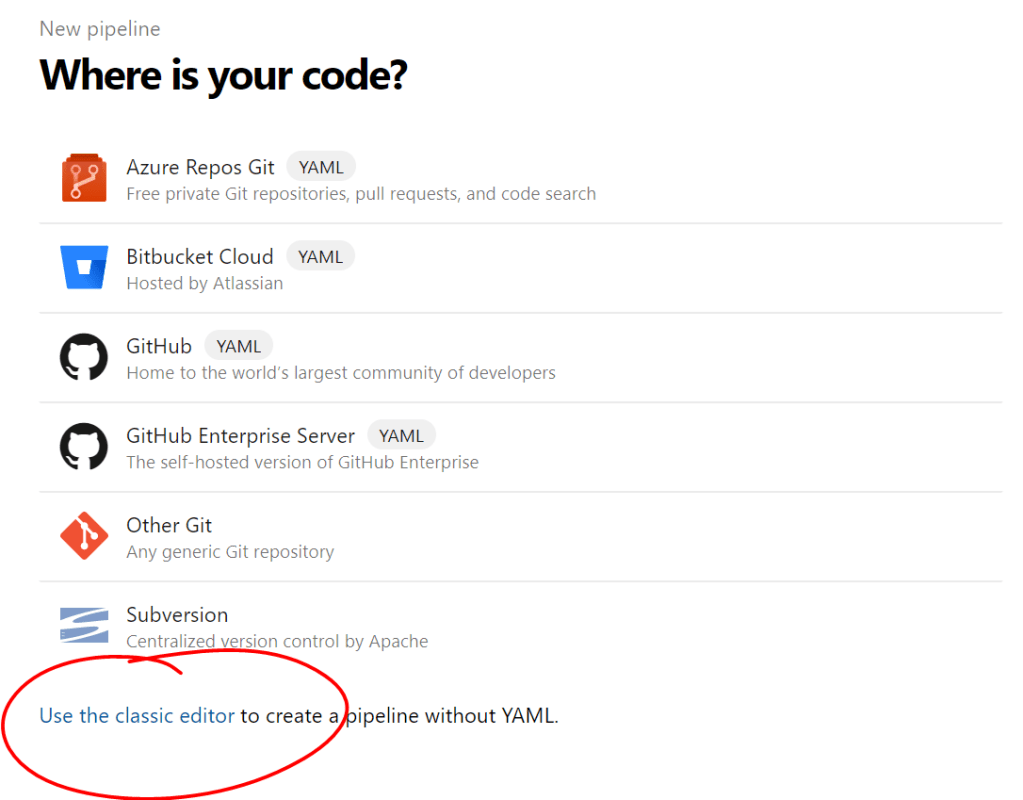
Build pipelines can still be defined in the classic, visual editor or in a YAML file. The Azure DevOps interface makes it pretty obvious which way they recommend you do this. It took me a second to spot the discrete “use the classic editor” link when creating a new pipeline.

Clicking that link and successfully avoiding the top option from the following page which still creates a YAML file anyway will get you to the classic, visual editor. Select the agent that is going to run this pipeline, add one or more jobs and add one or more tasks to each job.

Even now, you’ll notice a “View YAML” link in the top right hand corner of the screen. Subtle. The term “classic” usually means something different when we’re talking about software than when we’re talking about novels. Less “masterpiece, will still be appreciated a century from now” and more “outdated, will be made obsolete and removed a few months from now”.

It’s probably a safe bet that the “classic” editor is going to go the same way as NAV’s “classic client” with its “classic reports”.

For completeness, the Release editor looks like this:

I’ve defined the build pipeline that provides the artifacts that will be released and can now define the stages and tasks involved in releasing it. At the time of writing you will still get this editor when creating a new pipelines from the Releases menu.

Multi-Stage Pipelines

Enter multi-stage pipelines. Rather than defining your build and your release tasks in separate editors you can define them in a single YAML pipeline definition.

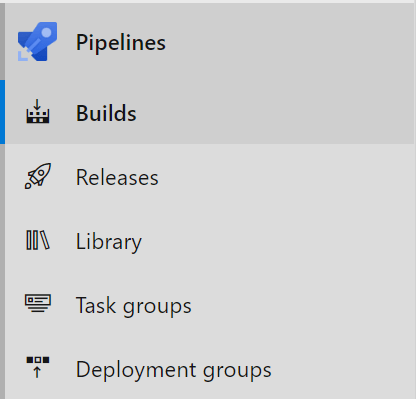
You’ll need to enable the preview feature (from your profile menu in the top right hand corner). You’ll notice that the “Builds” option disappears from the Pipelines menu and is replaced with two new options “Pipelines” and “Environments”. Intriguing.

Now we can work with pipelines that look something like this:

trigger:
  '*'
parameters:
  image_name: a.docker.image
  container_name: my_container
stages:
- stage: build
  jobs:
  - job: Build
    pool:
      name: Default
    steps:
      (definition of the steps that are included in the build stage)
- stage: release
  condition:  and(succeeded(), eq(variables['build.sourceBranch'], 'refs/heads/master'))
  jobs:
  - deployment:
    pool:
      name: Default
    environment: QA
    (further definition of the steps involved in the release stage)

We’ll go into the details of a complete multi-stage YAML pipeline in another post. For now I just want to outline the structure of the file:

stages (1) -> stage (1..*) -> jobs (1) -> job (1..*) -> steps/deployment/tasks

You can include as many stages as you need to effectively manage the build and deployment of your software. Each stage can evaluate a condition expression which decides whether the stage should be run or not. In my case I only want to run the release stage if the pipeline has succeeded up to this point and the pipeline has been triggered by the master branch.

By default, stages will be run in series and will be dependent upon the previous stage. You can mix this up by defining the dependsOn key for each stage.

Environments

You’ll also notice that my ‘deployment’ task includes the environment to which I’m going to deploy my software. This will correspond to an environment that you have created from the Environments option of the Pipelines menu in Azure DevOps.

You can control how and when code is released to a given environment with stage conditions (as above) or with manual approvals.

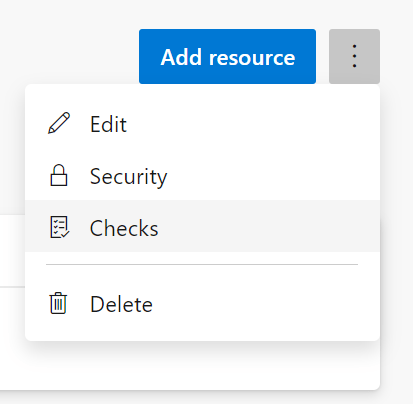
Open the environment and select ‘Checks’ from the menu. All approvers that are entered on the following page must approve a pipeline before the deployment to the environment will proceed. The pipeline will be paused in the meantime.

Next time…

I hope that’s enough to whet your appetite to go and investigate the possibilities for yourself and see if/how you can start making use of this in your own development team.

Next time we’ll go through a more complete example of a multi-stage YAML pipeline and how it is put together and works. Until then you might like to check out the recording of the webinar that I did for Areopa webinars. If you like it, do them a favour and subscribe to the channel, thanks.

AL Build Helper for Dynamics 365 Business Central Builds

If you’re interested in setting up a build pipeline to build apps for Business Central then you’re probably interested in running the automated tests as part of it. (I take it you are writing automated tests?)

Turns out getting your test codeunits and methods populated into a test suite ready to run isn’t straightforward. We use a separate “Build Helper” app that exposes a couple of web service methods to prep and clear a test suite. It helps us get the container ready for running Run-TestsInBCContainer (from the navcontainerhelper module).

I’ve uploaded a couple of versions of the app to a GitHub repo here: https://github.com/CleverDynamics/al-build-helper. One for BC15 and the other for BC14 and earlier.

I use it all the time for running test from VS Code as well as in our build pipelines. Our PowerShell module has an Install-BuildHelper function to download and install it. Alternatively you could slip some PowerShell like the below into your pipeline and smoke it.

$Container = 'de'
$Company = 'CRONUS DE'
$User = 'admin'
$Password = 'P@ssword1'
$TestSuite = 'DEFAULT'
$StartRange = 130000
$EndRange = 160000
$WSPort = '7047'
$BuildHelperUrl = 'https://github.com/CleverDynamics/al-build-helper/raw/master/Clever%20Dynamics_Build%20Helper_BC14.app'

$Credential = [PSCredential]::new($user, (ConvertTo-SecureString $Password -AsPlainText -Force))
$BHPath = Join-Path $env:Temp 'BH.app'
Download-File $BuildHelperUrl $BHPath
Publish-NavContainerApp $Container -appfile $BHPath -sync -install
$BH = New-WebServiceProxy ('http://{0}:{1}/NAV/WS/{2}/Codeunit/AutomatedTestMgt' -f (Get-NavContainerIpAddress $Container), $WSPort, $Company) -Credential $Credential
$BH.GetTests($TestSuite, $StartRange, $EndRange)

The above is BC14 and assumes that you’ve got the navcontainerhelper module loaded (so you can use Publish-NavContainerApp). For BC15 you’d change the script slightly to the below (different URL for Build Helper, the instance name is “BC” rather than “NAV”).

$Container = 'bc15'
$Company = 'My Company'
$User = 'admin'
$Password = 'P@ssword1'
$TestSuite = 'DEFAULT'
$StartRange = 130000
$EndRange = 160000
$WSPort = '7047'
$BuildHelperUrl = 'https://github.com/CleverDynamics/al-build-helper/raw/master/Clever%20Dynamics_Build%20Helper.app'

$Credential = [PSCredential]::new($user, (ConvertTo-SecureString $Password -AsPlainText -Force))
$BHPath = Join-Path $env:Temp 'BH.app'
Download-File $BuildHelperUrl $BHPath
Publish-NavContainerApp $Container -appfile $BHPath -sync -install
$BH = New-WebServiceProxy ('http://{0}:{1}/BC/WS/{2}/Codeunit/AutomatedTestMgt' -f (Get-NavContainerIpAddress $Container), $WSPort, $Company) -Credential $Credential
$BH.GetTests($TestSuite, $StartRange, $EndRange)

No doubt, given the rate of change in Business Central there will be a different/better way to do this by the time BC15/wave 2/Fall ’19/whatever the heck we call it is released – but this how we build against BC15 for now.

Feel free to use anything you find helpful with my blessing…but not necessarily my support. No warranties, own risk etc.

Dynamics 365 Business Central Queries: Erm…where are the rest of my rows?!

This is a bit off-topic to what I’ve been blogging about lately but I’ve been caught out by this before and the other day so was a colleague so I thought it was worth a post.

TL;DR

Be careful of the difference between DataItemLink and DataItemTableFilter properties. DataItemLinks define the join between the dataitems in the query while DataItemTableFilters are applied to the results after the join has been processed.

Intro

In theory the query object in Business Central/NAV ought to be very useful. Instead of using nested REPEAT…UNTIL loops like we used to with the associated many round-trips to the database (or at least the cache) we should be able to create a query to join multiple tables and return all the columns we need in a single round-trip.

In practice, I’ve often found queries frustrating to work with. Sometimes because they can’t support a more complex scenario, sometimes because the parameters don’t do quite what I’d expect. Maybe my expectations are wrong. Fine, but even so, trying to “debug” a query and figure out why the query you have designed gives the results that you are getting is not fun. Not quite as bad as developing reports – but still not fun.

Scenario

Let’s imagine that for some reason we need a list of items with the total base quantity from sales invoice lines – including where that total is zero. Typically you might write some code like this:

SalesLine.SetRange("Document Type",SalesLine."Document Type"::Invoice);
SalesLine.SetRange(Type,SalesLine.Type::Item);

if Item.FindSet() then
  repeat
    SalesLine.SetRange("No.",Item."No.");
    SalesLine.CalcSums("Quantity (Base)");

    //use that result for something...

  until Item.Next() = 0;

You figure that doing a CalcSums() for each item probably isn’t going to perform too well. Surely, this is exactly the sort of thing that we have queries for?

Version One

Knowing that we need all items records, including ones that don’t have corresponding sales line records we are going to need a left join i.e. all records from table A and matching records from table B.

For starters I’m going to create a query that just shows the data we’ve got – no grouping or summing just yet.

query 50100 "Frustrating Query"
{
    QueryType = Normal;
    elements
    {
        dataitem(Item; Item)
        {
            column(No; "No.") {}
            column(Description; Description) {}

            dataitem(Sales_Line; "Sales Line")
            {
                SqlJoinType = LeftOuterJoin;
                DataItemLink = "No." = Item."No.";
                
                column(Document_Type;"Document Type") {}
                column(Document_No;"Document No.") {}
                column(Quantity;"Quantity (Base)") {}
            }
        }
    }
}

The first few results from that query look like this.

No.DescriptionDocument TypeDocument No.Quantity
1896-SATHENS DeskInvoice1022011
1900-SPARIS Guest Chair, blackQuote0
1906-SATHENS Mobile PedestalQuote0
1908-SLONDON Swivel Chair, blueQuote0
1920-SANTWERP Conference TableOrder1010038
1920-SANTWERP Conference TableInvoice1022024
1920-SANTWERP Conference TableInvoice10220310
1920-SANTWERP Conference TableInvoice1022054

Version Two

Cool. Now we need to Sum the Quantity column. I’ll remove the Document No. as we don’t want to group by that. Change the query design to this:

query 50100 "Frustrating Query"
{
    QueryType = Normal;
    elements
    {
        dataitem(Item; Item)
        {
            column(No; "No.") {}
            column(Description; Description) {}

            dataitem(Sales_Line; "Sales Line")
            {
                SqlJoinType = LeftOuterJoin;
                DataItemLink = "No." = Item."No.";
                
                column(Document_Type;"Document Type") {}
                column(Quantity;"Quantity (Base)")
                {
                    Method = Sum;
                }
            }
        }
    }
}

Now the results are:

No.DescriptionDocument TypeQuantity
1896-SATHENS DeskInvoice1
1900-SPARIS Guest Chair, blackQuote0
1906-SATHENS Mobile PedestalQuote0
1908-SLONDON Swivel Chair, blueQuote0
1920-SANTWERP Conference TableOrder8
1920-SANTWERP Conference TableInvoice18

Version Three

Remember that we only wanted the sum of the base quantity for invoice lines. We’ve got a result for 1920-S order lines at the moment. That’s fine we can use the DataItemTableFilter to filter the Document Type.

At least, you’d think so. So would I…and we’d both be wrong. Adding DataItemTableFilter = “Document Type” = const(Invoice) to the query gives these results:

No.DescriptionDocument TypeQuantity
1896-SATHENS DeskInvoice1
1920-SANTWERP Conference TableInvoice18

Erm…where are the rest of my rows?!

Q: what has happened to items 1900-S, 1906-S and 1908-S?
A: there are no matching sales lines for those items

Q: but…that’s why we used a LeftOuterJoin. That should include items with no matching sales lines. I thought that was the point of specifying the join type?
A: yes, except DataItemTableFilter isn’t used as part of the join

Q: …eh?

Explanation

I expected, and maybe you did too, that DataItemTableFilter would be used to filter the Sales Line table before joining it to the Item table. It turns out that the join is processed first, respecting the DataItemLink properties, and the DataItemFilter property is used to filter the joined results afterwards.

In SQL terms the filters go into the HAVING clause and not the ON clause. We might have expected something like this:

SELECT Item.No_,
Item.Description,
SalesLine.[Document Type],
SUM(SalesLine.[Quantity (Base)]) AS Quantity
FROM [CRONUS International Ltd_$Item] AS Item
LEFT JOIN [CRONUS International Ltd_$Sales Line] AS SalesLine
ON SalesLine.No_ = Item.No_
AND SalesLine.[Document Type] = 2
GROUP BY Item.No_, Item.Description, SalesLine.[Document Type]

with SalesLine.[Document Type] = 2 forming part of the ON clause (the definition of the join between the tables). What you actually get is something like this:

SELECT Item.No_,
Item.Description,
SalesLine.[Document Type],
SUM(SalesLine.[Quantity (Base)]) AS Quantity
FROM [CRONUS International Ltd_$Item] AS Item
LEFT JOIN [CRONUS International Ltd_$Sales Line] AS SalesLine
ON SalesLine.No_ = Item.No_
GROUP BY Item.No_, Item.Description, SalesLine.[Document Type]
HAVING SalesLine.[Document Type] = 2

with a HAVING clause at the end which restricts the results after the tables have been joined. (The actual SQL queries you’ll see if you run SQL Server Profiler will be different – stuffed full of parameters and ISNULLs – but this is the general idea).

Conclusion

That was a long way of saying be careful how you use the DataItemTableFilter property – it might not do what you’re expecting. So how can you define an ON clause where the filter is a constant value not a field in another table? I don’t know.

As far as I can see as DataItemLink only allows you to define joins between field tables you’d need to engineer the data so that all of your joins are between fields and not constant values. I’d like to be wrong, but if I’m not this is a pretty big flaw is queries.

It’d be nice to be able add constant values into table joins for this kind of thing. While we’re wishing, it would be even better to be able to dynamically define queries at run-time, build and execute them on the fly. It seems I’m not the only one with a query wishlist: https://experience.dynamics.com/ideas/search-ideas/?q=queries&forum=e288ef32-82ed-e611-8101-5065f38b21f1