
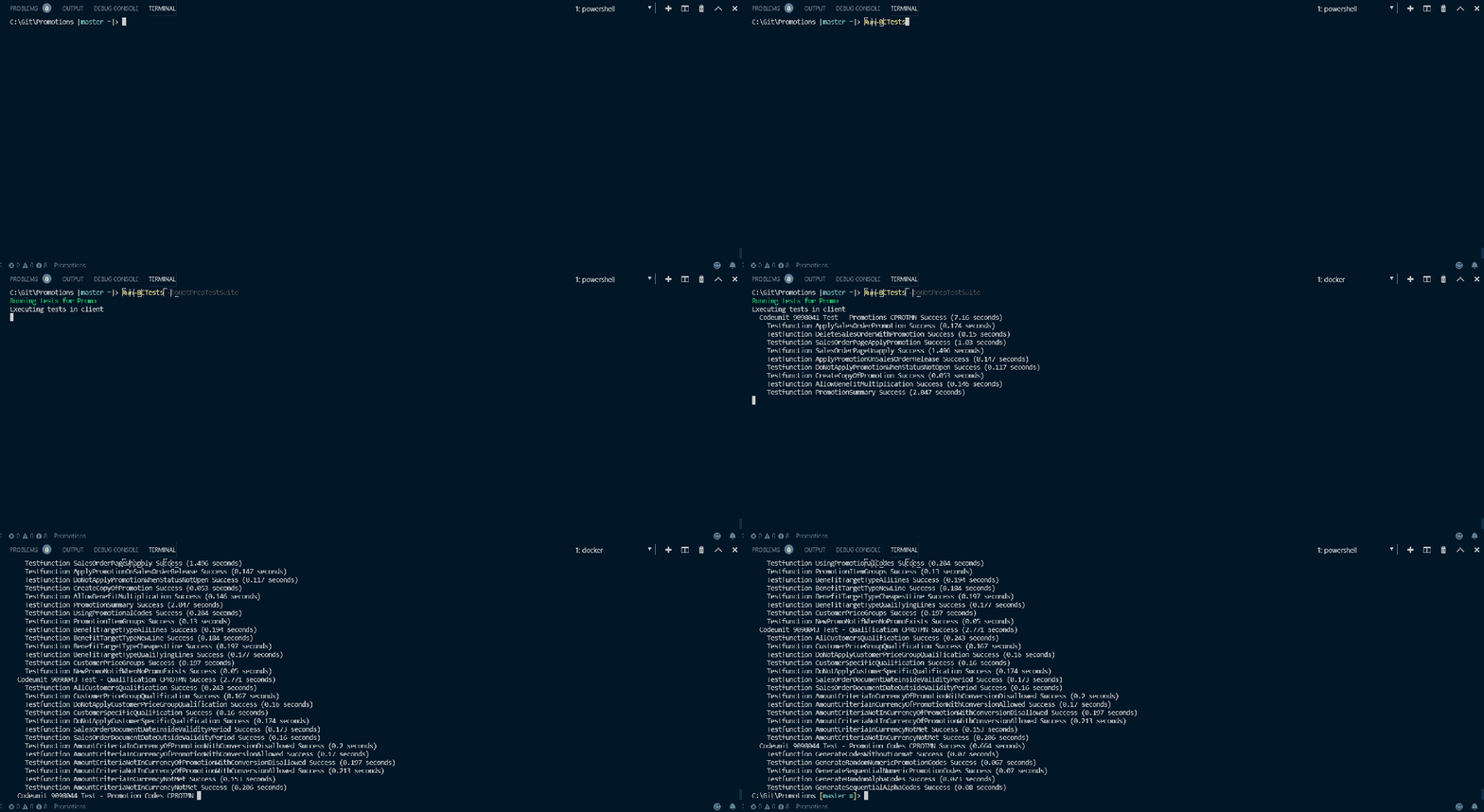
Testing Microsoft Dynamics 365 Business Central from VS Code

Execute your Microsoft Dynamics 365 Business Central tests – with a keyboard shortcut – without leaving the comfort of your favourite IDE. What’s not to love?

Background

We’ve come a long way with testing our apps in Microsoft Dynamics 365 Business Central / NAV. By “we” I mean our internal development practices but also the capabilities of the platform.

  1. We didn’t have any automated testing – we had a joke written on the white board in the development office, “F11 is testing”
  2. Microsoft made it possible to create and run automated tests in Dynamics NAV – we didn’t use it
  3. Microsoft improved the tooling with the release of the “Test Tool” page
  4. We started to experiment with it and to write our own tests
  5. We picked up the idea of automating test runs with a build pipeline…

…and that was a bit of a problem. The best way to run the tests was through the Windows client. That meant using the dynamicsnav:// protocol to open the client, creating a ClientUserSettings.config file, ending the client process when it had finished…a big improvement on not testing at all – but hardly elegant.

With Microsoft’s adoption of Docker to distribute NAV / Business Central images came Freddy’s navcontainerhelper PowerShell module. A big, and relatively recent, step forward was the ability to run a test suite in a Docker container from PowerShell.

If you don’t know I’m talking about you’re best heading over to Freddy’s blog and doing some background reading.

Running the Tests

This is all great for our build process. We can create a Docker container, install the app(s), prepare the test suite (see here), run the tests from PowerShell, upload the results and bin the container.

As soon as the ability to run tests from PowerShell became available I was interested in how we could use them in our everyday development, not just in the pipeline. If you do any reading about Test Driven Development you’ll find that it is based on a very tight feedback loop. Write a test, write a small chunk of production code, run the tests. Repeat.

I want to be able to run the tests from the same environment that I write the code – Visual Studio Code. I don’t want to be switching back and forth from VS Code to the browser, refreshing test codeunits or methods and running them there. I just don’t find it a nice way to work.

With VS Code’s built in terminal and navcontainerhelper loaded you don’t have to.

  1. Set “launchBrowser” to false in launch.json
  2. Write a test
  3. Execute Run-TestsInNavContainer in the terminal and review the results
  4. Write some production code
  5. Publish without debugging
  6. Execute Run-TestsInNavContainer in the terminal and review the results
  7. Repeat steps 2-5

I actually use Run-BCTests, a function in our own PowerShell module. Run-BCTests is a wrapper for Run-TestsInNavContainer which:

  • Reads the name of the container from launch.json (see below) – unless a different container is specified
  • Creates a PowerShell credential object from the credentials we store in a json file in the repo
  • Optionally downloads our “Build Helper” app (from its last successful build – like this) to load our test codeunits and methods into the DEFAULT suite
  • Use Run-TestsInNavContainer to run the tests and output the results to the terminal

Get-ContainerFromLaunchJson

You already have to set the name of your container in the launch.json file to publish your app, so why not read it from there rather than typing your container name all the time?

function Get-ContainerFromLaunchJson {
  param (
    # Path to launch.json
    [Parameter(Mandatory=$false)]
    [string]
    $LaunchJsonPath = (Join-Path (Get-Location) '.vscode\launch.json')
  )

  if (!(Test-Path $LaunchJsonPath)) {
    return ''
  }

  $LaunchJson = ConvertFrom-Json (Get-Content $LaunchJsonPath -Raw)
  if ($LaunchJson.configurations.Count -ne 1) {
    return ''
  }
  else {
    $Container = $LaunchJson.configurations.Item(0).server
    $Container = $Container.Substring($Container.IndexOf('//') + 2)
    $Container
  }
}

Note that the container name in launch.json will need to match the case of the Docker container name. For reasons best known to Docker container names are case-sensitive.

VS Code Tasks: Running Tests With a Keyboard Shortcut

In pursuit of making it as quick and easy as possible to execute the tests from VS Code we can go a step further and create a VS Code task.

Create a tasks.json file in the .vscode folder. Mine looks like this:

{
    // See https://go.microsoft.com/fwlink/?LinkId=733558
    // for the documentation about the tasks.json format
    "version": "2.0.0",
    "tasks": [
        {
            "label": "Run BC Tests",
            "type": "shell",
            "command": "Run-BCTests -DoNotPrepTestSuite",            
            "group": {
                "kind": "test",
                "isDefault": true
            }
        }
    ]
}

This defines a task with the label “Run BC Tests” which runs the command “Run-BCTests -DoNotPrepTestSuite” (the PowerShell function described above). It is set as the default task in the test group.

This allows you to run “Run Test Task” from the command palette.

Run Test Task

Now you can assign a keyboard shortcut to that command. Open “Preferences: Open Keyboard Shortcuts” from the command palette and search for “Run Test Task”.

Run Test Task Keyboard Shortcut.JPG

Double click that entry to set whatever keyboard combination you like. I’ve opted for ctrl+shift+T.

Conclusion

This takes us a step closer to having a code-and-test-in-the-IDE development experience and allows this kind of tight test/production code iteration without having to open the browser:

  1. Write some test code
  2. Publish without debugging (Ctrl+F5)
  3. Run the tests (Ctrl+Shift+T) and check that they fail
  4. Write production code
  5. Publish without debugging (Ctrl+F5)
  6. Run the tests (Ctrl+Shift+T) and check that they pass
  7. Repeat

Of course, this does not remove the need to open the browser, check the look and feel and test your code manually at some point but it does go some way to alleviating the pain of publishing and executing the tests in the browser.

Future

I like it, but it’s still a little clunky. For one, it runs too slowly – the gif at the head of this post is real-time. Also, you still have to populate the test suite with the test codeunits and methods that you want to run at some point. Our PowerShell module can do that, but it’s another manual step to run.

There’s only so much we can do about these issues until Microsoft overhaul the whole testing framework – which I understand they are working on. In the meantime, here’s some other ideas that we haven’t implemented yet.

  • Use the previous commit, or uncommitted changes to determine the test codeunit(s) to run. Run-TestsInNavContainer has optional parameters to specify what to run
  • Filter the results so that you are only notified of failures instead of having to pick them out of the successes
  • Work some magic in VS Code to have the test task automatically triggered when the app is published to the server

Calling SOAP Services from PowerShell

Like most of my posts this has its origin in Microsoft Dynamics 365 Business Central development – specifically our build process – although it isn’t limited to that.

We had a need to call a SOAP web service from PowerShell (see below for the background if you’re interested). In the past I’ve used Invoke-WebRequest and added content-type and a SOAPAction header to the request. Similar to this.

Joel, one of the guys in my team introduced me to New-WebServiceProxy. Well…that’s been an oversight, it makes life so much simpler, as a quick example will illustrate. As the name suggests, PowerShell reads the definition of the service and creates a PowerShell object and complex types that you need to interact with it.

Invoke-WebRequest

First, this is the old, cumbersome way that I would have used to call a SOAP web service from PowerShell.

$Credential = [System.Management.Automation.PSCredential]::new('admin',(ConvertTo-SecureString 'P@ssword1' -AsPlainText -Force))
$Body = '<soapenv:Envelope xmlns:soapenv="http://schemas.xmlsoap.org/soap/envelope/" xmlns:sal="urn:microsoft-dynamics-schemas/page/salesorder">
<soapenv:Header/>
<soapenv:Body>
<sal:Read>
<sal:No>101005</sal:No>
</sal:Read>
</soapenv:Body>
</soapenv:Envelope>'
Invoke-WebRequest -Credential $Credential -Uri http://localhost:60799/NAV/WS/CRONUS%20International%20Ltd./Page/SalesOrder -Headers (@{SOAPAction='Read'}) -Method Post -Body $Body -ContentType application/xml

Create a credential object, define the body (copied from the request created by SoapUI) then call with Invoke-WebRequest setting the credential, content-type, headers and body.

New-WebServiceProxy

And now the enlightened way.

$Credential = [System.Management.Automation.PSCredential]::new('admin',(ConvertTo-SecureString 'P@ssword1' -AsPlainText -Force))
$Client = New-WebServiceProxy -Uri 'http://localhost:60799/NAV/WS/CRONUS%20International%20Ltd./Page/SalesOrder' -Credential $Credential
$Client.Read('101005')

Create the $Client object with New-WebServiceProxy and call the method that you are interested in. If you use PowerShell ISE you can browse the intellisense like a champion.

PowerShell WebService Proxy Intellisense.JPG

If the service uses complex data types you’ll find that PowerShell has auto-generated the types for you to access them. Look under [Microsoft.PowerShell.Commands.NewWebServiceProxy.AutogeneratedTypes…] – you could use it with Business Central services that take an xmlport as a VAR parameter, for example (use the [ref] keyword in PowerShell).

What Are You Calling SOAP for Anyway?

If you’re only interested in the PowerShell details you can stop reading now – thanks for your attention.

If you’re still here then I’ll explain why we’re doing this. As part of our build process for AL apps we need to prepare the DEFAULT test suite with the test codeunits and methods that we want to run. We then run the tests with Run-TestsInNavContainer in the navcontainerhelper module.

We used to import a codeunit from a text file and use Invoke-NavContainerCodeunit to call its methods. In the last few builds of Business Central some bug in the platform has stopped this working.

Freddy posted here about installing an app and calling its API as a replacement for importing fob files. Inspired by that, we’ve done the same. Publish an app that includes a codeunit exposed as a web service and call that service to prep the test suite.

Perhaps we should have used an API page and REST instead? I don’t know if there are any strong arguments either way. This particular cat can be skinned in several different ways (I wonder how that idiom translates to non-UK readers).

An Approach to Package Management in Dynamics 365 Business Central

TL;DL

We use PowerShell to call the Azure DevOps API and retrieve Build Artefacts from the last successful build of the repository/repositories that we’re dependent on.

Background

Over the last few years I’ve moved into a role where I’m managing a development team more than I’m writing code myself. I’ve spent a lot of that time looking at tools and practices in the broader software development community. After all, whether you’re writing C/AL, AL, PowerShell or JavaScript it’s all code and it’s unlikely that we’ll face any challenges that haven’t already been faced in one way or another in a different setting.

In that time we’ve introduced:

Package Management

The next thing to talk about is package management. I’ve written about the benefits of trying to avoid dependencies between your apps before (see here). However, if app A relies on app B and you cannot foresee ever deploying A without B then you have a dependency. There is no point trying to code your way round the problems that avoiding the dependency will create.

Accepting that your app has one or more dependencies – and most of our apps have at least one – opens up a bunch of questions and presents some interesting challenges.

Most obviously you need to know, where can I get the .app files for the apps that I am dependent on? Is it at least the minimum version required by my app? Is this the correct app for the version of the Dynamics NAV / Dynamics 365 Business Central that I am developing against? Are the apps that I depend on themselves dependent on other apps? If so, where do I get those from? Is there another layer of dependencies below that? Is it really turtles all the way down?

These are the sorts of questions that you don’t want to have to worry about when you are setting up an environment to develop in. Docker gives us a slick way to quickly create disposable development and testing environments. We don’t want to burn all the time that Docker saves us searching for, publishing and installing app files before we can start work.

This is what a package manager is for. The developer just needs to declare what their app depends on and leave the package manager to retrieve and install the appropriate packages.

The Goal

Why are we talking about this? What are we trying to achieve?

We want to keep the maintenance of all apps separate. When writing app A I shouldn’t need to know or care about the development of app B beyond my use of its API. I just need to know:

  • The minimum version that includes the functionality that I need – this will go into my app.json file
  • I can acquire that, or a later, version of the app from somewhere as and when I need it

I want to be able to specify my dependencies and with the minimum of fuss download and install those apps into my Docker container.

We’ve got a PowerShell command to do just that.

Get-ALDependencies -Container BCOnPrem -Install

There are a few jigsaw pieces we need to gather before we can start putting it all together.

Locating the Apps

We need somewhere to store the latest version of the apps that we might depend upon. There is usually some central, public repository where the packages are hosted – think of the PowerShell Gallery or Docker Hub for example.

We don’t have an equivalent repository for AL apps. AppSource performs that function for Business Central SaaS but that’s not much use to us while we are developing or if the apps we need aren’t on AppSource. We’re going to need to set something up ourselves.

You could just use a network folder. Or maybe SharePoint. Or some custom web service that you created. Our choice is Azure DevOps build artefacts. For a few reasons:

  • We’ve already got all of our AL code going through build pipelines anyway. The build creates the .app files, digitally signs them and stores them as build artefacts
  • The artefacts are only stored if all the tests ran successfully which ought to give us more confidence relying on them
  • The build automatically increments the app version so it should always be clear which version of the app is later and we shouldn’t get caught in app version purgatory when upgrading an app that we’re dependent on
  • We’re already making use of Azure DevOp’s REST API for loads of other stuff – it was easy to add some commands to retrieve the build artefacts (hence my earlier post on getting started with the API)

Identifying the Repository

There is a challenge here. In the app.json file we identify dependencies by app name, id and publisher. To find a build – and its artefacts – we need to know the project and repository name in Azure DevOps.

Seeing as we can’t add extra details into the app.json file itself we hold these details in a separate json file – environment.json. This file can have an array of dependency objects with a:

  • name – which should match the name of the dependency in the app.json file
  • project – the Azure DevOps project to to find this app in
  • repo – the Git repository in that project to find this app in

Once we know the right repository we can use the Azure DevOps API to find the most recent successful build and download its artefacts.

I’m aware that we could use Azure DevOps to create proper releases, rather than downloading apps that are still in development. We probably should – maybe I’ll come back and update this post some day. For now, we find that using the artefacts from builds is fine for the two main purposes we use them: creating local development environments and creating a Docker container as part of a build. We have a separate, manual process for uploading new released versions to SharePoint for now.

The Code

So much for the theory, let’s look at some code. In brief we:

  1. Read app.json and iterate through the dependencies
  2. For each dependency, find the corresponding entry in the environment.json file and read the project and repo for that dependency
  3. Download the app from the last successful build for that repo
  4. Acquire the app.json of the dependency
  5. Repeat steps 2-5 recursively for each branch of the dependency tree
  6. Optionally publish and install the apps that have been found (starting at the bottom of the tree and working up)

A few notes about the code:

  • It’s not all here – particularly the definition of Invoke-TFSAPI. That is just a wrapper for the Invoke-WebRequest command which adds the authentication headers (as previously described)
  • These functions are split across different files and grouped into a module, I’ve bundled them into a single file here for ease

(The PowerShell is hosted here if you can’t see it embedded below: https://gist.github.com/jimmymcp/37c6f9a9981b6f503a6fecb905b03672)


function Get-ALDependencies {
Param(
[Parameter(Mandatory=$false)]
[string]$SourcePath = (Get-Location),
[Parameter(MAndatory=$false)]
[string]$ContainerName = (Split-Path (Get-Location) -Leaf),
[Parameter(Mandatory=$false)]
[switch]$Install
)
if (!([IO.Directory]::Exists((Join-Path $SourcePath '.alpackages')))) {
Create-EmptyDirectory (Join-Path $SourcePath '.alpackages')
}
$AppJson = ConvertFrom-Json (Get-Content (Join-Path $SourcePath 'app.json') -Raw)
Get-ALDependenciesFromAppJson -AppJson $AppJson -SourcePath $SourcePath -ContainerName $ContainerName -Install:$Install
}
function Get-ALDependenciesFromAppJson {
Param(
[Parameter(Mandatory=$true)]
$AppJson,
[Parameter(Mandatory=$false)]
[string]$SourcePath = (Get-Location),
[Parameter(Mandatory=$false)]
[string]$RepositoryName,
[Parameter(Mandatory=$false)]
[string]$ContainerName,
[Parameter(Mandatory=$false)]
[switch]$Install
)
foreach ($Dependency in $AppJson.dependencies) {
$EnvDependency = Get-DependencyFromEnvironment -SourcePath $SourcePath -Name $Dependency.name
$Apps = Get-AppFromLastSuccessfulBuild -ProjectName $EnvDependency.project -RepositoryName $EnvDependency.repo
$DependencyAppJson = Get-AppJsonForProjectAndRepo -ProjectName $EnvDependency.project -RepositoryName $EnvDependency.repo
Get-ALDependenciesFromAppJson -AppJson $DependencyAppJson -SourcePath $SourcePath -RepositoryName $RepositoryName -ContainerName $ContainerName -Install:$Install
foreach ($App in $Apps) {
if (!$App.FullName.Contains('Tests')) {
Copy-Item $App.FullName (Join-Path (Join-Path $SourcePath '.alpackages') $App.Name)
if ($Install.IsPresent) {
try {
Publish-NavContainerApp -containerName $ContainerName -appFile $App.FullName -sync -install
}
catch {
if (!($_.Exception.Message.Contains('already published'))) {
throw $_.Exception.Message
}
}
}
}
}
}
}
function Get-AppJsonForProjectAndRepo {
Param(
[Parameter(Mandatory=$true)]
[string]$ProjectName,
[Parameter(Mandatory=$false)]
[string]$RepositoryName
)
$VSTSProjectName = (Get-VSTSProjects | where name -like ('*{0}*' -f $ProjectName)).name
$AppContent = Invoke-TFSAPI ('{0}{1}/_apis/git/repositories/{2}/items?path=app.json' -f (Get-TFSCollectionURL), $VSTSProjectName, (Get-RepositoryId -ProjectName $VSTSProjectName -RepositoryName $RepositoryName)) -GetContents
$AppJson = ConvertFrom-Json $AppContent
$AppJson
}
function Get-DependencyFromEnvironment {
Param(
[Parameter(Mandatory=$true)]
[string]$SourcePath,
[Parameter(Mandatory=$true)]
[string]$Name
)
Get-EnvironmentKeyValue -SourcePath $SourcePath -KeyName 'dependencies' | where name -eq $Name
}
function Get-EnvironmentKeyValue {
Param(
[Parameter(Mandatory=$false)]
[string]$SourcePath = (Get-Location),
[Parameter(Mandatory=$true)]
[string]$KeyName
)
if (!(Test-Path (Join-Path $SourcePath 'environment.json'))) {
return ''
}
$JsonContent = Get-Content (Join-Path $SourcePath 'environment.json') -Raw
$Json = ConvertFrom-Json $JsonContent
$Json.PSObject.Properties.Item($KeyName).Value
}
function Get-VSTSProjects {
(Invoke-TFSAPI -Url ('{0}_apis/projects?$top=1000' -f (Get-TFSCollectionURL))).value
}
function Get-RepositoryId {
Param(
[Parameter(Mandatory=$true)]
[string]$ProjectName,
[Parameter(Mandatory=$false)]
[string]$RepositoryName
)
$Repos = Invoke-TFSAPI ('{0}{1}/_apis/git/repositories' -f (Get-TFSCollectionURL), $ProjectName)
if ($RepositoryName -ne '') {
$Id = ($Repos.value | where name -like ('*{0}*' -f $RepositoryName)).id
}
else {
$Id = $Repos.value.item(0).id
}
if ($Id -eq '' -or $Id -eq $null) {
$Id = Get-RepositoryId -ProjectName $ProjectName -RepositoryName ''
}
$Id
}

Working with Version Numbers in Dynamics Business Central / NAV

Specifically I’m talking about assigning version numbers to your own code and manipulating those versions in CAL / AL and PowerShell.

Version Numbering

There are lots of different systems for assigning a version number to some code. Some incorporate the date or the current year and day number within the year. Loads of background reading here if you’re interested.

The system we typically follow is:

Version number = a.b.c.d where:

  • a = major version – this is only incremented for a major refactoring or complete rewrite of the software
  • b = minor version – incremented when a significant new feature is implemented
  • c = fix – incremented for small changes and bug fixes
  • d = build – set to the ID of the build that created it in Azure DevOps

This system isn’t perfect and we don’t always follow it exactly as written. The line between what is just a fix and what is a new feature is a little blurry. We don’t run CAL code through our DevOps build process so they don’t get a build ID like AL apps do. Hit the comments section and tell me how and why you version differently.

Regardless, the important thing is you give some consideration to versioning. It is especially important that two different copies of your code must not go out to customers having the same version number. This is especially true for AL apps. If you want to publish an updated version of an app it must have a higher version number than the one you are replacing.

Automation

There are several situations where we need to work with version numbers in code and in scripts.

  • In the build process – reading the current version from app.json and setting the last element to equal the build ID
  • In our PowerShell script that creates a new navx package from CAL code (yes, we use v1 extensions. Not now, let’s go into that some other time)
  • In upgrade code – what was the previous version of the app? Was it higher or lower than a given version?

If you are considering, like we used to, just treating version numbers as strings…don’t. Think about it:

Treated as versions 1.10.0 is greater than 1.9.0 but when treated as strings it isn’t. That led us to split the versions into two arrays and compare each element. It worked, but it was convoluted. And completely unnecessary.

Some bright spark in our team wondered why we can’t just use .Net’s version type. We can.

CAL

Use a DotNet variable of type Version. Construct it with the version number string. NAVAPP.GETARCHIVEVERSION returns a string that can be used.

You can use the properties of the variable to access the individual elements of the version and its methods to compare to another string (less than, less than or equal to, greater than, greater than or equal to).

Version : DotNet System.Version.'mscorlib, Version=4.0.0.0, Culture=neutral, PublicKeyToken=b77a5c561934e089'
Version2 : DotNet System.Version.'mscorlib, Version=4.0.0.0, Culture=neutral, PublicKeyToken=b77a5c561934e089'

Version.Version('1.10.0');
Version2.Version(NAVAPP.GETARCHIVEVERSION);

IF (Version2.op_LessThan(Version) THEN BEGIN
  //some upgrade code that must be run when coming from an older version than 1.10.0
END;

PowerShell

Declare a variable of a given DotNet type using square brackets. Create a new version with new, Parse or TryParse. The latter expects a version variable passed by reference and returns a Boolean indicating whether a value could be assigned.

Access the elements of the version through the properties of the variable.

C:\> $Version1 = [Version]::new(1,10,0)
>> $Version2 = [Version]::new('1.9.0')
>> $Version1.CompareTo($Version2)
1

C:\> $Version = [Version]::new(1,10,0)
>> $Version.Minor
10

C:\> $Version = [Version]::new()
>> [Version]::TryParse('monkey',[ref]$Version)
False

AL

AL has a native Version datatype. As above, create a new version either from its elements or from a string. NavApp.GetArchiveVersion returns a string that can be used (for migration from v1).

To get the version of the current module (app) or of another app use NavApp.GetCurrentModuleInfo or NavApp.GetModuleInfo.

var
  Ver : Version;
  Ver2 : Version;
  DataVer : Version;
  AppVer : Version;
  ModInfo : ModuleInfo;
  ModInfo2 : ModuleInfo;
begin
  Ver := Version.Create(1,10,0);
  Ver2 := Version.Create(NavApp.GetArchiveVersion());

  if Ver > Ver2 then begin
    //some upgrade code
  end;

  //version of the current app
  NavApp.GetCurrentModuleInfo(ModInfo);
  DataVer := ModInfo.DataVersion();
  AppVer := ModInfo.AppVersion();

  //app version of the first dependency
  NavApp.GetModuleInfo(ModInfo.Dependencies().Get(1).Id(),ModInfo2); //dependencies is 1 based, not 0 based
  AppVer := ModInfo2.AppVersion();
end;

VS Code, PowerShell & Git: 5 Things

Visual Studio Code has moved quickly from “what’s that? Part of Visual Studio? No? Then why did they call it that?” to become the hub of much of my daily work. This post contains a few of the things (5 to be precise) that I’ve done to make it work better for me. Maybe you can glean something useful. Maybe you can teach me something about how you use it – post a comment.

Extensions

You can use VS Code to write JavaScript, C#, CSS, HTML and a raft of other languages, use its native support for Git and install extensions for AL (obviously), developing Azure Functions, integrating with Azure DevOps, managing Docker, writing Power Shell, adding support for TFVC…

Beautiful.

Having said that, I’m not a big fan of having lots of extensions that I only occasionally use. I’m pretty ruthless in uninstalling stuff I’m not using in Chrome and Android. VS Code is the same. If I don’t use it all the time I generally go without it. (For those of us that make apps for a living it’s a sobering thought that our prospective users are likely to be the same).

Right now I’ve got these extensions installed:

  • AL Language – every so often I need an upcoming version or a NAV 2018 version but most of the time I’ve got the one from the marketplace installed
  • Azure Account – provides some sign in magic required by other extensions
  • Azure Functions – like it sounds
  • Azure Pipelines – intellisense for YAML build definitions
  • CRS AL Language Extensions – for renaming AL files to follow best practices and because I don’t like the convention. Including the object type when the files are already in subfolders by object type and including objects IDs when we all agree we want to get rid of them and don’t care what they are as long as they’re unique seems pretty redundant to me…but I digress
  • GitLens – add blame annotations i.e. “how did this line of code get here”, file history, compare revisions, open the file in Azure DevOps
  • PowerShell – like it sounds
  • Night Owl – a theme. Because we can! Having suffered for years with an IDE that didn’t even highlight keywords I took my time trying out different themes. I like a dark theme but didn’t quite get on with the one that comes with VS Code.

Terminal

VS Code has a built in terminal. I use PowerShell a lot during the day to manage containers (with the navcontainerhelper module), manage Git and various tasks with our own module to call the with Azure DevOps REST API. It’s nice to also be able to do all that from within VS Code.

These ideas aren’t strictly to do with VS Code, but tweaking PowerShell and Git to make them more efficient for you.

Run as Administrator

If you’re going to use the terminal to manage docker containers you’re going to want to run VS Code (and therefore the terminal) as administrator.

You can set this in the Advanced section of the properties of the shortcut. This will force VS Code to always open as admin.

VS Code Shortcut Properties.JPG

I believe Freddy K is working on some changes to the navcontainerhelper module that will remove the requirement to run the cmdlets as admin. That would be nice.

PowerShell Profile

Have PowerShell automatically execute some script on loading by editing your profile. PowerShell has a built-in $profile variable which points to the location of your .ps1 profile file.

I use that file to import the posh-git module (below) and our own TFS Tools module. You could create the file with something like this (sc is an alias for the Set-Content command):

sc $profile 'Import-Module posh-git
Write-Host "PowerShell Ready" -ForegroundColor Green'

Opening a new terminal will look like this:

VS Code Terminal PowerShell Ready.JPG

Note: PowerShell ISE has a different profile file to PowerShell.

Posh-Git

I mostly use Git from the command line. I started using the command line rather than a GUI as I found it helped me understand what commands are actually being used – how fetch is different to pull, how to set tracking information for a branch or edit a remote.

And yes, perhaps there is small part of it that boosts my shallow sense of “I’m a real developer, I type weird commands into a prompt rather than clicking a button on a GUI”. It’s OK to admit that. I draw the line at Vim though.

Anyway.

If you’re planning on using Git in PowerShell you’re going to want to install the posh-git module.

Install-Module posh-git

It adds some details into the prompt (see above): the branch that you are on, how it compares to the remote branch that it is tracking and the status of your index. It adds tab completion all over the place as well – indispensable.

Git Aliases

If you do start using Git from the terminal you’re probably going to find typing some of the longer commands quite tedious. For instance, git log –graph is great to get an overview of your project and has loads of switches to alter its output. I tend to use:

git log --graph --oneline --all

To show a graph of all the branches (remote as well as local) with commit details on a single line each.

Git Log Graph Oneline.JPG

It gets you something like the above. You can see the commits that each of the branches is pointing at, which branches commits are included in and how work has been merged over time.

I don’t want to type the full command out each time though. Fortunately, Git doesn’t force you to. You can create an alias. I have:

  • git lol – to show the above graph
  • git fap – to fetch all changes from the remote and prune any references to remote branches that no longer exist (I’ve never understood why Git doesn’t automatically remove references to remote branches that no longer exist)
  • git pff – pull and merge changes from the remote branch, as long as your branch can be fast-forwarded

Conclusion

There are lots of opportunities – more than 5 – to enhance and tune VS Code and PowerShell to make your daily work more efficient. Check it out.