Managing Business Central Development with Git: Rebasing

This is part two of a series about using Git to manage your Business Central development. This time – rebasing. It seems that rebasing can be something of a daunting subject. It needn’t be. Let’s start with identifying the base of a branch before worrying about rebasing.

Example Repo

Imagine this repository where I’ve created a new branch feature/new-field-on-sales-docs to do some development.

* 445e3e1 (HEAD -> feature/new-field-on-sales-docs) Add field to Order Confirmation
* fddf9fb Set DataClassification
* 176af2d Set field on customer validation
* 3cd4889 Add field to Sales Header
* 3894d1a (origin/master, master) Correct typo in caption
* cd03362 Add missing caption for new field
* 94388de Populate new Customer field OnInsert
* c49b9c9 Add new field to Customer card

We can consider that the base of the feature branch is where it diverges from the master branch. In this example commit 3894d1a is the base (“Correct typo in caption”). Simple. Now a more complex example:

* 412ce8f (HEAD -> bug/some-bug-fix) Fixing a bug in the bug fix
* 7df90bf Fixing a bug
| * d88a322 (feature/another-feature) And some more development
| * 0d16a39 More development
|/
| * 445e3e1 (feature/new-field-on-sales-docs) Add field to Order Confirmation
| * fddf9fb Set DataClassification
| * 176af2d Set field on customer validation
| * 3cd4889 Add field to Sales Header
|/
* 3894d1a (origin/master, master) Correct typo in caption
* cd03362 Add missing caption for new field
* 94388de Populate new Customer field OnInsert
* c49b9c9 Add new field to Customer card

I’ve got three branches on the go for a couple of new features and a bug fix. Follow the lines on the graph (created with git log –oneline –all –graph) and notice that they all diverge from master at the same commit as before. That is the base of each of the branches.

Now imagine that the bug fix is merged into the master branch – it was some urgent fix that we needed to push out to customers. I’ve merged the bug fix branch, deleted it and pushed the master branch to the server.

git checkout master
git merge bug/some-bug-fix
git push
git branch bug/some-bug-fix -d

The graph now looks like this:

* 412ce8f (HEAD -> master, origin/master) Fixing a bug in the bug fix
* 7df90bf Fixing a bug
| * d88a322 (feature/another-feature) And some more development
| * 0d16a39 More development
|/
| * 445e3e1 (feature/new-field-on-sales-docs) Add field to Order Confirmation
| * fddf9fb Set DataClassification
| * 176af2d Set field on customer validation
| * 3cd4889 Add field to Sales Header
|/
* 3894d1a Correct typo in caption
* cd03362 Add missing caption for new field
* 94388de Populate new Customer field OnInsert
* c49b9c9 Add new field to Customer card

Merge Commit vs Rebase Example

Now for an example of what rebasing is and why you might want to use it.

Despite what was happened to the master branch notice that the feature branches still diverge from the master branch at the same commit. They still have the same base. This is one reason you might want to consider rebasing. If I was to merge the feature/another-feature branch into master now I would create a merge commit. Like this:

* 44c19a0 (HEAD -> master) Merge branch 'feature/another-feature'
|\
| * d88a322 (feature/another-feature) And some more development
| * 0d16a39 More development
* | 412ce8f (origin/master) Fixing a bug in the bug fix
* | 7df90bf Fixing a bug
|/
| * 445e3e1 (feature/new-field-on-sales-docs) Add field to Order Confirmation
| * fddf9fb Set DataClassification
| * 176af2d Set field on customer validation
| * 3cd4889 Add field to Sales Header
|/
* 3894d1a Correct typo in caption
* cd03362 Add missing caption for new field
* 94388de Populate new Customer field OnInsert
* c49b9c9 Add new field to Customer card

The graph illustrates that the master branch and the feature branch diverged before being merged back together. An alternative solution would be to rebase the feature branch onto the master branch. What does that mean?

Git will identify the point at which the feature branch and the target branch (master in this case) diverged. This is commit 3894d1a as noted above. It will then rewind the changes that have been made since that point and replay them on top of the target branch.

git checkout feature/another-feature
git rebase master

First, rewinding head to replay your work on top of it…
Applying: More development
Applying: And some more development

And now the graph shows this

* ac25a75 (HEAD -> feature/another-feature) And some more development
* 8db81ff More development
* 412ce8f (origin/master, master) Fixing a bug in the bug fix
* 7df90bf Fixing a bug
| * 445e3e1 (feature/new-field-on-sales-docs) Add field to Order Confirmation
| * fddf9fb Set DataClassification
| * 176af2d Set field on customer validation
| * 3cd4889 Add field to Sales Header
|/
* 3894d1a Correct typo in caption
* cd03362 Add missing caption for new field
* 94388de Populate new Customer field OnInsert
* c49b9c9 Add new field to Customer card

The two commits that comprised the feature branch have been moved to sit on top of the master branch. It’s as if the development on the feature had been started after the bug fix changes had been made.

Notice that the commit ids are different – due to how Git works internally – but the effect is the same in both cases. The version of the code at the top of the log contains the changes for the both the bug fix and the new feature.

I won’t discuss the pros and cons of either approach. Rebasing keeps the history neater – all the commits line up in a straight line. Merge commits reflect what actually happened and the order in which changes were made. There are plenty of proponents of both approaches if you want to follow the subject up elsewhere.

Interactive Rebasing

In the previous post I was discussing the value of amending commits so that they tell the story of your development. With git amend we can edit the contents and/or commit message of the previous commit.

Remember that rebasing identifies a series of commits and replays them onto another commit. That’s useful for moving commits around. It is also very useful in helping to create the story of your development. Let me simplify the example again to show you what I mean.

* 445e3e1 (feature/new-field-on-sales-docs) Add field to Order Confirmation
* fddf9fb Set DataClassification
* 176af2d Set field on customer validation
* 3cd4889 Add field to Sales Header
* 3894d1a (HEAD -> master, origin/master) Correct typo in caption
* cd03362 Add missing caption for new field
* 94388de Populate new Customer field OnInsert
* c49b9c9 Add new field to Customer card

Look at commit fddf9fb Set DataClassification. I added a new field to the Sales Header table but forgot to set the DataClassification property so I’ve gone back and added it separately. That kinda sucks. Other developers don’t need to know that. It’s an unnecessary commit that will only make the history harder to read when we come back to it in the future.

But there’s a problem. I can’t amend the commit because I’ve committed another change since then. Enter interactive rebasing.

git checkout feature/new-field-on-sales-docs
git rebase master -i

This tells Git to identify the commits from the point at which the feature diverges from master, rewind them and then apply them on top of master again. In itself, the command will have no effect as we’re replaying the changes on top of the branch they are already on.

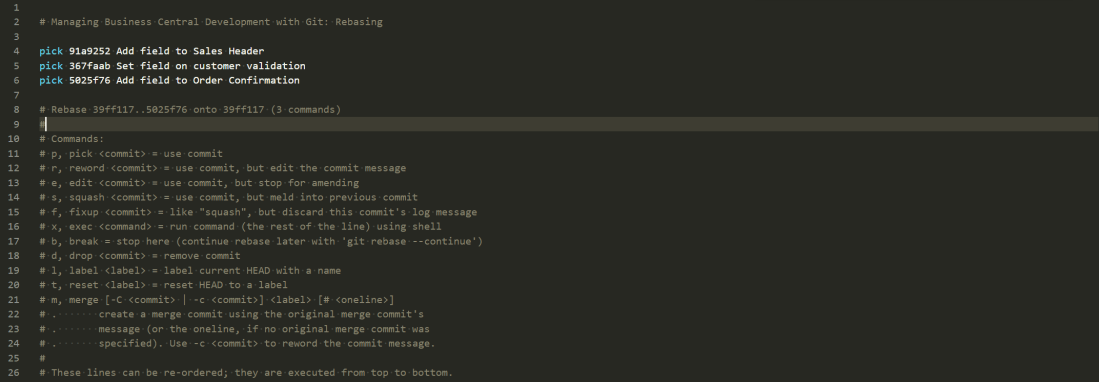
Adding the -i switch runs the command in interactive mode. You’ll see something like this in your text editor.

pick 3cd4889 Add field to Sales Header
pick 176af2d Set field on customer validation
pick fddf9fb Set DataClassification
pick 445e3e1 Add field to Order Confirmation

# Rebase 3894d1a..445e3e1 onto 445e3e1 (4 commands)
#
# Commands:
# p, pick <commit> = use commit
# r, reword <commit> = use commit, but edit the commit message
# e, edit <commit> = use commit, but stop for amending
# s, squash <commit> = use commit, but meld into previous commit
# f, fixup <commit> = like "squash", but discard this commit's log message
# x, exec <command> = run command (the rest of the line) using shell
# b, break = stop here (continue rebase later with 'git rebase --continue')
# d, drop <commit> = remove commit
# l, label <label> = label current HEAD with a name
# t, reset <label> = reset HEAD to a label
# m, merge [-C <commit> | -c <commit>] <label> [# <oneline>]
# .       create a merge commit using the original merge commit's
# .       message (or the oneline, if no original merge commit was
# .       specified). Use -c <commit> to reword the commit message.
#
# These lines can be re-ordered; they are executed from top to bottom.
#
# If you remove a line here THAT COMMIT WILL BE LOST.
#
# However, if you remove everything, the rebase will be aborted.
#
# Note that empty commits are commented out

You can think of this as a script that Git will follow to apply the changes on top of the target branch. Read it from top to bottom (unlike the Git log which is read bottom to top).

The script contains the four commits that exist in the feature branch but not in the master branch. By default each of those commits will be “picked” to play onto the target branch.

You can read the command help and see that you can manipulate this script. Reorder the lines to play the commits in a different order. Remove lines altogether to remove the commit. “Squash” one or more commits into a previous line. This is what we want.

I want to squash the “Add field to Sales Header” and “Set DataClassification” commits together. In future it will look as if I’ve made both changes at the same time. Great for hiding my ineptitude from my colleagues but also for making the history more readable. I’ll change the script to this:

pick 3cd4889 Add field to Sales Header
fixup fddf9fb Set DataClassification
pick 176af2d Set field on customer validation
pick 445e3e1 Add field to Order Confirmation

and close the text editor. Git does the rest and now my graph looks like this:

* 5025f76 (HEAD -> feature/new-field-on-sales-docs) Add field to Order Confirmation
* 367faab Set field on customer validation
* 91a9252 Add field to Sales Header
* 3894d1a (origin/master, master) Correct typo in caption
* cd03362 Add missing caption for new field
* 94388de Populate new Customer field OnInsert
* c49b9c9 Add new field to Customer card

Panic Button

Rebasing takes a little practice to get used to. You might want to include the -i switch every time you rebase to start with to check which commits you are moving around.

It isn’t uncommon to run into some merge commits when playing a commit in a rebase. You’ll get something like this alarming looking message

First, rewinding head to replay your work on top of it…
Applying: Add field to Sales Header
Applying: Set field on customer validation
Applying: Add field to Order Confirmation
Using index info to reconstruct a base tree…
Falling back to patching base and 3-way merge…
CONFLICT (add/add): Merge conflict in 173626564
Auto-merging 173626564
error: Failed to merge in the changes.
hint: Use 'git am --show-current-patch' to see the failed patch
Patch failed at 0003 Add field to Order Confirmation
Resolve all conflicts manually, mark them as resolved with
"git add/rm ", then run "git rebase --continue".
You can instead skip this commit: run "git rebase --skip".
To abort and get back to the state before "git rebase", run "git rebase --abort".

I’m not a fan of anything that has the word CONFLICT in caps…

VS Code does a nice job of presenting the content of the target branch the “current change” and the changes that are being played as part of the rebase the “incoming change”. Resolve the conflict i.e. edit the conflicted file to correctly merge the current and incoming changes and stage the file.

Once you’ve done that you can continue the rebase with git rebase –continue

If all hell breaks loose and you need to smash the emergency glass you can always run git rebase –abort, breath into a brown paper bag and the repo will be returned to the state it was in before the rebase.

Managing Business Central Development with Git: Amending History

Preamble

This is the start of a series of posts about managing AL development with Git. I don’t profess to be a Git expert and much of what I write about will not exclusively apply to Business Central development. This is a collection of approaches I’ve found to be useful when it comes to managing our source code. Take what you will, discard the rest, vociferously argue with me if you feel strongly enough about it.

Preamble over. Let’s get on with it.

(Re)Writing History

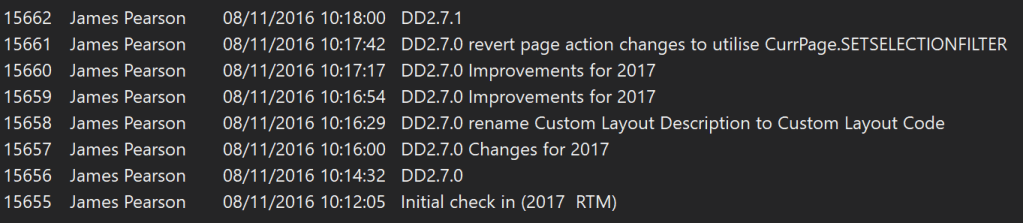
My introduction to source control was using TFVC (more here). As a centralised source control system when you check code in it is immediately pushed to the server. All the changes that anyone pushes make a nice, neat, straight line. Check-ins are given a changeset number. Those numbers are unique, always increase and can never be changed. History has been written.

Some changesets in the history of a branch in TFVC

Stands to reason. We can’t go back and change the past. But what if we could…?

You can use Git like this if you want. Make a change, commit the change, make a change, commit the change. Keep committing in a straight line and keep your history really simple.

* cd03362 (HEAD -> master) Add missing caption for new field
* 94388de Populate new Customer field OnInsert
* c49b9c9 Add new field to Customer card

Unlike TFVC you have to push those commits to the server before anyone can see them. Do that on a regular basis and make sure your colleagues are pulling your changes before they commit theirs and not much can go wrong.

That’s fine as far as it goes, but it’s not particularly elegant. What about when you make another commit correcting a typo in the caption? (Reading the history from bottom to top)

* 1ee22a6 (HEAD -> master) Correct typo in caption
* cd03362 Add missing caption for new field
* 94388de Populate new Customer field OnInsert
* c49b9c9 Add new field to Customer card

Now we’ve got two commits in the history of the project just to add a caption and get the caption correct. With TFVC you’re stuck with it, but with Git, we’ve got complete control over the history of the project.

Tell a Story

Having control over the history of the project ought to make us think differently about it. What is the history for anyway? It’s to help other developers, including our future selves, understand what changes have been made to the code and why they have been made. The best way I’ve heard this described is that we can use the commits to tell the story of the changes that we’ve made.

When you were working on this feature what changes did you make? What code did you add or remove?

The reality might be something like:

  1. Added a field to the customer table
  2. Added an OnInsert trigger to populate the new field
  3. Added a missing caption
  4. Corrected a typo in the caption
  5. Added the field to the customer card
  6. Realised the field was in the wrong group, moved it
  7. Added a missing application area
  8. Realised I should have included a suffix to the field name, renamed the field

Development can be messy. We make mistakes and fix them as we go. But is that history easy to read? Do other developers care about all the steps in the process? Does future you need to reminded of all those mistakes? No. We can do better than that.

Terminal

From here on in we’re going to use a terminal – command prompt / bash / PowerShell to manipulate the history of the repository. Don’t be intimidated – it’s fine with a little practice. I’d recommend a combination of PowerShell and posh-git module – its tab completion and status in the prompt makes life easier.

Incidentally, to show the graphs of the history in this post I’ve used:

git log --graph --oneline --all

i.e. show the log (history) of the branch as a graph with each commit on a single line.

git commit –amend

The first tool we’ve got to put some of this mess right is the –amend switch to the commit command. Perfect for when you realise you’d made a mistake with the latest commit. You’ve found a typo or forgotten to include some changes that should have been made with it.

Stage the changes that you want to include with the previous commit (using git add or VS Code or some other UI tool). Rather than committing them in the UI switch to a terminal and type git commit –amend

Amending a commit

Git will open a text file with the commit comment at the top and details of the changes which are included in the commit underneath. Change the commit comment if you want and close the file. You’ll have selected the text editor you want to use when installing Git. If you can’t remember doing that then you’ll find out what you chose now. You can change the editor in Git’s config if you like.

Congratulations. You just rewrote the history of the repo. You can do that perfectly safely on commits that are only in your local copy of the repository.

Only Share Your Changes When You’re Ready

This is one of the big benefits of a distributed source control system like Git. It’s your copy of the repo. You can do whatever you like to it without affecting anyone else until you are ready. Make mistakes. Muck about with different ideas. Start again. Redesign. Whatever.

When you are happy with the changes that you’ve made and the story that the commits tell – push those changes to the server and let your colleagues get their hands on them.

Different Versions of History

Before going on to describe other methods for manipulating history it is probably responsible to briefly discuss the consequences of rewriting commits that have been already been pushed to the server.

If this is a commit that has already been pushed to the server you should know that your history no longer matches the history on the remote.

The graph will end up looking something like this. My local copy of the commit has a different commit hash (c1152b2) to the remote copy (aea8ffa) – usually, but not necessary, called “origin”. Notice the posh-git prompt indicates this with the up and down arrows. 1 commit ahead of master, 1 commit behind master.

* c1152b2 (HEAD -> master) Correct typo in caption
| * aea8ffa (origin/master) Correct typo in caption
|/
* cd03362 Add missing caption for new field
* 94388de Populate new Customer field OnInsert
* c49b9c9 Add new field to Customer card
C:\Users\james.pearson.TECMAN\Desktop\GitDemo [master ↓1 ↑1]>

While this is the case I won’t be able to push my changes to the remote. This is what happens when I run git push

! [rejected] master -> master (non-fast-forward)
error: failed to push some refs to 'C:\users\james.pearson.TECMAN\Desktop\GitDemo-Origin.git'
hint: Updates were rejected because the tip of your current branch is behind
hint: its remote counterpart. Integrate the remote changes (e.g.
hint: 'git pull …') before pushing again.
hint: See the 'Note about fast-forwards' in 'git push --help' for details.

Updates were rejected. There is a danger that some commits on the server will be lost if my copy of the master branch is pulled as is.

The advice is to pull the commits that are on the server and incorporate them into my local copy before I push my changes again. Usually good advice. Only, in this case I want that change to be lost. The commit that is in the server’s copy but not mine is the commit that I want to overwrite. In which case, I can safely force my changes onto the server with git push -f

Before forcing your changes make sure that you know which changes are going to be lost i.e. everything from the point at which the graph diverges.

If that all sounds a little daunting, don’t do it. Practice amending local commits first and getting them into shape before you push them to the server. Being able to confidently manipulate the history of the repo with a few key commands will prove an invaluable tool in your own work and especially as you collaborate on the same code with others.

Next up, interactive rebasing.

Putting Queries to Use in Business Central

We’ve had query objects for a while now – since NAV 2013 (I think). In theory they sound great, link a bunch of tables together, aggregate some columns, get distinct values, left join, right join, cross join – executed as a single SQL query.

Why Don’t We Use Queries Much?

In practice I haven’t seen them used that much. There’s probably a variety of reasons for that:

  • We have limited control over the design and execution of the query at runtime. The design is pretty static making it difficult to create useful generic queries short of throwing all the fields from the relevant tables in – which feels heavy-handed
  • I find how the links between dataitems unintuitive
  • It isn’t easy to visualise the dataset that you are creating when writing the AL file
  • Habit – we all learnt FindFirst/Set, Repeat and Until when we first started playing with CAL development and are more comfortable working with loops than datasets. Let’s be honest, the RDLC report writing experience hasn’t done much to convert us to a set-based approach to our data

However, just because there is room for improvement doesn’t mean that we can’t find good uses for queries now. Queries are perfect for:

  • Using queries to select DISTINCT values in the dataset
  • Aggregates – min, max, sum, average, count – especially for scenarios that aren’t suited to flowfields
  • Date functions – convert date columns to day/month/year – which allows you to easily aggregate another column by different periods
  • Outer joins – it’s possible, but far more expensive, to create this kind of dataset by hand with temporary tables
  • Selecting the top X rows
  • Exposing as OData web services

It’s the last point in that list that I particularly want to talk about. We’ve been working on a solution lately where Business Central consumes its own OData web services.

What?! What kind of witchcraft is this? Why would you consume a query via a web service when you can call it directly with a query object? Hear me out…

Consuming Queries

I think you’ve got two main options for consuming queries via AL code.

Query Variable

You can define a variable of type query and specify the query that you want to run. This gives you some control over the query before you execute it – you can set filters on the query columns and set the top number of rows. Call Query.Open and Query.Read to execute the query and step through the result set.

The main downside is that you have to specify the query that you want to use at design-time. That might be fine for some specific requirement but is a problem if you are trying to create something generic.

Query Keyword

Alternatively we can use the Query keyword and execute a query by its ID. Choose whether you want the results in CSV (presumably this is popular among the same crowd that are responsible for an increase in cassette tape sales) or XML and save them either to disk or to a stream.

The benefit is that you can decide on the query that you want to call at runtime. Lovely. Unfortunately you have to sacrifice even the limited control that a query variable gave you in order to do so.

OData Queries/Pages

Accessing the query via OData moves us towards having the best of both worlds. Obviously there is significant extra overhead in this approach:

  • Adding the query to the web service table and publishing
  • Acquiring the correct URL to a service tier that is serving OData requests for your query
  • Creating the HTTP request with appropriate authentication
  • Parsing the JSON response to get at the data that you want

This is significantly more work than the other approaches – let’s not pretend otherwise. However, it does give you all the power of OData query parameters to control the query. While I’ve been talking about queries up til now almost all of this applies to pages exposed as OData services as well.

  • $filter: specify column name, operator and filter value that you want to apply to the query, join multiple filters together with and/or operators
  • $select: a comma-separated list of columns to return i.e. only return the columns that you are actually interested in
  • $orderBy: specify a column to order the results by – use in combination with $top to get the min/max value of a column in the dataset
  • $top: the number of rows to return
  • $skip: skip this many rows in the dataset before returning – useful if the dataset is too large for the service tier to return in a single call
  • $count: just return the count of the rows in the dataset – if you only want the count there is no need to parse the JSON response and count them yourself

AL Test Runner 0.1.15

This is a brief update about the AL Test Runner extension that I’ve been working on for VS Code. I’ve had some great feedback and suggestions via GitHub, a pull request correcting me being a muppet and 300-odd installs so far. Thanks to everyone who has got involved to improve it.

This version includes a new setting “Publish Before Test” which allows you to invoke either the “Publish without debugging” or “Rapid Application Publish without debugging” commands in the AL Language extension.

If you’re aiming for a quick write test->run test->write code->run test cycle then you might like to try setting this option to “Rapid application publish”. Create a test->hit Ctrl+Alt+T (rapid publish and run the current test)->see the test fail->write the code->run the test…

Rapid application publishing before running tests

Obviously, the above is a silly example. Don’t make your tests pass by simply commenting out any code that causes it to fail 😉 You’ll still need to do a full publish from time to time as not all changes are pushed in a rapid publish.

Wish List

The main improvement to the extension would come in the form of support for remote development. There are, I think, two key scenarios:

  • Visual Studio Code is running locally but Docker host is not i.e. apps are being published to some central server
    • The ALTestRunner module would need to be installed on the Docker host (maybe served from the PowerShell Gallery?) and the PowerShell commands invoked on the server (through SSH? through a PowerShell session?)
  • Remote Visual Studio Code development – where both VS Code and the Docker host are running remotely somewhere
    • I don’t know enough about this way of working yet (we’ve only ever developed on Docker containers running on our own laptops) but with AL Test Runner installed on the remote end maybe this sort of works already?

In both cases I think the results file would need to passed back somehow to the developer’s machine in order to decorate the local copy of the AL file that they are working on. If you know more about these scenarios than I do or have other suggestions I’d be glad to hear from you.

I’m planning a few other bits and pieces like adding the path to file/line of a failing test in the Output window so that you can click and jump straight to it.

And with that I’m going to sign off for this year. Merry Christmas and see you in 2020!

Some More About Translating Business Central Apps

I’ve written before about using Azure Cognitive Services to translate the captions in the .xlf file that is generated when you compile your Business Central app. For us, the motivation is to make our apps available in as many countries as possible in AppSource.

Since then Søren Alexandersen has announced that it will not be necessary to provide all of a country’s official languages to make your app available in that country.

If you going to provide translations you might be interested in how to improve upon a the approach of the last post.

The Problem

The problem of course is that we are relying on machine translation to translate very short phrases or single words. A single word can mean different things and be translated in many different ways into other languages depending on the context. Context that the machine translation doesn’t have. That’s what makes language and etymology simultaneously fascinating and infuriating.

The problem is compounded by abbreviations and acronyms. You and I know that “Prod. Order” is short for “Production Order”. But “Prod” is itself an English word that has nothing to do with manufacturing.

We know that FA is likely short for “fixed asset” but if you don’t know that the context is an ERP system it could mean a whole range of things. How is Azure supposed to translate it?

What we need is some domain-specific knowledge.

The Solution

When we think about it we know that we’ve already got thousands of translations of captions into the languages that we want – if only we can get them into a useful format. We’ve got Docker images of Business Central localisations. They contain the base app for the location complete with source/target pairs for each caption.

If you can get hold of the xlf file it’s a relatively simple job to search for a trans-unit that has a source node matching the caption that you want to translate and find the corresponding translated target node.

As an example, I’ve created a container called ch from the image mcr.microsoft.com/businesscentral/sandbox:ch – the Swiss localisation of Business Central.

Find and expand the base application source.

$ContainerName = 'ch'
$Script = {Expand-Archive "C:\Applications.*\Base Application.Source.zip" -DestinationPath 'C:\run\my\base'}

Invoke-ScriptInBCContainer -containerName $ContainerName -scriptblock $Script

This script will find the zip file containing the localised base application and extract it to the ‘C:\run\my\base’ folder. This will take a few minutes but when it is done you should see a Translations folder containing, in the case of Switzerland, four .xlf files.

The following script will load the fr-CH .xlf file into an Xml Document, search for a trans-unit node which has a child source node matching a given string and return the target i.e. the fr-CH translation.

$Language = 'fr'
$enUSCaption = 'Prod. Order Line No.'
[xml]$xlf = Get-Content (Get-ChildItem "C:\ProgramData\NavContainerHelper\Extensions\$ContainerName\my\base\Translations" -Filter "*$Language*").FullName

$NSMgr.AddNamespace('x',$xlf.DocumentElement.NamespaceURI)
$xlf.SelectSingleNode("/x:xliff/x:file/x:body/x:group/x:trans-unit[x:source='$enUSCaption']", $NSMgr).target

Which returns “N° ligne O.F.” – cool.

Some Obvious Points

I’m going to leave it there for this post, save for making a few obvious points.

  • This is hopelessly inefficient. Downloading the localised Docker image, creating the container, extracting the base app – all to get at the .xlf files. We’re going to want a smarter solution before using this approach in any volume and for more languages
  • Each .xlf file is 60+MB – that takes a while to load into memory – you’ll want to keep the variable in scope and reuse it for multiple searches rather than reloading the document
  • Not all of the US English captions you create in your app will exist in the base application – you’ll still want to send those off for translation.

Maybe we can start to address these points next time…