Performance of Test Code

Let’s talk about the performance of the test code that we write for Business Central. What do I mean by “performance” and how can we improve it?

Defining “Performance”

Obviously, before we set out to improve something we need to have an idea of what it is we’re trying to optimise for. I’m coming to think of the performance of test code in a couple of key ways:

  1. How easy/quick is it to write test code?
  2. How quickly do the tests run?

Performance of Writing Tests

I suppose none of the below points are specific to test code. They are relevant to any sort of code that we are writing but we can be more inclined to neglect them for test code than production code. If you embrace any sort of automated tested discipline you’re going to spend a significant proportion of your time reading and writing test code – perhaps even as much as you do on production code. It is well worth investing a little time to clean up the code and making it easier to read and maintain.

Comments

Say what you like about comments in production code – variable names should declare the intent, comments are evil blah blah – I do find a few comments valuable in a test.

In fact, I write them first. Given some set of circumstances, when this happens then this is the expected result. Writing those sentences first helps to be clear about what I’m trying to test and what the desired behaviour actually is.

Of course the code in between those comments should be readable and easy to follow – but if you are diligent with a few comments per test you can describe the expected behaviour of that part of the system without having to read any code.

Grouping Tests Logically

I appreciate the situation is different for VARs but as an ISV we have large object ranges to do our development in. There is no reason for us to bundle unrelated code into the same codeunit. If we are starting work on separate from existing business logic then it belongs in its own codeunit. In which case, why wouldn’t the corresponding tests also go in their own codeunit?

Ideally I want to be able to glance down the list of test codeunits that we have and see logical grouping of tests that correspond to recognisable entities or concepts in the production code. If I want to see how our app changes the behaviour of warehouse receipts I can look in WhseReceiptTests.Codeunit.al.

Refactoring Into Library Codeunits

As soon as you start writing tests you’ll start working with the suite of library codeunits provided by Microsoft. You’ll notice that they are separated into different areas of the system e.g. Library – Sales, Library – Warehouse, Library – Manufacturing and so on.

Very likely you’ll want to create your own library codeunit to:

  • Initialise some setup, perhaps create your app’s setup record, create some No. Series etc.
  • Create new records required by your tests – it is useful to follow the convention LibraryCodeunit.CreateXYZ(var XYZ: Record XYZ);
  • Consider having those Create functions returning the primary key of the new record as well so the result can be used inline in the test e.g.
    • LibraryCodeunit.CreateXYZ(var XYZ: Record XYZ): Code[20]
    • LibraryCodeunit.CreateXYZNo(): Code[20]
  • Use method overloads for the create functions – have an overload with more parameters when you need to specify extra field values but keep a simple overload for when you don’t
  • Identify blocks of code that are often required in tests and consider moving them to a library method e.g. creating an item with some bespoke fields populated in a certain way

Having a comprehensive library codeunit brings two benefits:

  1. Tests are easier and faster to write if you already have library methods to implement the Given part of the test
  2. Less code in the tests, making them easier to read

Performance of Running Tests

First, why do we care about how long tests take to run? Does it really matter if your test suite takes an extra minute or two to run?

Obviously, we want our builds to complete as quickly as possible, while still performing all the checks and steps that we want to include. The longer a build takes the more likely another one is going to be queued at the same time and eventually someone is going to end up having to wait. We’ve got a finite number of agents to run simultaneous builds (we host our own – more on that here if you’re curious).

But that isn’t the biggest incentive.

I’m a big fan of running tests while I’m developing – both new tests that I’m writing to cover my new code and existing tests (more on that here). I usually run:

  • the test that I’m working on very frequently (at least every few minutes – see it fail, see it pass)
  • all the tests in that codeunit frequently (maybe each time I’ve finished with a new test)
  • the whole test suite every so often (at least 2-3 times before pushing my work and creating a pull request)

After all, if you’ve got the tests, why not run them? I should know sooner rather than later if some code that I’ve changed has broken something. If the whole test suite takes 60 seconds to run that’s fine. If it takes 10 minutes that’s more of a problem.

In that case I’ll be more inclined to push my changes to the server without waiting, keep a build agent busy for half an hour, start working on something else and then get an email saying the build has failed. Something I could have realised and fixed if I’d run the test suite before I pushed my changes.

So, how to make them faster?

Minimal Setup

First, only create the scenario that is sufficient for your test. For example, we work with warehousing functionality a lot. If we’re testing something to do with warehouse shipments do we need a location with advanced warehousing, zones, bin types, bins, warehouse employees…?

Probably not. Likely I can create a location without Bin Mandatory or Requires Pick and still create a sufficient test.

If you need ledger entries to test with you may be able to create and post the relevant journals rather than creating documents and posting them. Creating an item ledger entry by posting an item journal line is faster than posting a sales order.

Or, you probably want to prevent negative inventory in real life – but does that matter for your test? Save yourself the trouble of having to post some inventory before shipping an item and just allow it to go negative.

Try to restrict the setup of your tests to what is actually essential for the scenario that you are testing. Answering that question is, in itself, a useful thought process.

Shared Fixture

Better yet, set something up once per test codeunit and reuse it in each of the tests. This what Luc van Vugt refers to as a “shared fixture”. You should check out his blog for more about that.

I feel a little mixed about this. I like the idea that each test is entirely responsible for creating its own given scenario and isn’t dependent on anything else but this is denying that this is faster. Finding a posted sales invoice that already exists is much faster than creating a customer, item, sales order and shipping and invoicing it.

No Setup

What is even faster than setting up some data one time? Doing it no times. Depending on what you are testing you may just be able to insert the records you need or call field validation on a record without inserting it.

If I’m testing that validating a field behaves in a certain way I may not need a record to actually be inserted in the table.

Alternatively if you need a sales invoice header to test with you might be able just to initialise it and call SalesInvHeader.Insert; It feels so wrong – but if your test just needs a record and doesn’t care where it came from, who cares? It will all be rolled back after the tests have run anyway.


Managing Business Central Development with Git: Platforms

Another post about Business Central development and Git. Maybe the last one. Who knows?

Whatever your precise circumstances, if you are developing apps for Business Central you have to be mindful of the differences between BC versions and how it affects your app. If you are only developing for SaaS you might only care about the current and next version.

If you are developing and maintaining apps for the on-prem/PaaS market then likely you need to concern yourself with a wider range of BC versions. Even a we-only-support-Business-Central-and-not-NAV stance means we are now supporting four major versions – 13, 14, 15 and 16. I refuse to call the versions “Business Central <Year> <Spring Release/Fall Release/Wave One/Wave Two> – a number makes much more sense to me. Also, I’m British – “fall” is an accident, not a season.

Nomenclature aside, all of this does present us with a challenge. How do we maintain the source code for our apps, for different Business Central versions, in an efficient manner?

Changes Between Versions

For the uninitiated, what sorts of changes are we talking about between platform versions? There are various things to think about:

  • Runtime differences e.g. new mandatory properties in app.json
    • contextSensitiveHelp
    • target – using “Cloud” instead of “Extension”
    • dependencies – using “id” instead of “appId”
    • depending on the “System Application” and “Base Application” apps rather than using the application property
  • Standard fields that have recently been converted to enums
  • Standard functionality that has been moved, methods that have new signatures

And of course, many of you will have experienced the pain of the BC14 -> BC15 upgrade. TempBlob, Base64, Languages, Tenant Mgt. / Environment Info, Calendar Management – all breaking changes. Microsoft were criticised, rightly so, for breaking BC14 compatible apps so badly in BC15.

To their credit, however, Microsoft said that they would minimise future breaking changes, instead marking code as becoming obsolete for at least 12 months until it is removed. That has been borne out with the release of BC16. All but one of our BC15 apps works without any changes in BC16. The exception was an app that was using the Sorting Method on Warehouse Activity Header which has been converted from an option to an enum and now has different values. Microsoft sent me an email with the details of the compilation error.

Strategy

How to manage this then? When we first switched from developing AL apps on NAV2018 (don’t – it’s more trouble than it’s worth) to BC13 we created a new Git repo for each app. It became obvious that we don’t want to keep doing that. We don’t want as many repos as number of apps * number of supported BC versions. We need something smarter than that.

We’ve settled on something like this instead:

  • the master branch has the stable code for the current release of BC (as of this week, BC16), app.json has a platform value to match the latest version (16.0.0.0) and is built against the current Docker image (mcr.microsoft.com/businesscentral/sandbox)
  • new development is done against the current BC (worldwide) version in release, bug, and feature branches (as described here)
  • the code for each version of BC that we are supporting is in a BC13, BC14 or BC15 branch – this branch has an appropriate platform value in app.json and is built against a sandbox Docker image of that version

Imagine a repo like this:

* 3b6ba3c (HEAD -> BC14) Env. Info changes for BC14
* 5e3fda6 TempBlob changes for BC14
* 0f85829 Update Docker image for BC14
* e4fe665 app.json for BC14
| * 517615b (BC15) Update Docker image for BC15
| * e893e39 app.json for BC15
|/
* 60fe758 (tag: 1.1.0, master) Some changes for v1.1.0
* 8bd6f26 (tag: 1.0.0) Initial version

The current version of our app is 1.1.0 and we are supporting the current version of BC (BC16, in the master branch) and BC15 and BC14 in their respective branches. Revisiting an earlier idea, I like to think of these branches as telling a story, answering the question – “what changes do you have to make to the current version of the code to make it compatible with this version of BC?” For BC15 the answer is “not much” – just change app.json and the Docker image. For BC14 the answer is likely to be somewhat longer.

Now we are going to work on the next version of our app, v1.2.0. These changes would go through feature branches, pull requests, a release branch and eventually into master. I’ll skip all that and just show a new commit in the master branch.

* cd7b2ff (HEAD -> master, tag: 1.2.0) Changes for v1.2.0
| * 3b6ba3c (BC14) Env. Info changes for BC14
| * 5e3fda6 TempBlob changes for BC14
| * 0f85829 Update Docker image for BC14
| * e4fe665 app.json for BC14
|/
| * 517615b (BC15) Update Docker image for BC15
| * e893e39 app.json for BC15
|/
* 60fe758 (tag: 1.1.0) Some changes for v1.1.0
* 8bd6f26 (tag: 1.0.0) Initial version

Pushing those changes to the master branch triggers a build against BC16. Now, we want to include the 1.2.0 changes in the BC15 and BC14 versions of our app. We can simply rebase the BC15 and BC14 branches back on top of the master branch.

* f4a7d9b (HEAD -> BC14) Env. Info changes for BC14
* dd072ea TempBlob changes for BC14
* ad8905b Update Docker image for BC14
* 184001e app.json for BC14
| * 71140f4 (BC15) Update Docker image for BC15
| * 2981c4d app.json for BC15
|/
* cd7b2ff (tag: 1.2.0, master) Changes for v1.2.0
* 60fe758 (tag: 1.1.0) Some changes for v1.1.0
* 8bd6f26 (tag: 1.0.0) Initial version

(Force) Pushing the changes to the BC15 and BC14 branches will trigger new builds of the app against their respective Docker images.

Depending on what the v1.2.0 changes actually were, we may need to do some more work in the BC14 branch to make the new code compatible e.g. if the new code included some use of the TempBlob codeunit.

* ff1455b (HEAD -> BC14) More TempBlob changes
* f4a7d9b Env. Info changes for BC14
* dd072ea TempBlob changes for BC14
* ad8905b Update Docker image for BC14
* 184001e app.json for BC14
| * 71140f4 (BC15) Update Docker image for BC15
| * 2981c4d app.json for BC15
|/
* cd7b2ff (tag: 1.2.0, master) Changes for v1.2.0
* 60fe758 (tag: 1.1.0) Some changes for v1.1.0
* 8bd6f26 (tag: 1.0.0) Initial version

Going back to the idea of the BC14 branch telling a coherent story of making the app compatible with BC14, does it make much sense to have two commits of TempBlob changes? No. It doesn’t add anything for a developer looking at the repo in the future. We can sort that with an interactive rebase: git rebase -i master

pick 184001e app.json for BC14
pick ad8905b Update Docker image for BC14
pick dd072ea TempBlob changes for BC14
pick f4a7d9b Env. Info changes for BC14
pick ff1455b More TempBlob changes

Change the rebase script to tell Git to “fixup” the second TempBlob change into the first.

pick 184001e app.json for BC14
pick ad8905b Update Docker image for BC14
pick dd072ea TempBlob changes for BC14
fixup ff1455b More TempBlob changes
pick f4a7d9b Env. Info changes for BC14

Those changes will be melded together and keep the history of the repo neat and readable.

Problem with Case Statement in Business Central 13

This is a a pretty niche post. Hopefully this problem only exists in a specific set of circumstances, in Business Central v13, but we wasted enough hours of our lives chasing it down yesterday that I thought I’d share it.

Consider this case statement:

i := 3;
test := true;

case i of
  1:
    exit('i equals 1');
  2:
    if test then
      exit('i equals 2, test is true')
    else
      if true then
        exit('you shouldn''t be here');
  else
    exit('i equals something else');
end;

exit('something bad has happened');

It exits with the result “i equals something else” – as you’d expect.

But if you replace the tests in the case with something more complex – one() and two() are methods that return integer 1 and 2:

i := 3;
test := true;

case i of
  one():
    exit('i equals 1');
  two():
    if test then
      exit('i equals 2, test is true')
    else
      if true then
        exit('you shouldn''t be here');
  else
    exit('i equals something else');
end;

exit('something bad has happened');

Now it exits with “something bad has happened”. The else of the case statement (line 10) is jumped over and the final exit line is hit instead.

It seems like the final else is attached to the previous if and no longer as part of the case statement. Putting begin…end around the previous case solves the problem.

i := 3;
test := true;

case i of
  one():
    exit('i equals 1');
  two():
    begin
      if test then
        exit('i equals 2, test is true')
      else
        if true then
          exit('you shouldn''t be here');
    end;
  else
    exit('i equals something else');
end;

exit('something bad has happened');

Putting a begin/end here is something I would have done previously anyway – to make the intention of the code clear – even though the code analyser now warns that they aren’t needed here.

As far as we can see this all works as expected in BC 14 and above, but is broken in all versions of BC 13.

Managing Business Central Development with Git: Branching Strategy

The last few posts have been about manipulating the history of your Git repository, getting comfortable tools like rebase, reset, cherry-pick and commit –amend. That’s all geared towards trying to create a history which is more than just a record of stuff that happened but tells a story of the development of your app that is useful for your colleagues and your future self.

This post is on the same theme but we’re talking about your branching strategy. Remember one of the strengths of Git is how easy it is to create branches to isolate pieces of development from each other. That’s an awesome tool – but how do we make best use of it?

When is it useful to separate pieces of development from each other in different branches? How and when do you stick the pieces of the jigsaw back together again?

Options

As you’d expect there are a lot of different approaches and no shortage of people online supporting each one. Here are some popular options. I won’t attempt to critique them because we haven’t tried them all and because you can read, try them out for yourselves and form your own opinions.

Git Flow

https://nvie.com/posts/a-successful-git-branching-model/

This approach has a “develop” branch alongside master and feature branches which are used to manage the work in progress before they are merged back to master only when they are ready to be released.

GitHub Flow

https://guides.github.com/introduction/flow/

As with Git Flow, work in progress changes are isolated in their own branches. Unlike Git Flow they are merged directly back into master once they have been reviewed and are ready to go.

Trunk Based Development

https://trunkbaseddevelopment.com/

The key idea is to avoid having long-lived branches other than the trunk (master) branch. Development can be done against other branches but only to facilitate code review and discussion. Changes should be committed to master at least every 24 hours.

Considerations

As before adopting any tool or practice we need to think about our particular circumstances and needs. What are we actually trying to achieve? By all means read about what other people are doing. If you keep reading I’ll share what we’re (currently) doing but you should think about your own requirements, decide on something that makes sense for you and be prepared to improve it in future.

I think there is something to learn from each of the strategies I’ve linked to.

App Development

We are developing apps for Business Central either to be deployed via AppSource or installed through our partners on-premise to their customers. Either way, making a new version of our app available to our customers is not a trivial exercise.

When we submit a new version of our app it is typically at least 3 or 4 working days until it is available in AppSource. For on-prem customers we are reliant on our partners to upgrade the apps manually. Neither of these scenarios exactly falls into the ideal “continuous deployment” category. Some branching strategies are geared towards getting code into master as soon as possible so it can be pushed to the production environment each day, or even multiple times a day.

However attractive that might sound that is just isn’t reality for us – at least not yet. We’re due to be getting an API for pushing updates to AppSource, which is great, but as long as it is backed by a manual certification process I can’t see Microsoft thanking us for pushing multiple updates each day.

Given the lead time to getting a release live we should be quite careful about what is going to go into each one. We don’t really have the luxury of pushing an update immediately after another because we forgot to include something.

#1 Create a Release Branch

We start by creating a release branch. This is where we are going to collect all the changes that should be included in the next release before they are merged into the master branch. We do occasionally bundle in last minute changes and fixes to a release but we ought to have a pretty clear idea of what the release will include before we start.

Imagine we’ve got this repo. All of the commits are merged into the master branch which is tagged with 1.0.0. Tags are useful additional pointers to particular places in the history of the repo. In future if we want to see the code as it was in v1.0.0 we can just run git checkout 1.0.0

* 3894d1a (HEAD -> master, tag: 1.0.0, origin/master) Correct typo in caption
* cd03362 Add missing caption for new field
* 94388de Populate new Customer field OnInsert
* c49b9c9 Add new field to Customer card

Now create a new branch to use as our release branch. For now this just points to the same commit as master.

git branch release/1.1.0

#2 Create Individual Feature and Bug Branches

Now we’ll create separate branches for each feature or bug fix that we’ve decided to include in release 1.1.0. Why not just do all the changes we need in the release branch? Because we want to be able to develop and test them separately from each other.

* 381c83d (HEAD -> bug/commission-calc) Fix rounding error in commission calc
| * e9d31b4 (feature/sales-report) Action to open sales report from customer
| * 78102dd Sales report
|/
| * c450814 (feature/sales-price-calc) Prices in non-base UOM
| * dd5f6c0 Prices in additional currencies
| * 02fa619 Pricing elements per item
|/
* 3894d1a (tag: 1.0.0, origin/master, release/1.1.0, master) Correct typo in caption
* cd03362 Add missing caption for new field
* 94388de Populate new Customer field OnInsert
* c49b9c9 Add new field to Customer card

The graph might look something like this now. Separate branches with one or more commits in each. Incidentally, naming the branches feature/* and bug/* is just a convention – it doesn’t have any affect on how they are managed.

#3 Create Pull Requests and Complete Quickly

When each feature or bug fix is ready for review and testing we create a pull request targeting the release branch. Pull requests in Azure DevOps are great. However, in my experience there are two main things that make pull requests less great, or even bad.

  1. Bundling too many changes in a single pull request
  2. Leaving them open for too long

Having lots of changes makes it difficult to review and test those changes. Which means no one is enthusiastic to do it. Which means it gets left open for a long time.

Leaving pull requests open for a long time means people forget what the changes were for and whether they have already been tested. It becomes a burden that no one wants to take responsibility for. Eventually someone completes it because we’re all sick of seeing it on the list. Not an ideal reason to complete it.

We’ve got a couple of measures on our team dashboard – number of open pull requests and average age of those requests in days. If the average age is creeping over 7, say, then we’re likely doing something wrong.

We squash the commits when the pull request is completed. Like it sounds, that squashes all of the changes that are in the feature or bug branch into a single commit which is added to the release branch. We lose some of the history doing this but I think it makes it more readable later on. We are rarely interested in the details of how we wrote a certain feature – just that we did, and these were the changes that we made.

* 35cf673 (HEAD -> release/1.1.0) Merged PR 03: Commission Calc
* b23b8c5 Merged PR 02: Sales Report
* 8007dcf Merged PR 01: Sales Price Calc
| * 381c83d (bug/commission-calc) Fix rounding error in commission calc
|/
| * e9d31b4 (feature/sales-report) Action to open sales report from customer
| * 78102dd Sales report
|/
| * c450814 (feature/sales-price-calc) Prices in non-base UOM
| * dd5f6c0 Prices in additional currencies
| * 02fa619 Pricing elements per item
|/
* 3894d1a (tag: 1.0.0, origin/master, master) Correct typo in caption
* cd03362 Add missing caption for new field
* 94388de Populate new Customer field OnInsert
* c49b9c9 Add new field to Customer card

Here is the graph now. I’ve removed the remote branches to keep it simpler. Notice the “Merged PR” commits which have been created by completing the pull requests. I’ve still got local branches with the individual changes. These can now safely be deleted now that those changes have been squashed into the release branch.

#4 Merge into Master and Tag

Each push to the server triggers a pipeline to compile the code and run the tests. Assuming those builds are passing and with the manual testing that we’ve done we ought to be confident that the changes work as expected. Each time we complete a pull request it runs a build incorporating the other completed changes. If that passes as well then we’re ready to merge the changes into master, delete the release branch and tag the new version as 1.1.0

* 35cf673 (HEAD -> master, origin/master, tag: 1.1.0) Merged PR 03: Commission Calc
* b23b8c5 Merged PR 02: Sales Report
* 8007dcf Merged PR 01: Sales Price Calc
* 3894d1a (tag: 1.0.0) Correct typo in caption
* cd03362 Add missing caption for new field
* 94388de Populate new Customer field OnInsert
* c49b9c9 Add new field to Customer card

The end result – at least what we’re aiming for – is a neat summary of the changes that have been made between the two versions. We can see the changes which we made for each feature or bug fix in those commits. If we want more detail we can always go back and view the completed pull request on Azure DevOps.

In a future post we’ll think about how to manage different versions of the code for different versions of Business Central.

Further Reading

Check out Michael Megel’s post on the same topic here: https://never-stop-learning.de/branching-workflow-ci-cd-part-6/

Tip: Format AL Files OnSave in Visual Studio Code

Maybe everyone else is already doing this and I’m just slow on the uptake but Visual Studio Code has options to automatically format files at various points.

The AL extension for VS Code provides a formatter for .al files. You can run it manually with the Format Document command (Shift+Alt+F). This inserts the correct number of spaces between parameters and brackets, indents lines correctly and generally tidies the current document up.

You can have VS Code automatically format the document when pasting, typing and saving. Search for format in the settings.

These settings will be applied globally. Alternatively you can enable the formatting just for specific file types. Click on the AL link in the right hand corner of the status bar and choose “Configure AL language based settings…”

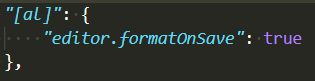
This opens the VS Code settings JSON file in your AppData folder (on Windows) and adds an [al] object to the file. Create the “editor.formatOnSave” and set its value to true to enable AL formatting when the files are saved. You can use intellisense (Ctrl+Space) to list the valid options in this file.

VS Code for the win.