An Introduction to Pull Requests in Azure DevOps

An Intro to the Intro

I’ve previously written about our experience with source control and our eventual migration to Git. I said that pull requests in Azure DevOps are awesome and are one of the biggest reasons to consider the switch to Git. In this post we’ll dig a little more into the details of why they are so good and how to use them.

What Are You Trying to Achieve?

Before we start, don’t forget that code review (i.e. pull requests in Git) and source control are tools. They are a means to an end and not an end in themselves.

I get it. We’re developers and typically we love the latest tools and gadgets. We go to a conference and we hear “You should be using… Docker / PowerShell / Agile / Azure DevOps / pair programming / test-driven development / insert some other tech or best practice here…” That’s great, as long as we don’t lose sight of why we should be using them. What are you trying to achieve? What problem do you have that this new tool or practice will alleviate? What will its introduction make more efficient?

Think about how you’d answer those questions. Write them down. Discuss with colleagues. Leave yourself a voice memo. Whatever works. Just make sure you’ve got some idea of how introducing this tool is going to help achieve your team’s goals.

The Goal

OK, let’s start with the goal. Better quality software, delivered faster.

  • Better quality means the code is clear, easy to read and maintain, does what it is supposed to do and doesn’t do more than it is supposed to do
  • Delivered faster means we are able to take a requirement or bug, make the code changes and get them out to our users in a shorter space of time

One of the ways we will work towards that goal is by reviewing code before it is shipped. You might query how adding a review step allows us to deliver faster but consider time that is sometimes wasted going back and forth with a consultant or customer fixing bugs that could have been found during  a code review.

The Process

Before we get stuck into the specifics of pull requests in Azure DevOps, take a minute to think about how you’d want this process to work. Consider the requirements of both the reviewers and the author. This is my list.

  • Clearly identify the code changes that are under review
  • Select one or more colleagues to review the code
  • Allow the reviewers to add comments. It must be clear which line(s) of code the comments are about. Comments must be visible to all reviewers
  • Allow for discussion of particular issues. The author may need to answer questions, reviewers may need to add clarifications to their comments
  • The author must be able to make further code changes to create a new version of the code under review. Reviewers should be able to see the changes that have been made between versions
  • Send notifications to reviewers when a change is made to a review that they are involved in
  • Record when reviewers are satisfied that the changes can be shipped
  • Keep a record of the review after it has been completed so that it can be referred back to, if necessary

Beyond the scope of this post, but related:

  • Run automated tests against the code under review and record the test results
  • Prevent a review from being completed if any associated tests have failed
  • Mandate that code can only be shipped after it has been through a code review

Do you agree with those requirements? What does your current process look like? How many of those points can you tick off? Would you see value in adopting a process that would allow you to tick more, or all, of those points of the list?

Pull Requests

On to the topic at hand. A pull request is the process of merging code changes between branches in Git repositories – or in our scenario between two branches in the same repository.

Pull Request.gif

  • Developer clones the repository to their local machine
  • Create a new local branch to start some new feature e.g. the branch might be called feature/some-new-feature
  • Start developing and committing their changes to that local branch
  • Push local branch to create a copy on the server (usually referred to as origin)
  • Create a pull request to merge the changes from the feature/some-new-feature branch to the master branch
  • Reviewers and author discuss the changes. Author (or another developer) pushes new commits to create an update to the pull request. Repeat as necessary
  • Complete the pull request to merge the changes into the master branch
    • While completing, optionally squash the commits into a new single commit (as shown in the gif)

Creating the Pull Request

You’ve done some work in a new branch in your local repository and have pushed that branch to the server. When you view the branches in Azure DevOps in the browser portal it prompts you to create a pull request for this new branch.

Typically you will be prompted to create a pull request from your new branch (referred to as the “source branch”) into the master branch (the “target branch”). If you follow some workflow that merges your changes into a development / release / some other branch first you can change the target branch and the request will update accordingly.

You will see the code differences between the source and target branches – these are the changes that are under review. If you have already associated the commit(s) in the source branch with work items they will be automatically associated with the pull request. You can manually add or remove work items as well. This provides useful context for the reviewers. Also some might ask, if you don’t have a work item describing the changes you’ve made…why have you changed anything?

Add individual or groups of reviewers and they will receive email notifications that their expertise and opinions are required.

Identifying Changes

PR Identifying Changes.jpg

The pull request shows a tree of folders/files that have been modified. The changes for each file are highlighted on the right. It’s nice and easy for everyone to see the code changes that are included in this pull request. You can also see the work item(s) that are associated with this pull request for a description of the requirements that these changes are designed to meet.

Updates

By default you’ll be looking at the changes that have been made across all updates made to the pull request i.e. all pushes to the source branch since the request has been opened. You can, however, just view changes made in a given update. Imagine you’ve already reviewed the code and given some feedback and the author has made a small change to address your comments. You can select the latest update to only see the latest changes.

PR Update Selection.jpg

Comments

The most impressive thing about the pull request flow is the comments. Highlighting the code that the comment relates to and posting your message creates a new thread which supports:

  • Others posting new messages in context to that thread
  • Tracking the status of the comment (active, resolved, won’t fix)
  • @mentioning colleagues to alert them to something
  • Linking to work items with #work item no.
  • Pasting images and emoji, liking comments
  • Seeing which update the comment refers to
  • Tracking how the code in question has changed between updates

If you have a requirement to get your team reviewing each other’s work and collaborating on code (and if you don’t…really?) then this is a lovely tool to help you do it.

The last point is especially good. If I arrive late to a review and some comments and updates have already been made I am easily able to catch up. I can see the comments that have already been made and the code changes that were made to resolve them.

PR View Original Diff.gif

Notifications

Azure DevOps provides a lot of flexibility to configure how and when you want to be notified about pull requests. You can receive an email when:

  • You are included as a reviewer on a new pull request
  • A new update is created i.e. new commits are pushed to the source branch
  • The request is completed or abandoned
  • A reply is posted to a comment thread that you opened
  • You are @mentioned

In addition to notifications the _pulls view (https://dev.azure.com/organisation/_pulls) provides an overview of the pull requests that you have created or are a reviewer for and their status.

Voting

When you’ve reviewed the code changes you cast your vote on the pull request. The options are: Approve, Approve with suggestions, Wait for author, Reject.

Completing

Once the comments have been commented upon and the votes voted on you can hit the big Complete button. This marks the pull request as being complete and merges its code changes from the source branch into the target branch. With the following options:

  • Complete linked worked items
  • Delete source branch
  • Squash changes into a single, new commit on the target branch

We tend to have all three ticked. If there are a bunch of tiny changes in the source branch e.g. fixing typos then I don’t particularly want to see those in the target branch. Generally we’re happy with all the changes related to the request being grouped into a single commit.

The request, complete with comments, commits and votes is archived and remains on Azure DevOps if you need to refer back to it. Like most things in Azure DevOps you can access them through the REST API as well – as I did the other day to get some stats on how many requests we had completed in 2018.

More

And there is a load more than that as well. Beyond this post, but maybe a topic for another day. I hope the above has been enough to whet your code review appetite to try it out and investigate further.

  • Protecting branches to only allow changes from a pull request (as opposed to pushing commits directly to the branch)
  • Enforcing a minimum number of reviewers and preventing users from reviewing their own changes
  • Enforcing that a build must run – and succeed – before the request can be completed
  • Enforcing that all comments are resolved before completing the request
  • Automatically include certain users or groups as reviewers on specified branches

Automatically Creating a CI Pipeline in Azure DevOps with YAML

TL;DR

Name your yml file .vsts-ci.yml and put it in the root of your project.

What Does the Title Mean?

There is a lot of chat about build pipelines and continuous integration (CI) at the moment. For the uninitiated let’s break down the title of this post:

  • CI = continuous integration, the practice of integrating ongoing development into your master development branch as soon as possible, making use of automated testing and building of your .app/.fob/.txt files
  • Azure DevOps = Microsoft’s platform for hosting your development projects, track tasks, builds and releases (formerly called Visual Studio Team Services, formerly called Team Foundation Server)
  • YAML = a markup language you can use to define the steps included in your automated build

This post isn’t an introduction to these concepts. You can find out more here:

YAML Pipeline

These days the cool kids are using .yml files to define the steps in their build. We’ve used the visual editor the define our pipelines in Azure DevOps for a while, but I think a .yml file is better, because:

  • Your build definition becomes part of your source code, meaning you get version history, you can do code review on its changes and link changes to your build with corresponding changes to the source code
  • Reusing the same pipeline across multiple Azure DevOps projects is easier – just copy the .yml file between the repositories
  • Azure DevOps can automatically create the CI pipeline for you (finally he gets to the point of the post)

Automatically Creating the Pipeline

Simply name your YAML build definition file .vsts-ci.yml, put it in the root of the repository and push it to Azure DevOps. The platform will automatically create a new CI pipeline for the project, using the steps defined in the file and kick off the build.

This makes me pretty happy.

Credit to Abel Wang: https://www.youtube.com/watch?v=u3PNaLjTak4

Part 3: Integration Between Extensions in Dynamics 365 Business Central

Trig Calculator.gif

Sample Code: https://github.com/jimmymcp/calculator-interface

This post is in a series (parts one and two here) discussing the challenges and practical approaches to breaking your functionality into discrete extensions and getting them to integrate with one another.

In the previous post I described my attempt to declare and implement interfaces in AL with a heady mix of a discovery pattern, Codeunit.Run and manually bound subscribers. In this post I’m going to walk through an example.

The example is, of course, a calculator. Cos, sin and tan calculations will be handled by separate modules all implementing a TRIG interface and its Calculate method.

The calculator should be able to make use of any of the calculations independently of the others and it should be possible to maintain a calculation module without affecting anything else.

calculator structure.JPG

Before we start, a few things to note:

  • We can’t actually define an interface and implement it in any formal way in AL. Not in a sense that will give you a compile-time error if you don’t implement it correctly. Microsoft are aware that this is something we need and are investigating how they might bring this to AL e.g. check out the “Designing for extensibility” session at NAVTechDays 2018. This is my attempt to bring the benefits of interfaces to Business Central development until Microsoft give us something better
  • For the sake of convenience I’m using a calculator example rather than the file handler scenario I have been discussing in this series. This approach could be considered for any scenario where you have multiple, independent implementations of similar functionality
  • Also for convenience, all of the sample code is in a single app. In reality it would be split into 5 apps as per the diagram above

Registering Implementations

With all that said let’s get down to the details. The first thing is that each of the calculation modules registers themselves as an implementation of the TRIG interface.

Each module has a pair of codeunits:

  1. Binding – responsible for subscribing to the discovery event and registering the implementation and for binding an instance of the Calculation codeunit
  2. Calculation – contains the methods that actually implement the interface events, is manually bound

The below code is from the CosBinding codeunit. It adds a new entry into the Interface Implementation table to register a implementation of the TRIG interface called COS. It also specifies the codeunit to run when the COS implementation needs to be used – itself.

[EventSubscriber(ObjectType::Codeunit, Codeunit::"Interface Mgt.", 'OnRegisterInterface', '', false, false)]
local procedure OnRegisterInterface(var InterfaceImplementationBuffer: Record "Interface Implementation" temporary)
begin
  InterfaceImplementationBuffer.AddNewEntry('TRIG','COS',Codeunit::"Cos Binding",0);
end;

You’ll see the same code for the SIN and TAN implementations.

Looking Up Implementations

Now that we’ve got multiple implementations of the same interface we need some way of allowing code that requires the interface to select the appropriate implementation.

field(Operation; Operation)
{
  ApplicationArea = All;
  AssistEdit = true;
  trigger OnAssistEdit()
  var
    InterfaceImplementation: Record "Interface Implementation";
    InterfaceMgt: Codeunit "Interface Mgt.";
  begin
  if InterfaceMgt.LookupInterfaceImplementation('TRIG', InterfaceImplementation) then
    Operation := InterfaceImplementation."Implementation Code";
end;
}

The Operation field on the Calculator page allows the user to select the operation they want to perform i.e. which implementation of the TRIG interface to use in the calculation.

The Interface Mgt. codeunit provides a lookup of the implementations that have been registered for a given interface and returns the selected record.

Invoking Interface Methods

Now we’ve registered the implementations and selected the specific one we want to use it’s time to actually invoke it.

action(Calculate)
{
  ApplicationArea = All;
  Image = Calculate;
  Promoted = true;
  PromotedCategory = Process;
  PromotedOnly = true;

  trigger OnAction()
  var
    InterfaceMgt: Codeunit "Interface Mgt.";
    AppIntegrationData: Codeunit "App Integration Data";
    Handled: Boolean;
  begin
    AppIntegrationData.SetIntegationData('Angle', Angle);
    InterfaceMgt.InvokeInterfaceEvent('TRIG', Operation, 'Calculate', AppIntegrationData, Handled);
    if Handled then
      Result := AppIntegrationData.GetIntegrationDataDecimal('Result', 0)
  end;
}

I’m using a instance of the App Integration Data codeunit as a container for the data that needs to be passed between the implementation codeunit and the codeunit that is calling it. In my case I just need to pass in an angle and retrieve the result of the calculation.

InvokeInterfaceEvent tells the Interface Mgt. codeunit to invoke the Calculate method in the TRIG interface and the implementation selected in the Operation field. The instance of App Integration Data is passed in along with a Handled flag.

If the event has been handled then retrieve the value of the Result variable – as a decimal – from the App Integration Data codeunit.

And that’s it.

InvokeInterfaceEvent

So how does the appropriate Calculation codeunit get called?

This is the InvokeInterfaceEvent method.

procedure InvokeInterfaceEvent(InterfaceCode: Code[20]; ImplementationCode: Code[20]; EventName: Text; var IntegrationData: Codeunit "App Integration Data"; var Handled: Boolean)
begin
  Clear(InterfaceCodeunit);
  if not GetInterfaceImplementation(InterfaceCode, ImplementationCode, InterfaceImplementation) then
    Error(NoInterfaceImplementationErr, InterfaceCode);

  InterfaceImplementation.TestField("Codeunit ID");
  Codeunit.Run(InterfaceImplementation."Codeunit ID");
  if not InterfaceCodeunit.IsCodeunit() then
    Error(NoInterfaceCodeunitErr, InterfaceImplementation."Codeunit ID", InterfaceImplementation."Interface Code", InterfaceImplementation."Implementation Code");

  OnInterfaceEvent(EventName, IntegrationData, Handled);
  Clear(InterfaceCodeunit);
end;

First, check that a valid interface and implementation have been specified and throw an error if not.

Then test that a Codeunit ID has been specified by the selected implementation and run that codeunit. As we saw above, when registering the implementation the (Cos/Sin/Tan)Binding was specified as the codeunit to run. That codeunit is responsible for binding an instance of the correct (Cos/Sin/Tan)Calculation codeunit and passing that instance back to the Interface Mgt. codeunit (see below).

The InovkeInterfaceEvent has a global InterfaceCodeunit variable which keeps that bound codeunit instance in scope ready to respond to the OnInterfaceEvent event call.

Before calling OnInterfaceEvent we check that the InterfaceCodeunit variable does actually contain a codeunit.

After the OnInterfaceEvent call the InterfaceCodeunit is cleared to dispose of the bound codeunit and ensure it doesn’t respond to any more events until we need it again.

Binding Codeunit OnRun

This is the OnRun trigger of the CosBinding codeunit. All it does it bind an instance of the corresponding Calculation codeunit and pass that instance back to Interface Mgt.

trigger OnRun()
var
  InterfaceMgt : Codeunit "Interface Mgt.";
  CosCalculation : Codeunit "Cos Calculation";
begin
  BindSubscription(CosCalculation);
  InterfaceMgt.SetInterfaceCodeunit(CosCalculation);
end;

OnInterfaceEvent

Now that we have a instance of the appropriate Calculation codeunit bound it will respond to the OnInterfaceEvent event and we can run whatever business logic we want.

Here is the CosCalculation codeunit. It:

  1. Subscribes to OnInterfaceEvent
  2. Has a case statement to handle the event that has been called (in real life an implementation will likely implement multiple methods)
  3. Reads the Angle variable from the App Integration Data codeunit
  4. Uses System.Math to calculate the result
  5. Stores the result in the Result variable in the App Integration Data codeunit
  6. Sets Handled to true
local procedure Calculate(var AppIntegrationData : Codeunit "App Integration Data")
var
  Math : DotNet Math;
  Angle : Decimal;
  Result : Decimal;
begin
  Angle := AppIntegrationData.GetIntegrationDataDecimal('Angle',0);
  Result := Math.Cos(Angle);
  AppIntegrationData.SetIntegationData('Result',Result);
end;

[EventSubscriber(ObjectType::Codeunit, Codeunit::"Interface Mgt.", 'OnInterfaceEvent', '', false, false)]
local procedure OnInterfaceEvent(EventName: Text; IntegrationData: Codeunit "App Integration Data"; var Handled: Boolean)
begin
  case EventName of
    'Calculate':
      begin
        Calculate(IntegrationData);
        Handled := true;
      end;
  end;
end;

Conclusion

And there you have it. Provided you can live with the shared dependency at the bottom of the dependency tree this achieves the two objectives that we set out with:

  1. Splitting functionality into multiple, discrete apps that can be developed and maintained independently of each other
  2. Having those apps integrate with each other to provide the required functionality to the end user

It’s not the most elegant solution and coding this way means you don’t get much help from the IDE. If you mistype a variable or event name somewhere everything will compile but nothing will work.

Hopefully at some point Microsoft will give us a better solution to these challenges but in the mean time take as much or as little inspiration from our approach as you like.

Part 2: Integration Between Extensions in Dynamics 365 Business Central

This post follows on from my discussion of extensions and integration and dependencies between them. Find the first part here.

TL;DR

  • You can use a base app as a common dependency for the apps that you want to integrate
  • Have one app raise an event publisher with the required event data and another app subscribe to that event
  • Use EventSubscriberInstance = Manual with BindSubscription to create an instance of the subscriber that you want for a given event call
  • Use a SingleInstance codeunit in the base app to keep the subscriber in scope to respond to events and CLEAR them when you’re done

Scenario

So far we’ve established the scenario of four apps: some business logic that is handling files from an external system and three file handler apps that are pushing and pulling those files from various sources.

The key objectives are to write each of these apps in such a way that:

  1. They integrate together to provide the overall functionality that the customer requires
  2. We can reuse one or more of the apps in other projects flexibly without needing to install dependencies that we aren’t using

Objective #2 means that we can’t have any dependencies between the apps. In Part 1 we discussed how you might achieve that with Codeunit.Run but some of the challenges that leaves us with.

Interfaces

Let’s picture how we might design a solution without worrying about the actual limitations of the AL language first.

In our example the file handlers are working with different sources (local network, FTP and Amazon S3) but they are providing common functionality. We’d probably need them all to:

  • List files in a given directory
  • Get the contents of a specific file
  • Delete files
  • Create new files

We might define all of the methods that we’d require a file handler to provide in an interface and have each file handler app implement that interface. This serves as a contract between the business logic app and the file handlers that the file handlers will always provide an agreed set of methods.

Polymorphism

A related, but slightly different idea is polymorphism. We might have a file handler base from which other file handlers inherit and override their functionality. This has the advantage of allowing the business logic app to create an instance of a file handler and call its methods without worrying about the precise type of file handler that is implementing those methods. For example, the business logic app can request that a file handler lists available files without knowing, or caring, precisely how that is being handled.

Yes, But We Code in AL not C#

Great. Thanks for the theory but none of this is possible in AL so why are talking about it? While we can’t write a solution using an interface or inheritance we can take inspiration from those approaches.

There are a couple of key challenges that we have to get a little funky in AL to overcome:

  1. How do we create an instance of a codeunit at runtime without knowing what that codeunit will be at design-time?
  2. How do we call methods in that codeunit without knowing which codeunit we’re talking about at design-time?

Use Events…Obviously

In one way the answer is simple. That’s what an event publisher is for. I call an event subscription and am able to call code in subscribers without knowing that they even exist at design-time. Perfect, apart from we are trying to avoid creating dependencies between our apps…remember? The file handlers can’t subscribe to an event in the business logic unless they depend on it or vice versa.

Common Dependency

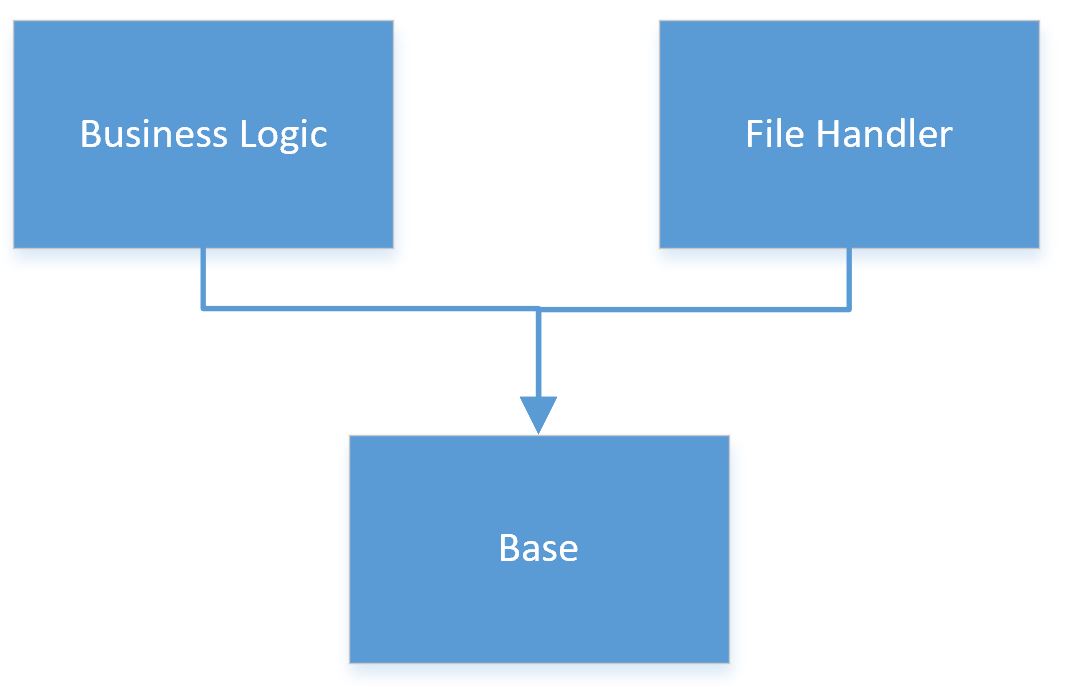
One way to work around that is to have a common dependency between the apps that you want to integrate. Have the business logic raise an event in the base dependency that the file handler depends upon.

The base app could have some events that expose useful functionality to the business logic app (the sort of methods listed above).

Each file handler app could subscribe to those events and implement them.

We’re getting closer.

Pros

  • Only install the file handlers that you actually need
  • Decouples the business logic from the file handlers, they can be installed and maintained independently
  • We can pass AL types natively through the event parameters i.e. no need to serialize them and stuff them into a TempBlob record

Cons

  • If you want to support new methods you need to modify the base app which means you need to uninstall everything on top of it first
  • All file handlers will respond to all events raised in the base app. We’ll need to set a parameter to indicate which file handler we want to respond and have all file handlers respect it. Not insurmountable, but not particularly elegant either

Option D

With all that preamble I’ll get on to describing the Option D that I promised in the previous post.

I’ll attempt to outline our (current) approach in comprehensible English here but follow up with an example in the next post. This approach attempts to combine the best of both worlds:

  • Codeunit.Run targets a specific codeunit to run (rather than shouting for someone to help and having all the file handlers come running at the same time)
  • Events subscriptions allow you to pass native AL types

Credit to vjeko.com/i-had-a-dream-codeunit-references. This design takes some of the ideas Vjeko discusses in his post.

Listen…but Only When You’re Spoken To

We have a base app that is a common dependency for the apps that we are integrating as per the diagram above. The file handlers subscribe to an event in the base app which the business logic app is able to raise and pass appropriate parameters to. With multiple file handlers installed how do we prevent them from all responding all of the time? We want the business logic app to control which file handler’s event subscription fires each time.

The EventSubscriberInstance property. Set that to Manual for a codeunit and it will only respond to events when an instance of it is bound with BindSubscription. The codeunit will continue to respond until it is explicitly unbound or the instance goes out of scope. So, in order to have a particular subscriber respond we need a bound instance of its codeunit in scope when the event publisher is fired.

Interface Mgt.

The instances of subscribers are managed by a SingleInstance codeunit, Interface Mgt. Each file handler app requires a pair of codeunits:

  1. contains the logic i.e. the specifics of that file handler (EventSubscriberInstance = Manual)
  2. to register itself as an implementation of an interface, to bind an instance of codeunit 1 and pass that instance to Interface Mgt. when required

The flow is something like this (concentrate, this is the science bit):

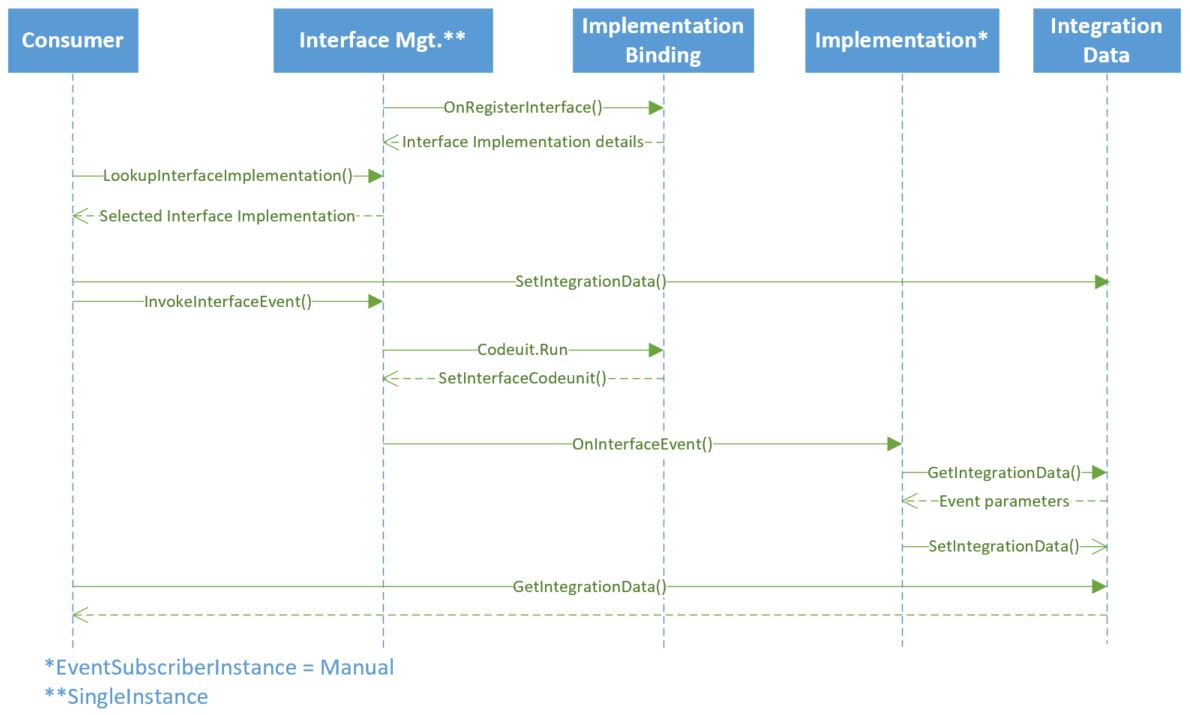
  1. Interface Mgt. calls for interface implementations with a discovery event
  2. File handlers register their implementation with an Interface Code, Implementation Code, Codeunit ID (codeunit 2 as described above), Setup Page ID
    • File handlers that implement the same set of functions should have the same Interface Code e.g. “FILE HANDLER”
    • The Implementation Code uniquely identifies each handler e.g. “NETWORK”, “FTP”, “AMAZON S3”
  3. The business logic app asks Interface Mgt. to provide a lookup of available implementations for a given interface
    • Use this to assist with some setup in the business logic app
  4. The business logic app sets parameter values and asks Interface Mgt. to raise the event in a given file handler e.g.
    • Event Name = “GetFileContents”
    • Interface Code = “FILE HANDLER”
    • Implentation Code = “FTP”
    • Any other required event payload data
  5. Interface Mgt. runs the codeunit set on registration of the interface implementation (step 2)
    • That codeunit is responsible for binding an instance of the codeunit that contains the file handler logic
    • It passes that instance back to Interface Mgt. which stores it in a variant and keeps it in scope long enough to respond to the event in the following step
  6. Interface Mgt. calls the OnInterfaceEvent event with the payload set above (step 4)
  7. Regardless of how many subscriber there are to this event there should only be one bound codeunit in scope (the one set in step 5) so this is the only codeunit to respond to the event
  8. The file handler responds to the event, reading the event parameters and setting response data as appropriate
  9. The consumer reads the response information as required

Event Payload

I’ve talked about event parameters and response data above. How can you pass the required data in the OnInterfaceEvent event? We use an instance of a codeunit in the base app as a container for all the data associated with the event.

This codeunit has a bunch of methods for storing and retrieving data from the codeunit but essentially it is just an array of variants. We pass some data to the codeunit and tag it with a name and retrieve it again with the same name. This allows us to store any AL data types with their state and avoid serializing them.

Think of the Library – Variable Storage codeunit, it’s very similar.

Conclusion

Pros

  • The Interface Mgt. codeunit is generic and should be suitable for reuse in other scenarios where you have multiple implementations of given functionality
  • You can have as many implementations as you like and still be specific about the one you want to invoke each time
  • Pass instances of AL types around with their state e.g. a temporary set of Name/Value Buffer records or an xmlport without having to recreate it from JSON or XML

Cons

  • We’ve solved our objective of removing dependencies between extensions…with a dependency. Smart. Maybe if Microsoft made something like this available in the base app we could achieve our objectives with no dependencies at all
  • Complexity. Conceptually this is harder to follow than just using Codeunit.Run although once in place I don’t think the file handlers are any more difficult to write

Example

If none of that made much sense then fear not. I’ll show some example code and a calculator implementation next time.

Integration Between Extensions in Dynamics 365 Business Central

Extensions provide the opportunity for us to write and maintain our code in tidy, discrete blocks. This is good for separating concerns and breaking our functionality into logical pieces. But how do we get those pieces to play nicely together?

Scenario

The topic is probably best discussed with an example. Imagine that you’re writing some functionality to pull some files, handle them in Business Central and push some other files back out.

It doesn’t matter what the files are for now – they could be JSON, XML, CSV, whatever. Also we won’t worry about how we’re handling them – perhaps creating items, posting documents – the usual stuff.

For our purposes, the interesting part is that we are ‘pulling’ and ‘pushing’ the files from and to different sources. Let’s say we need to support a local network share, an FTP site and Amazon S3. Three quite distinct things to support but we’re going to need common functionality i.e. checking for available files, retrieving files, deleting files, creating files.

This is a good opportunity to create separate apps: one with the business logic concerned with handling the file content and three separate apps concerned with pushing and pulling the files from the different sources.

Why separate apps? A few things to consider:

  1. Although they are doing similar things, the code for each source type isn’t going to bear much resemblance. Splitting them makes each app responsible for one thing, making it easier to write and maintain i.e. separation of concerns.
  2. Splitting the apps means you can resuse them individually. If you have a project that only requires the Amazon S3 component you only install that and avoid bundling functionality that the customer isn’t using.
  3. In this scenario, handling local files will require using code that isn’t allowed in the cloud. If you bundle everything into a single app you won’t be able to use that app for SaaS implementations i.e. you’ll need to set the target to internal in app.json

Structure

OK, so you’ve decided to split this requirement into four apps. While that’s good for the reasons given above it does present a challenge. How do you structure these apps so that they can communicate with each other?

Option A: Business Logic Depends on File Handlers

Probably the most obvious thing to do is to have the business logic app depend on the file handlers. Business logic can start a process to pull new files and push results back. The file handlers can handle the request and pass the results back to the business logic. Or maybe the file handlers could throw an event when there is a new file available. Seeing as the business logic depends on the file handlers it can call their functions and subscribe to their events directly. Nice and simple.

business logic depends on file handlers.JPG

Pros

  • The most straightforward approach
  • Business logic can call the file handler functionality directly

Cons

  • Only one, but I think it torpedoes this option. With this approach if you ever want to resuse the business logic you’re going to have to first install all the file handlers. Even if the customer isn’t using them. Including the network share app, which means you can’t deploy any of it to SaaS. Bummer.

Option B: File Handlers Depend on Business Logic

How about the other way round? Make the file handlers depend on the business logic. Business logic could raise an event requesting that the file handlers do something – push, pull, read a file. You could use the event parameters to target the request at a particular file handler and get some results back.

file handlers depend on business logic.JPG

Pros

  • Still quite straightforward to write
  • You only need install the file handlers that you are actually using in a project

Cons

  • You’ve carefully crafted some generic, reusable functionality in the file handlers so you want to make sure that you do resuse them on other projects. Trouble is, in order to do that you’re now going to have to install your business logic app with them. Even if you’re not going to use it. Also bummer.

Dependencies

And that illustrates the trouble with dependencies. They are great for simplifying how your extensions can interact with each other but makes it more difficult to have truly  resuable and interchangeable components that you can implement in other projects.

Not to mention that it adds a small amount of hassle keeping your dependency symbols up to date while you’re developing and that when you want to update an app you have to uninstall it’s dependants first.

Don’t get me wrong. I’m not suggesting that you should never use dependencies. We use them a lot. You just need to be aware of the implications before you create that relationship. You are stating that you will never find a need to install the dependant without also installing the dependency. In our example that is clearly not the case. We are going to want to be able to reuse one or more of the file handlers without reusing the business logic.

Option C: [Object].Run, RecordRef

Perhaps it’s better to try and avoid dependencies then? Maybe – but that swaps the above issues for a different set of challenges. How do you get the separate extensions to interact with each other when they are not aware of each other?

Object.Run to the rescue. The big win is that you can run an object that you don’t need to specify at design-time. Report Selections are an example that have been around just about forever. The user can pick the reports and the system can flexibly handle them (assuming they’ve picked a valid report for the usage – but let’s ignore that for now).

In a similar way RecordRefs provide access to records and related functions (getting, inserting, deleting, filtering, finding, field values etc.) without necessarily knowing the records and fields you are working with at design-time.

Codeunit.Run

Clearly the guts of your apps are going to live in codeunits. You can use Codeunit.Run to call those codeunits without each app needing to be aware of another’s inner workings or even existence. This is more like it.

Now, most likely you need to pass some data to the codeunit that you are running. How do you to that when you can only call the OnRun function? Codeunits can take a record (VAR) parameter. You can use this parameter to pass whatever you want.

Codeunit Parameter

If your app exposes some specific business logic you might find it useful to pass a record from some master data, document or journal table (Customer, Sales Header, Item Journal Line etc). In our example the file handlers need to support a range of functions so it is probably going to be more useful to pass a generic record to the codeunit with some text to tell it what you want it to do and get the result back.

Candidate tables might include:

  • TempBlob – stuff whatever you want into the Blob field e.g. JSON, XML
    • This could include a command e.g. PULL FILE, LIST FILES, PUSH FILE that the codeunit should execute
    • Some parameters e.g. the name of the file to be pulled, the content and name of the file to be pushed
  • Name/Value Buffer – only takes text up to 250 characters, but that might be sufficient in some cases
    • It avoids bothering with a Blob field (although TempBlob has functions to write and read text to and from the Blob these days)

Other Considerations

  • There are JSON helper codeunits you can use (1234, 5459) as well as native JSON data types in AL.
  • The same is true of XML (XMLports, XML Buffer table and native AL types)
  • Remember that codeunit parameters are VAR which is useful in at least two ways
    • The codeunit that is called can set values in the record and they will be passed back to the calling codeunit e.g. pass the contents of a file back in the Blob field of the TempBlob record
    • You can pass a set of records (temporary records or filtered set) e.g. a file handler might list all the files in a directory in a set of Name/Value Buffer records. The calling codeunit is then able to just REPEAT…UNTIL over the set rather than extracting the result from a string.

I won’t go into any more detail on this approach here as the subject has already been covered.

Pros

  • The apps are disconnected from each other now. We can reuse one or more of them in another project as we choose without worrying about dependencies
  • This approach is likely flexible enough for most things you need to do. As long as you can represent your data as JSON or XML you can pass it between the codeunits

Cons

  • Not as straightforward to write, maintain or debug – parameters must be FORMATted and EVALUATEd back into their native type aka serialization
  • RecordRefs and FieldRefs aren’t as nice to work with a Records. Your code will be full of object and field IDs rather than names and will be more verbose
  • There is no way to pass complex types with their state. That is possible using dependencies, but not with Codeunit.Run
    • What if I’ve started to populate a record but before inserting I need to call another extension and I want to pass that record (not a copy with the same field values)?
    • If I’ve got global variables set in a codeunit or page I can’t pass them with Codeunit.Run

Option D: To be continued…

We’ve illustrated some of the challenges that arise when splitting your functionality into separate apps. Hopefully some of the above ideas will help you overcome them.

Let’s not overcomplicate things – if creating a dependency solves your problem and you’re happy with all the implications you should just do that. Otherwise, consider clearly defining the data your apps need to exchange and pass a record to Codeunit.Run.

In the next post I will give an option D for your consideration which attempts to address some of the remaining challenges.